Setting monitoring options in your workspace
Workspace Owners and Admins can configure how work data is collected and managed across the team. These settings include activity and idle time tracking, app and website usage, timesheets, expenses, schedules, and breaks.
Open workspace settings
To access these options:
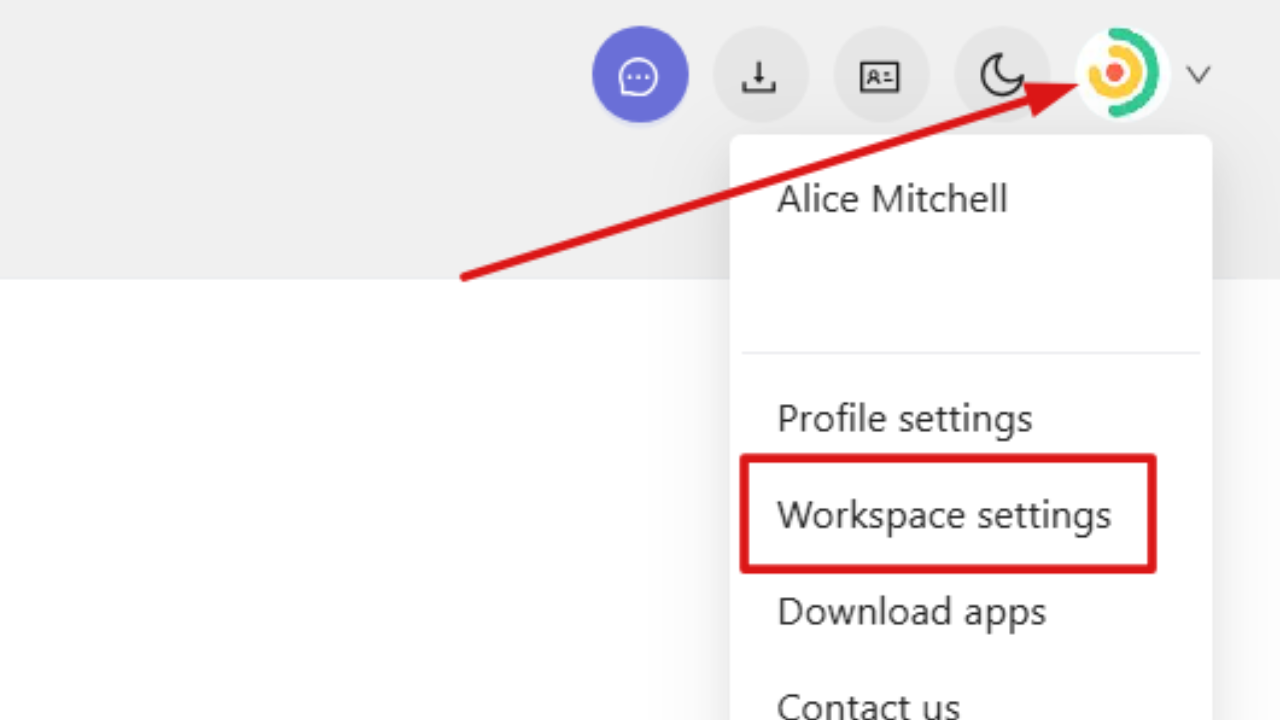
Click your profile picture in the top-right corner of the web app and select Workspace settings.
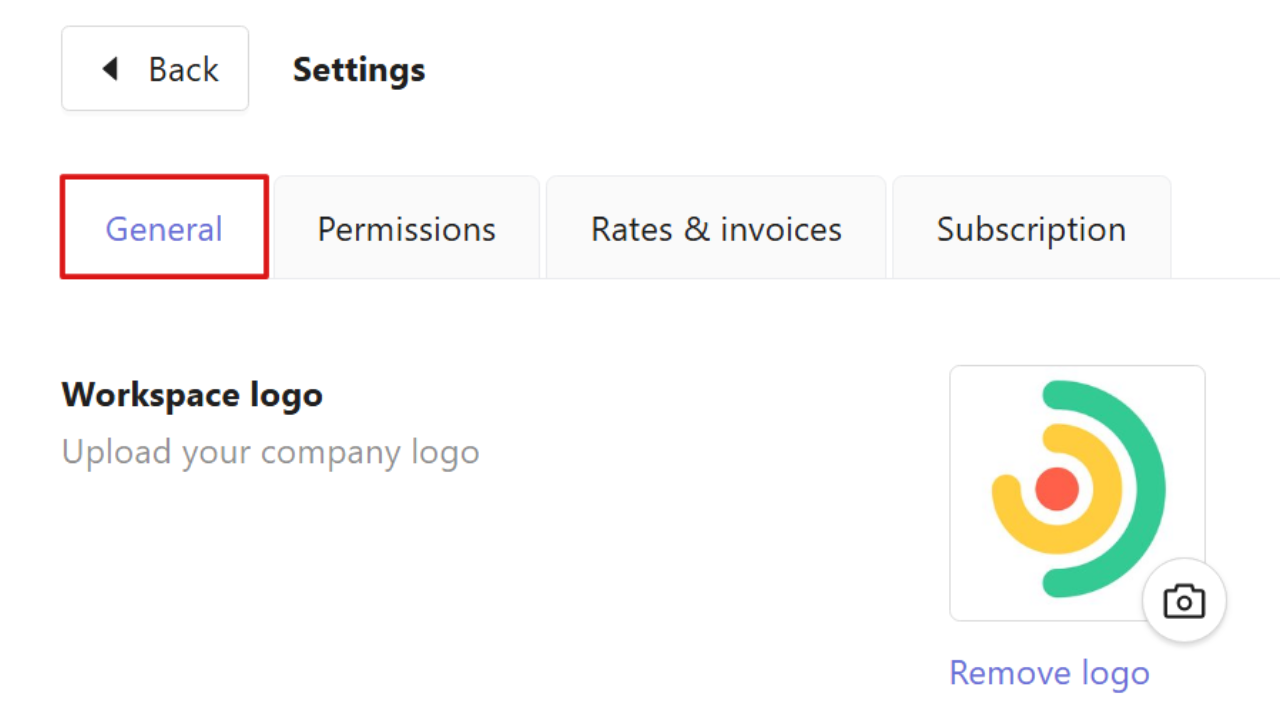
In the new window, open the General tab and scroll down to view the monitoring settings.
Tracking mode
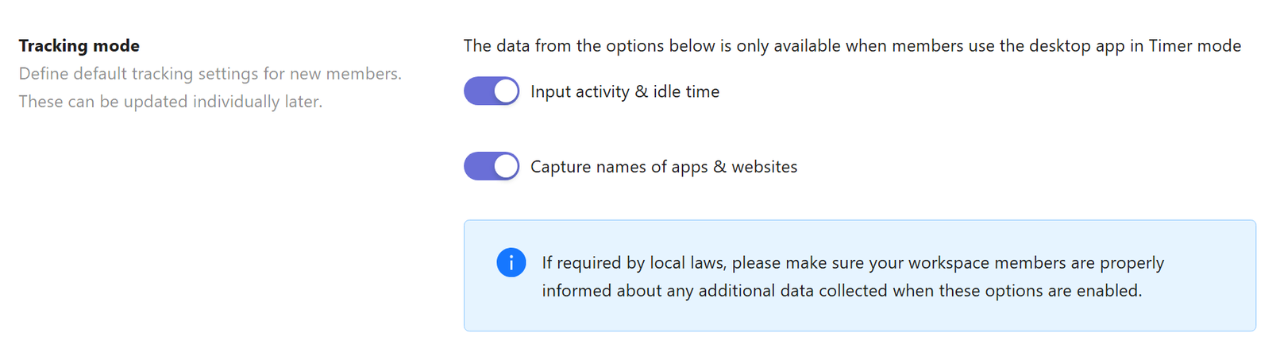
The Tracking mode section controls what type of work data is collected when team members use the desktop app in Timer mode.
You can enable:
Input activity & idle time
Shows periods of activity and inactivity during tracked time.
Capture names of apps & websites
Displays which apps and websites are used during tracked sessions.
Timesheets
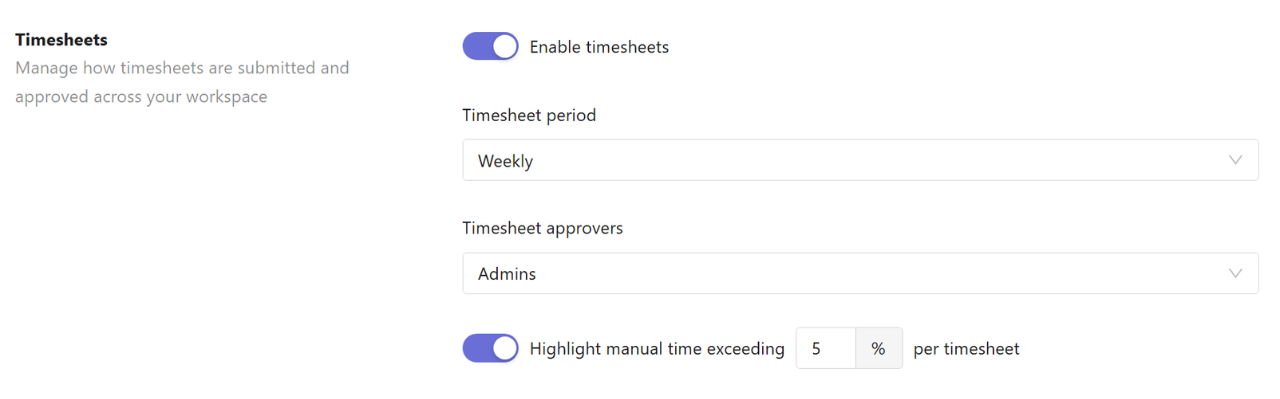
Timesheets allow you to manage how time entries are reviewed and approved.
To enable timesheets, turn on Enable timesheets, then configure:
Timesheet period
Choose how often timesheets are submitted (weekly, semi-monthly or monthly).
Timesheet approvers
Select who can review and approve timesheets (only Admins or Admins and Managers).
Highlight manual time exceeding limit
Set a percentage threshold to flag timesheets with a high amount of manually added time.
Expenses
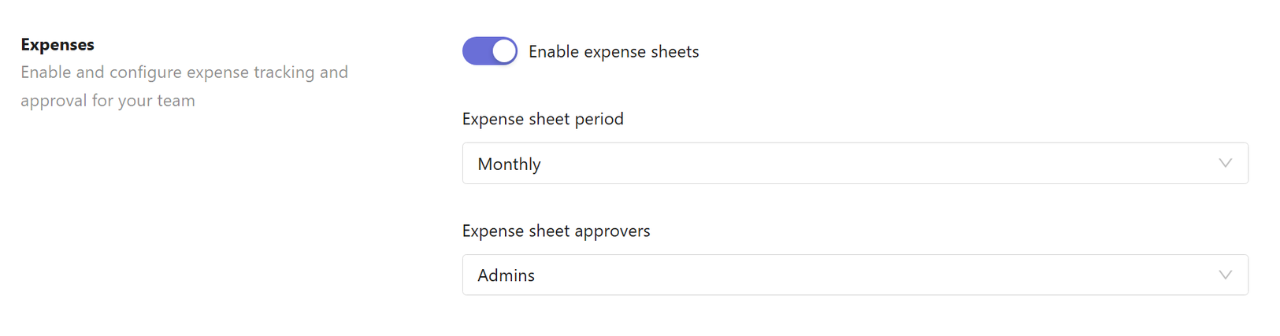
Expense tracking allows team members to submit and manage work-related expenses.
To enable this feature, turn on Enable expense sheets, then set:
Expense sheet period
Define how often expense reports are submitted (weekly, semi-monthly or monthly).
Expense sheet approvers
Choose who reviews and approves submitted expenses.
Default schedules
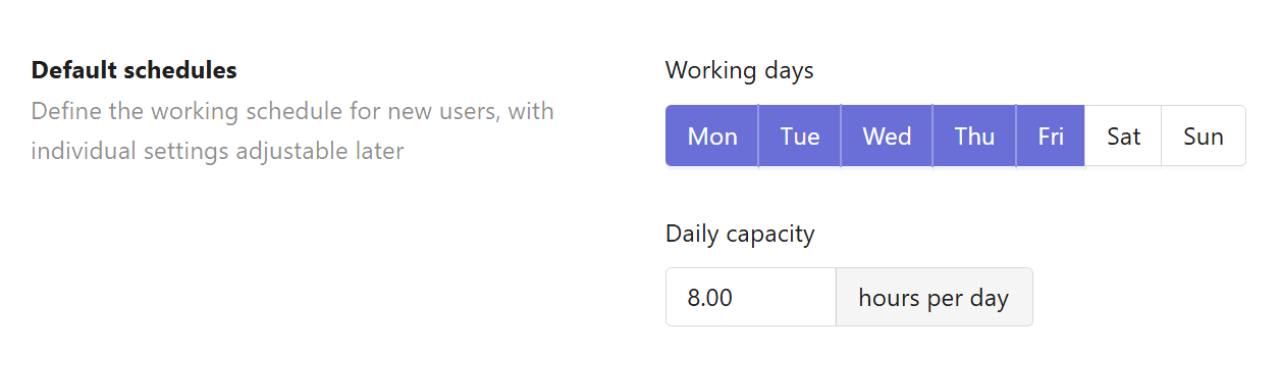
Default schedules allow workspace Owners and Admins to define standard working time settings for the workspace.
Working days
Select the days of the week when work time is expected to be tracked.
Daily capacity
Set the expected number of working hours per day.
Breaks
Break tracking allows users to log break time separately from working hours.
Turn on Enable breaks to allow team members to record breaks alongside their tracked time.

Break time is recorded in a separate mode and does not include activity or app and website data.
Permissions
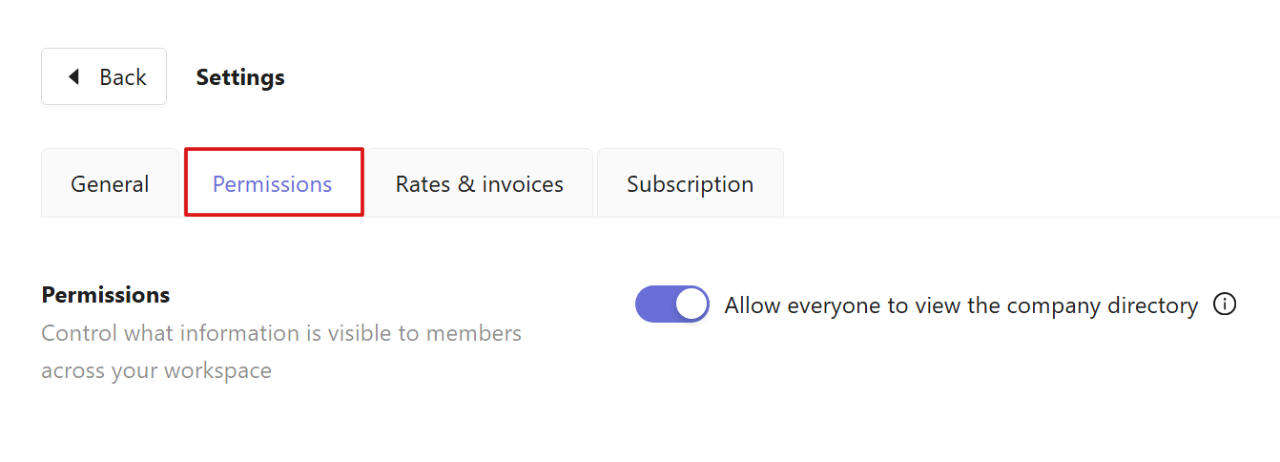
The Permissions tab controls what information is visible across your workspace.
You can enable or disable:
Allow everyone to view the company directory
When enabled, all members can browse the company directory. Profiles include names, profile pictures, and job titles.