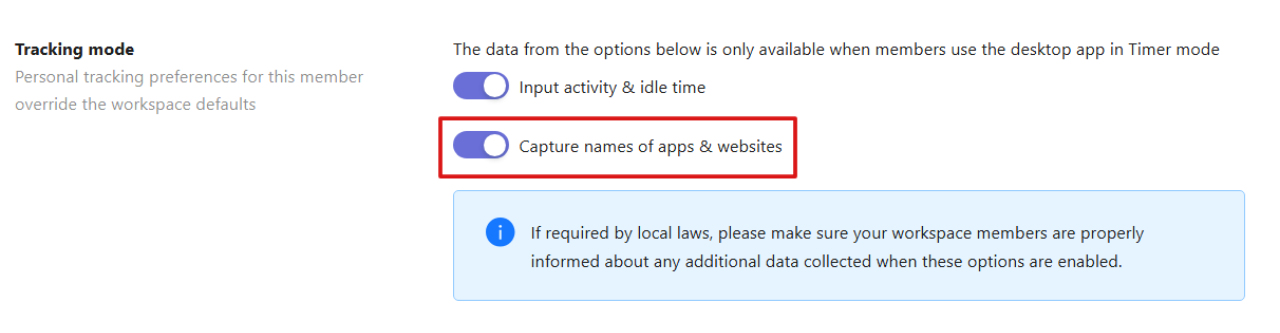
App and website usage tracking
App and website usage tracking shows which apps and websites are used during tracked sessions.
When enabled, the system records the names of apps and websites used while the timer is running. Note that this feature applies only when members use the desktop app in Timer mode. App and website usage tracking also doesn’t work during Break time.
Enable app and website tracking
Workspace Owners and Admins can configure this setting for the entire workspace.
To enable it:
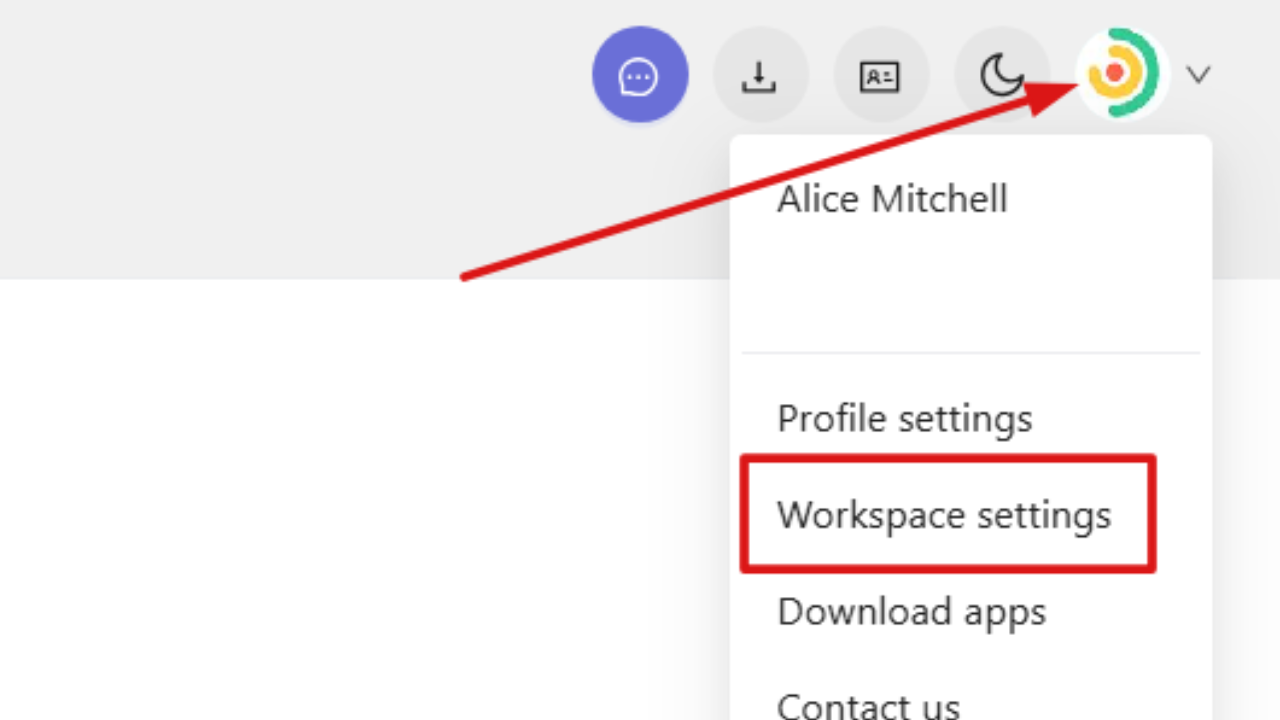
Click your profile picture in the top-right corner of the web app and select Workspace settings.
In the new window, open the General tab and scroll down to the Tracking mode settings.
In the Tracking mode section, enable or disable Capture names of apps & websites.
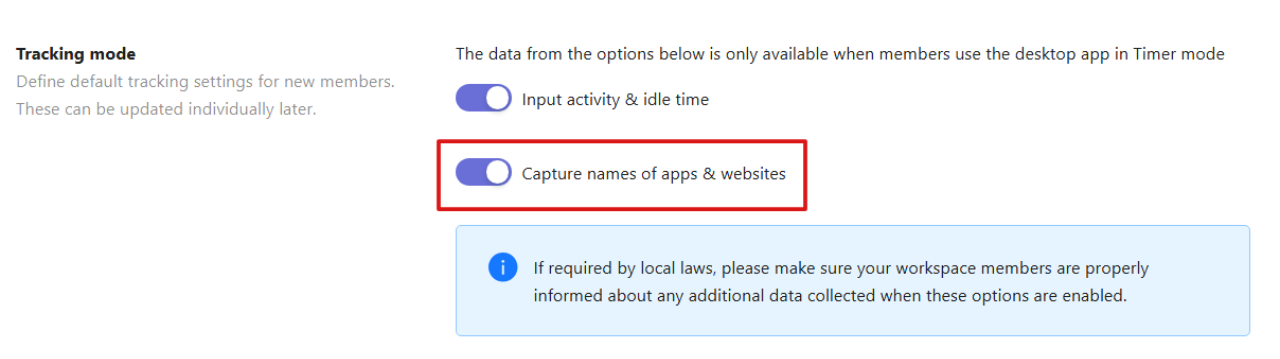
Note that this option is available only when Input activity & idle time is enabled.
Manage settings for individual users
You can also configure this setting for specific team members.
To do this:
Open the Users section and click on a team member to open their profile.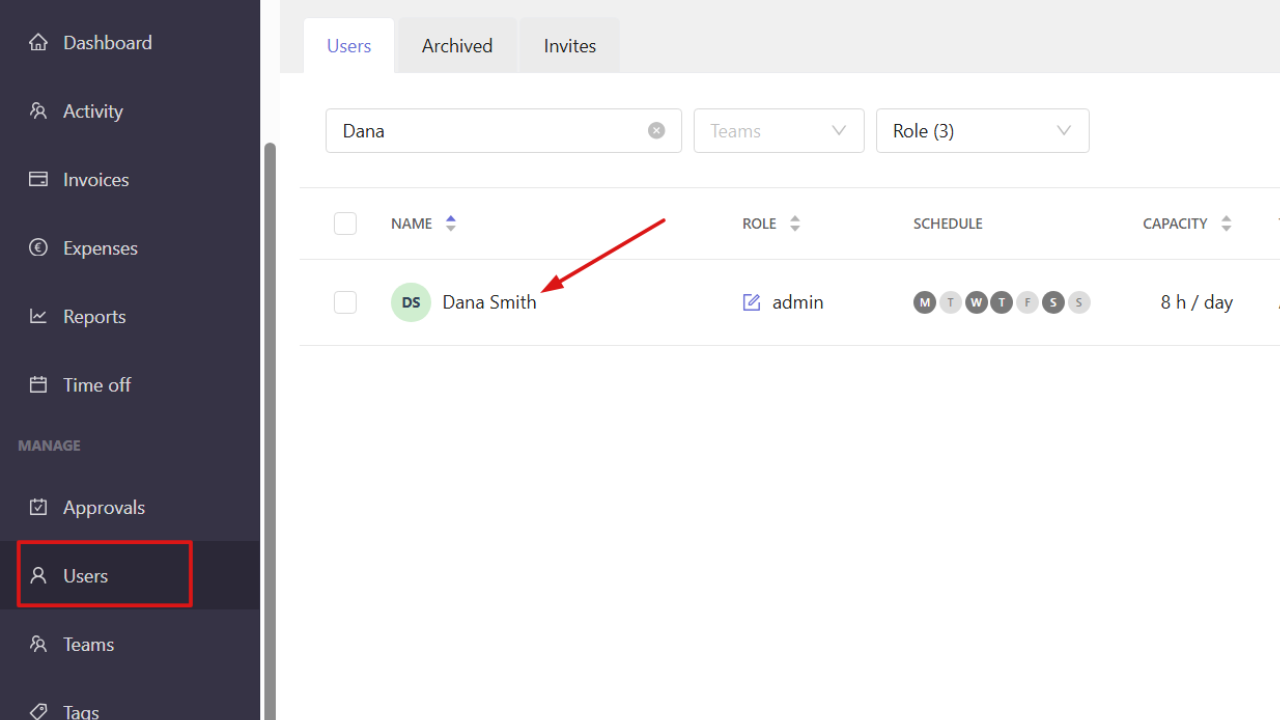
In the new window, select the Details tab.
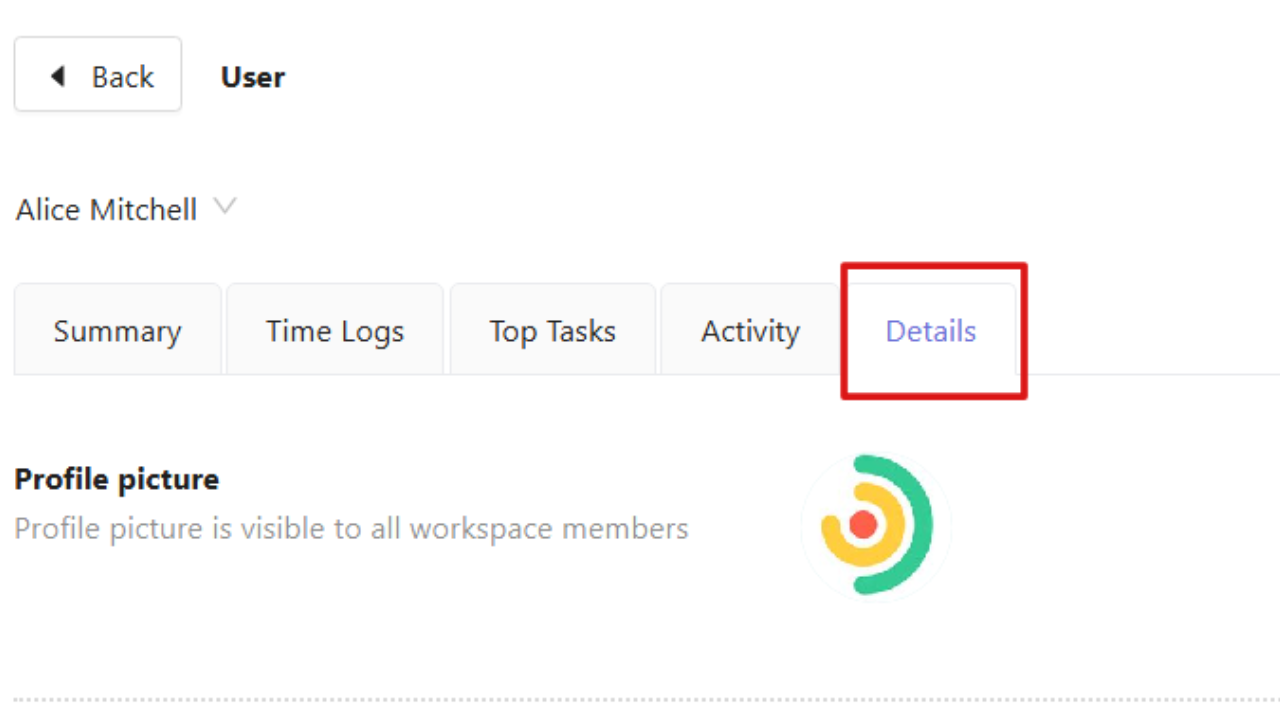
Scroll down to the Tracking mode settings and enable or disable Capture names of apps & websites. Personal tracking preferences override the workspace defaults.