Activity
The Activity section gives an overview of how work is distributed across your workspace in real time and over selected time periods. It includes three views: Live activity, Daily, and Weekly.
You can use it to understand who is currently working, what they are working on, and how time is distributed across tasks and days.
Live activity
The Live activity tab shows real-time status for all users in your workspace.
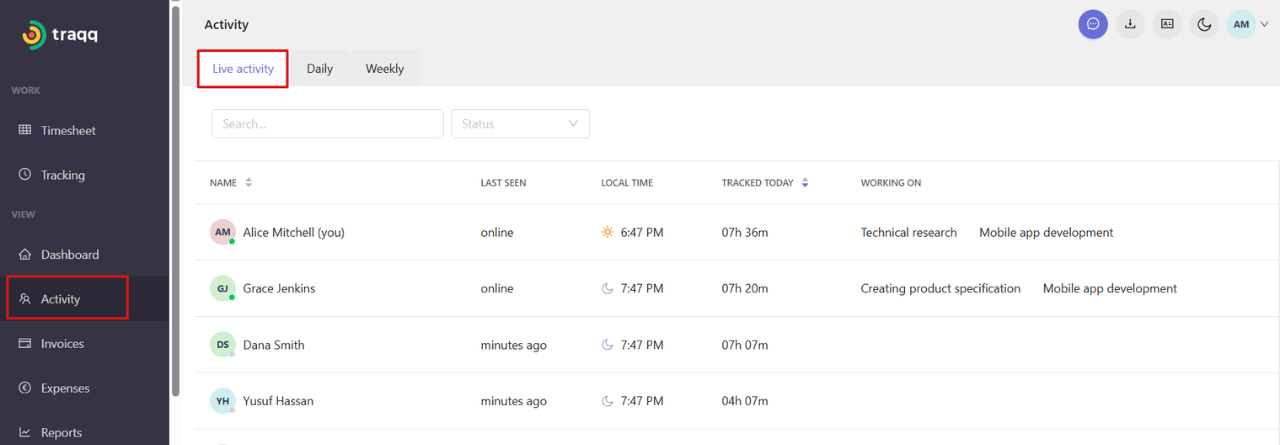
For each user, you can see:
- Last seen status (for example, online or minutes ago)
- Local time
- Time tracked today
- Current task and project (if the user is online and working on a task)
There are several filtering options:
- Search by user name or task in the search bar
- Filter the list by tracked time
- Filter by status (Online, Offline, Attended, Absent, Low Activity)
Daily view
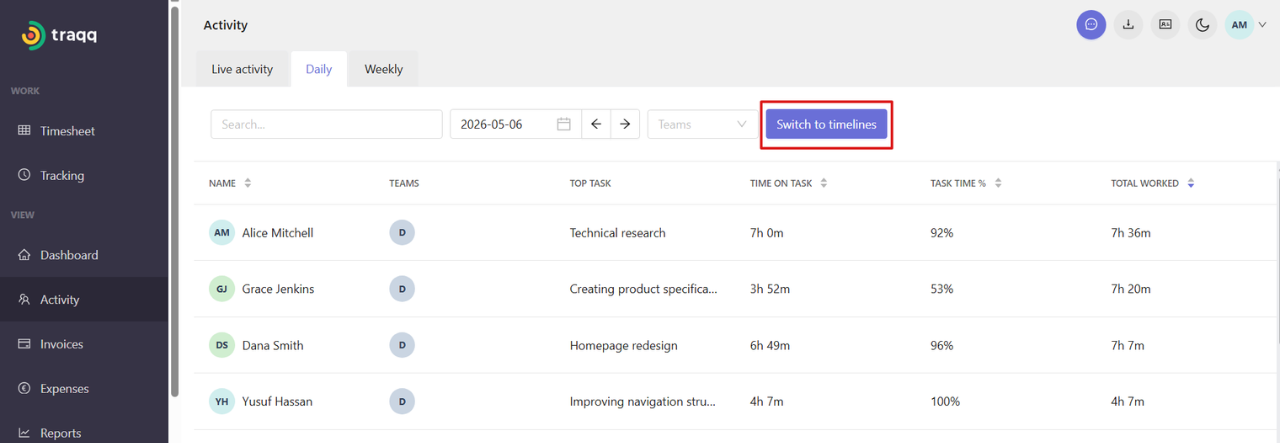
The Daily tab shows a breakdown of work for a selected date.
For each user, you can see:
- Team they belong to
- Top task for the day
- Time spent on the top task
- Percentage of time spent on the top task
- Total hours worked
You can filter the list by team, use the search bar to find a specific user, and select a specific date using the date picker.
Timeline view
From the Daily tab, you can switch to the Timeline view.
This view shows activity levels during the day and idle time periods.
Note that activity levels and idle time are available only if this feature is enabled in your workspace and the user tracks time using the desktop app in Timer mode.
For more details, see the article on Input activity & idle time tracking.
Weekly view
The Weekly tab provides a summary of time and activity across a selected week.
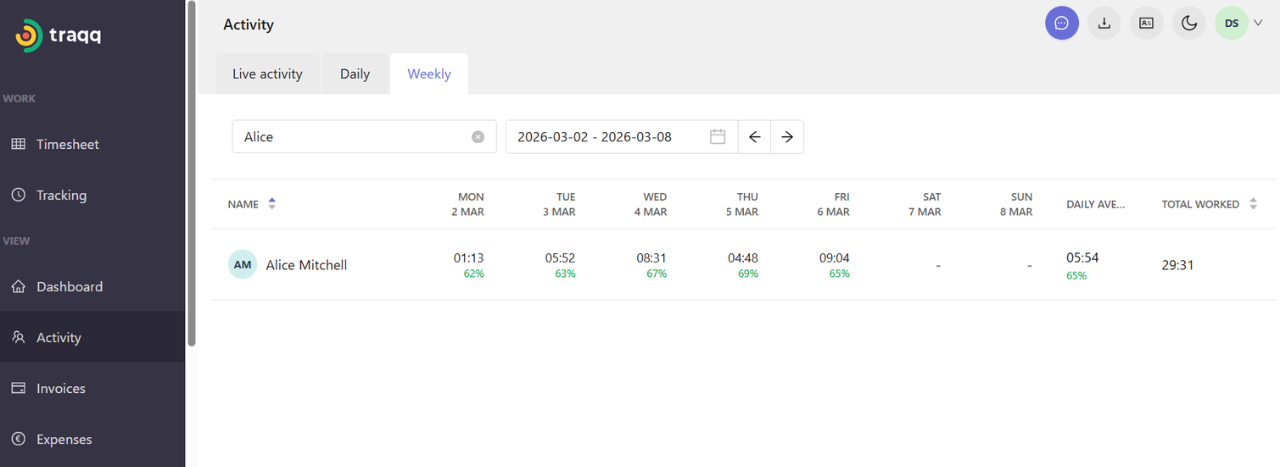
For each user, you can see:
- - Time worked per day (Monday to Sunday)
- Daily activity as a percentage (if the "Input activity & idle time tracking" feature is enabled)
- Daily average time and activity
- Total hours worked in the selected period