Password settings
You can change your password from your account settings at any time. If you forget your password, you can sign in using a one-time email code.
Set or change password
Step 1
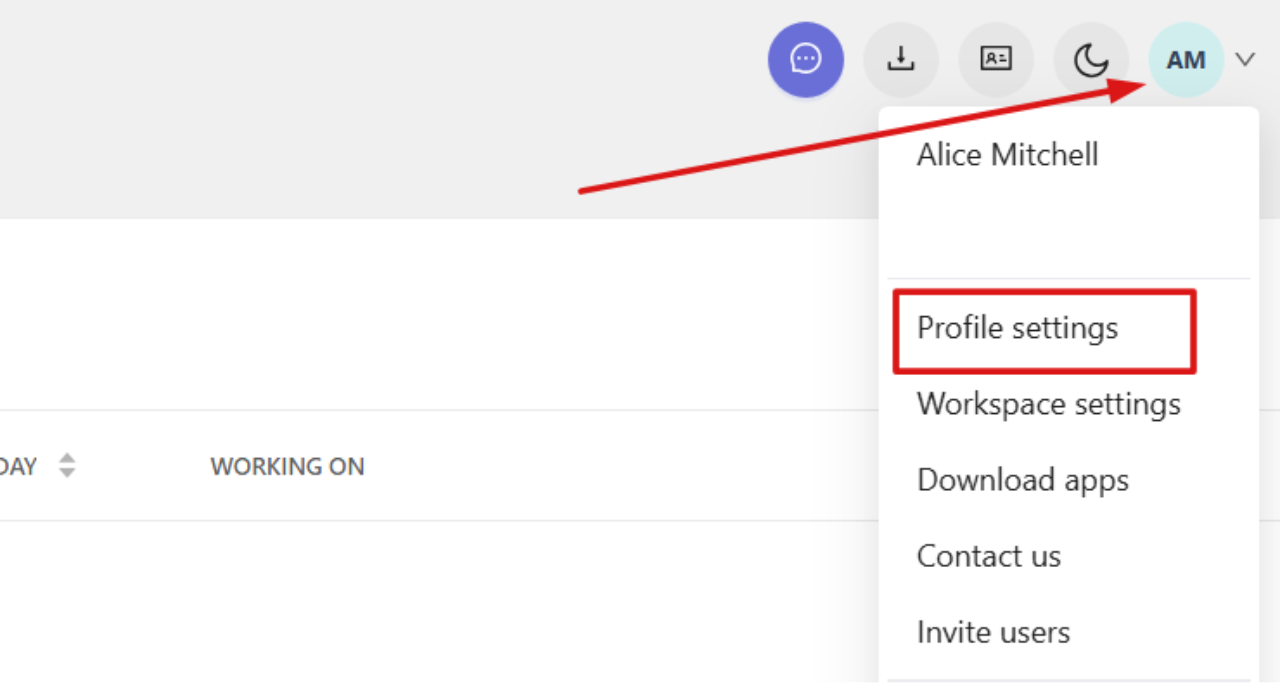
Click your profile picture in the top-right corner and select Profile settings.
Step 2
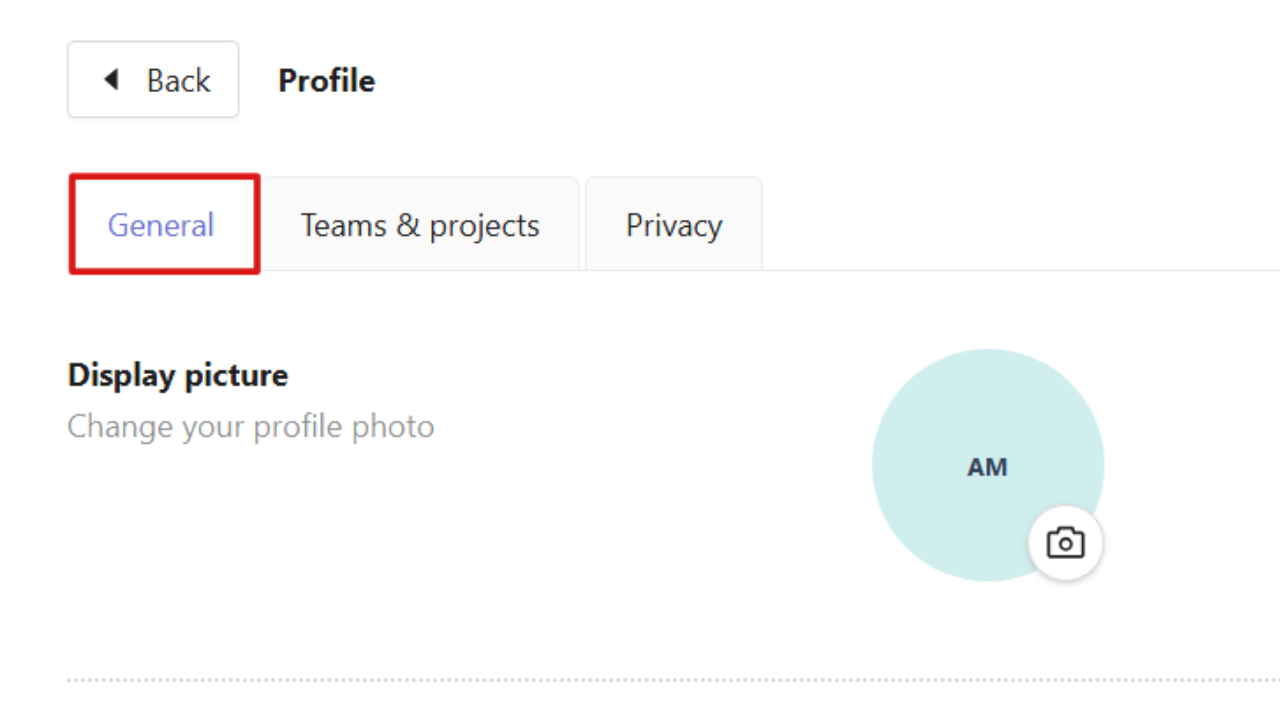
Open the General tab and scroll to the bottom of the page.
Step 3
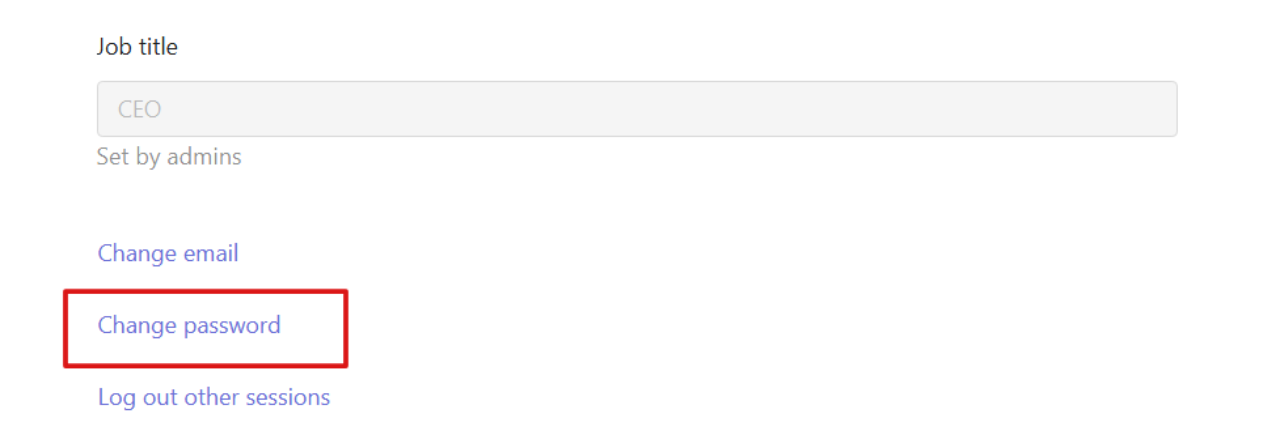
Click Change password.
Step 4
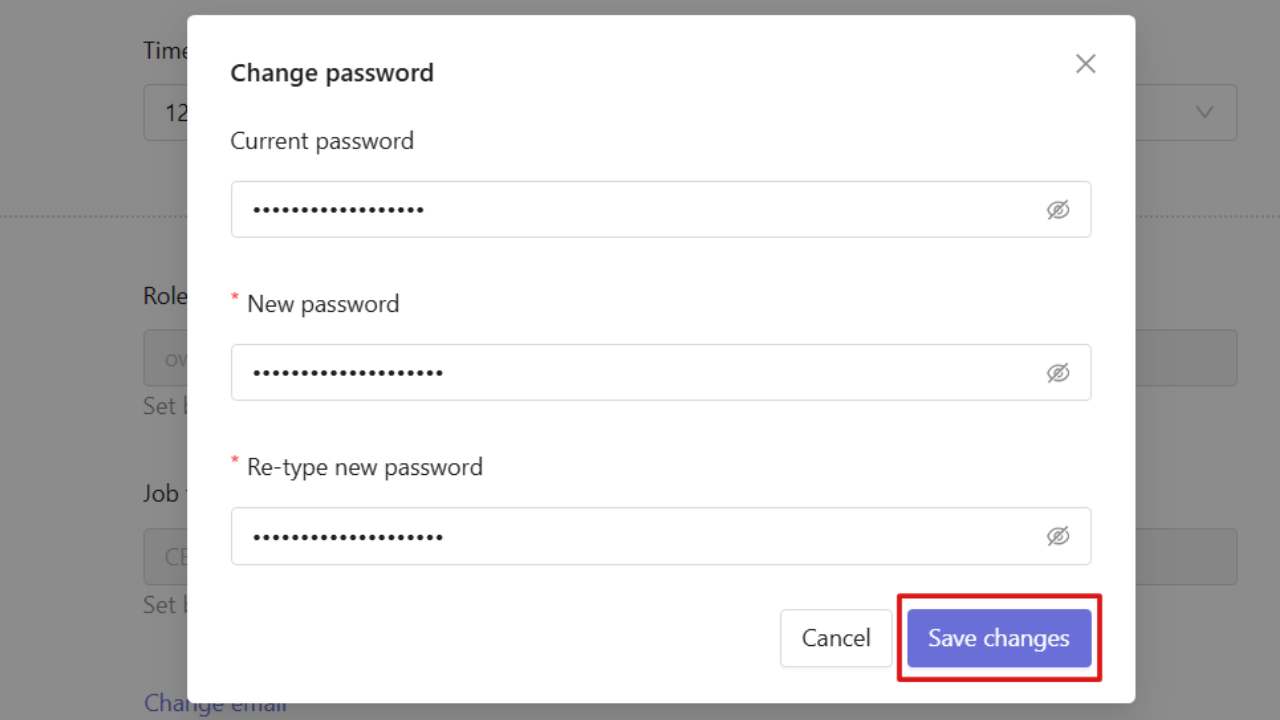
Depending on your account setup, complete one of the following options:
- If you have already set a password, enter your current password, then enter and confirm a new password.
- If you have not set a password yet, enter and confirm a new password only.
Step 5
Save the changes to update your password.
Access your account if you forgot your password
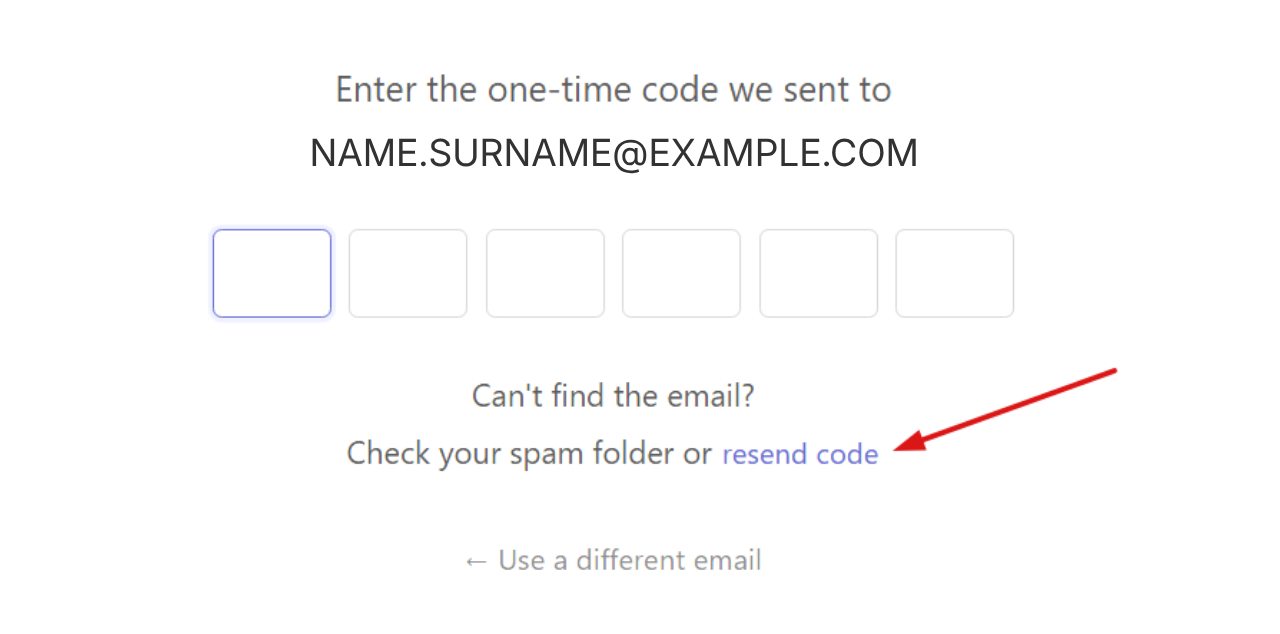
If you forget your password, you can sign in using a one-time code sent to your email.
Step 1
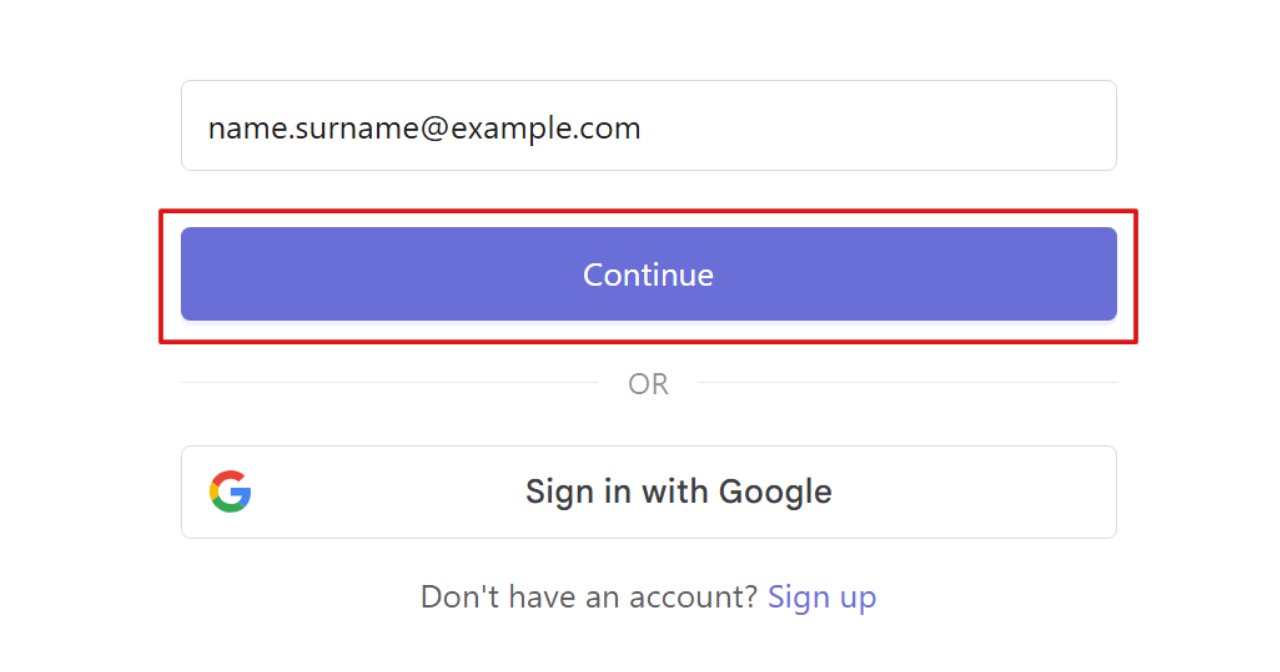
Open the Traqq login page and enter your email address, then click Continue.
Step 2
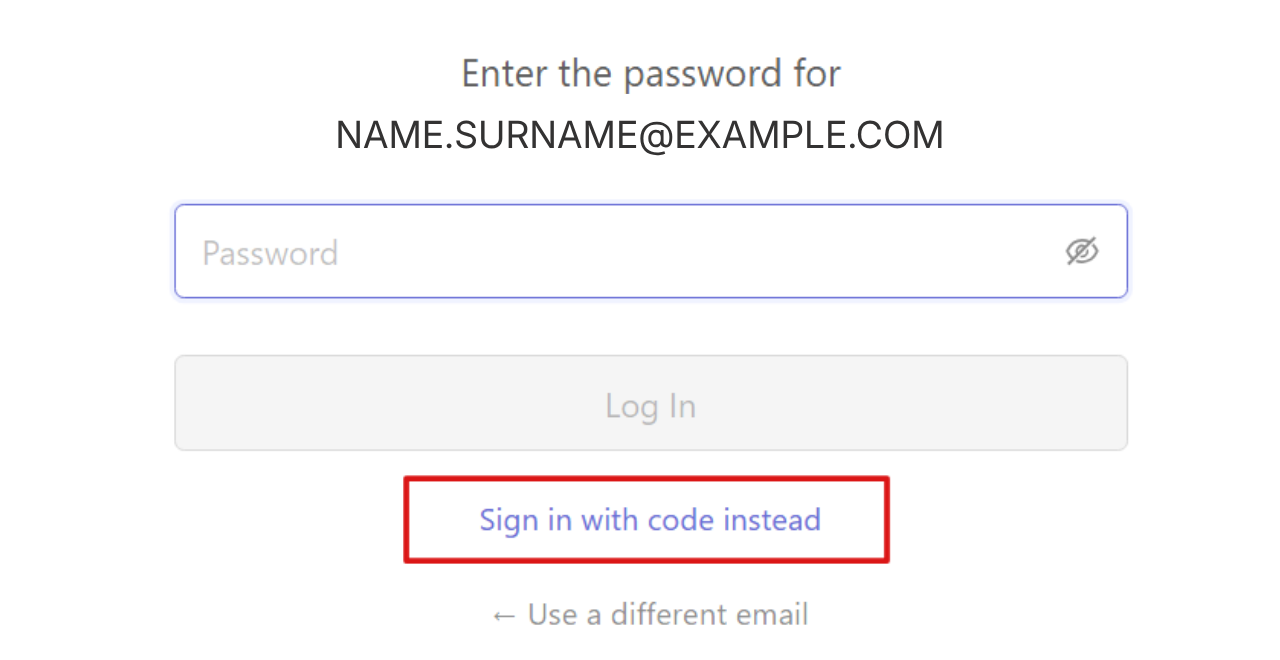
If you are prompted to enter a password, select Sign in with code instead.
Step 3
Check your inbox for the email with the one-time code.
Step 4
Enter the code in the code field to access your account.
If you have not received the code, you can click Resend code.