Tracking time for specific projects and tasks
In Traqq, each time entry can be assigned to a specific project and task while tracking time. This helps organize tracked work and review how time is distributed across different projects and tasks.
All features described in this article are available across all tracking modes (including timer mode, manual time entries, and break mode) and all platforms (including the Traqq web app, desktop apps, and browser extensions).
If you are using the web app, you can set and update project and task details for each time entry in the Tracking section → Time log tab.

Set task name
In the What are you working on? field, enter the task name you want to track.

This can be a short description of the work you are doing, such as “Code optimization” or “New feature design.”
It can also be a longer task name that provides more context about the work. In such cases, Traqq still displays the full name, and you can see it by hovering over the task.

Select a project
Click the Project field and select a project from the list.
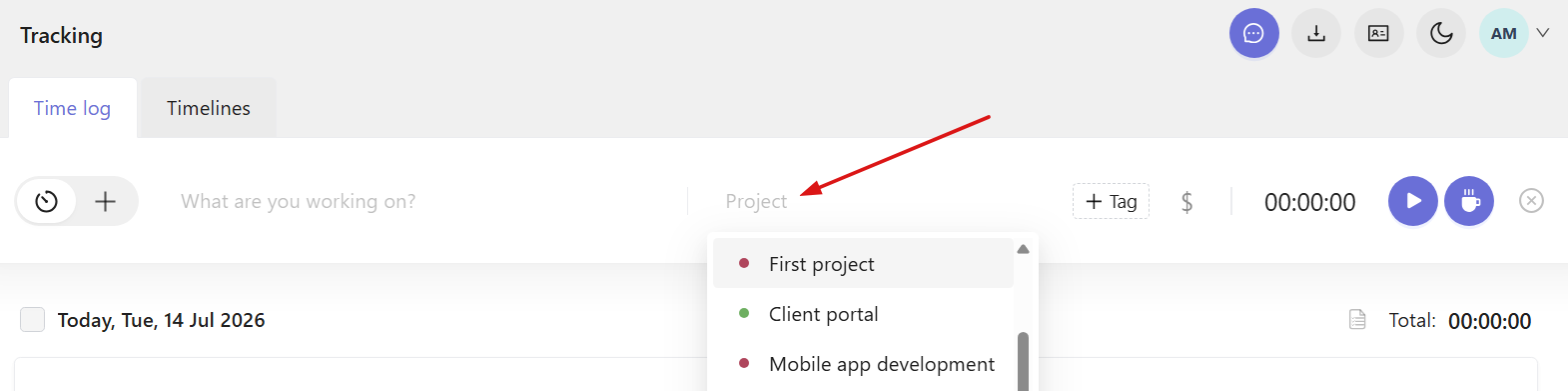
The availability of projects depends on your role:
- - Owners and Admins can view and select all projects
- Managers and Users can only see projects they are assigned to -
Add tags and set billability
- To add more context to a time entry, click + Tag and select tags from the list. You can add multiple tags to a single task.
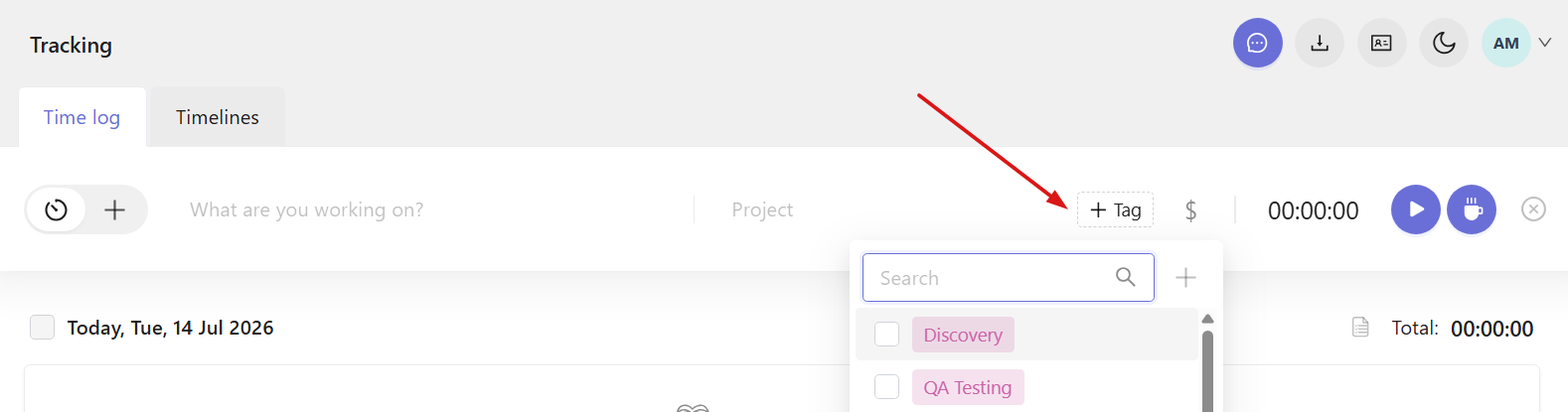
- Click the $ icon to mark the time entry as billable or non-billable. A blue icon means the entry is billable, while a gray icon means it is non-billable.

Edit task name, project, and tags
Users can update the task name, project, tags, and billability at any point:
- - before starting the timer
- while time tracking is active
- after stopping the timer - To edit a task name, click it and type a new name.

- To change the project or tags, click the corresponding field and select a different option.

- To remove a project, hover over its name and click the cross icon.

- Note: When Timesheets are enabled for your workspace, time entries are synced between Timesheets and Time log. Once a timesheet is approved, its entries are locked and cannot be edited.

Group similar time entries
Time entries with identical task, project, and tag details are automatically grouped together.
Click the arrow next to a grouped task to expand it and view all individual time entries under that task. The arrow also shows the number of time entries in the group.
