Project progress tracking
Project progress tracking lets you monitor how quickly a project uses planned hours or budget. It provides forecasts based on the current work pace and helps you estimate when project limits will be reached.
Configure project progress tracking
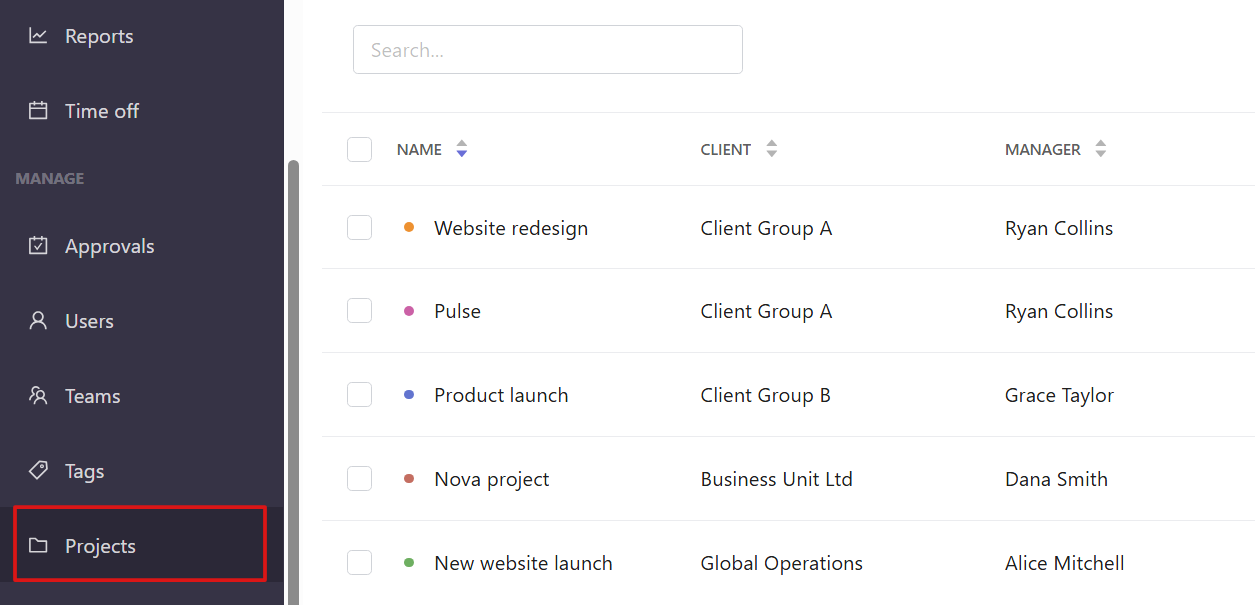
Open the Projects section from the left sidebar.
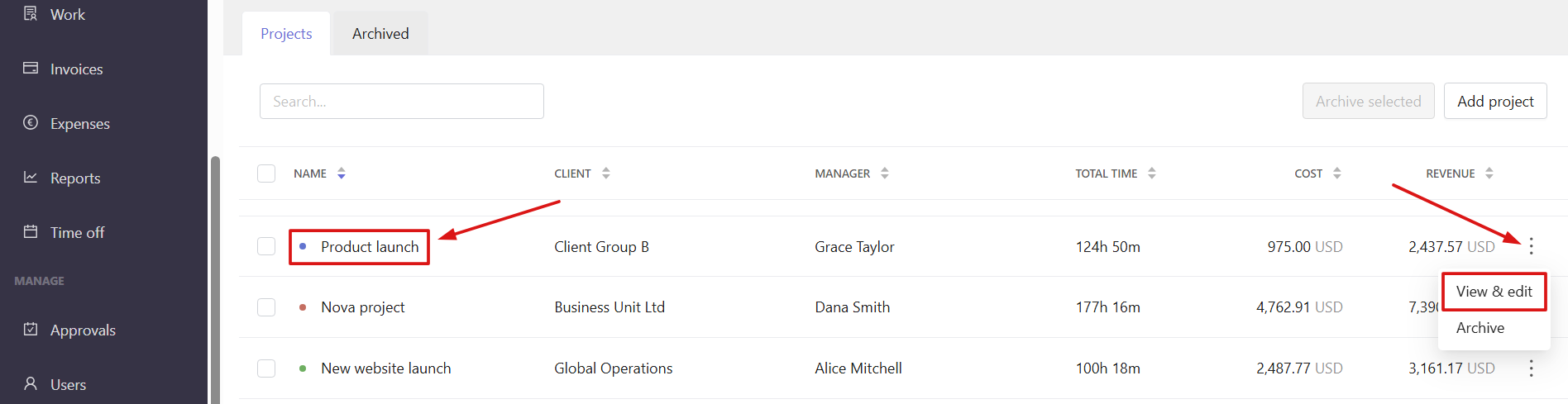
Open the project settings by clicking the project name or selecting View & edit from the three-dot menu.
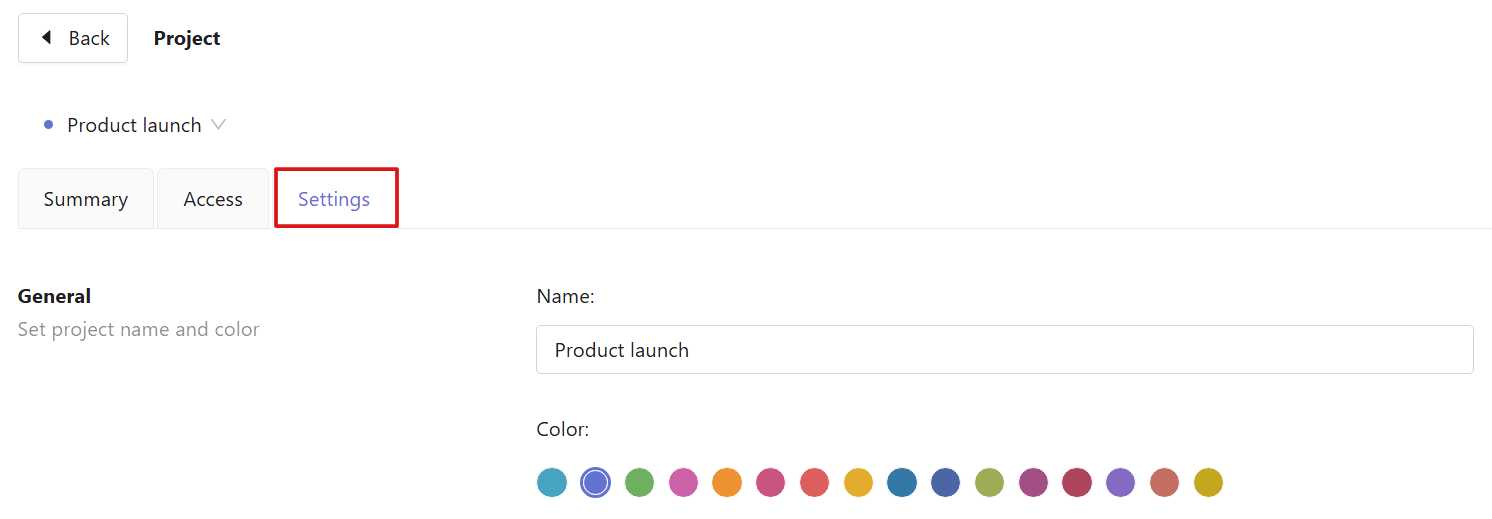
In the project settings, open the Settings tab and scroll down to the Progress tracking section.
Turn on Enable progress tracking.
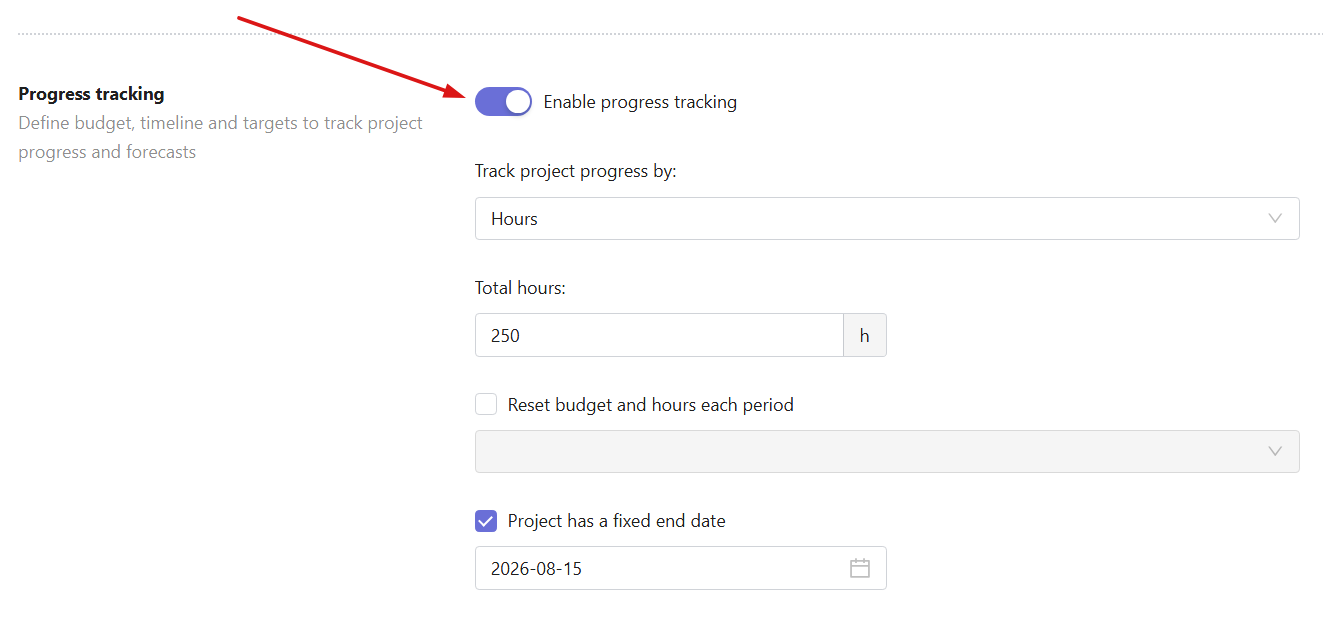
Choose how to track project progress
In the Track project progress by field, select one of the following options:
Hours — track progress based on the number of hours logged against the project.
Budget — track progress based on the budget spent.
The available settings depend on the selected tracking method.
Track progress by hours
If Hours is selected:
Enter the planned number of project hours in the Total hours field. For example, if the project is planned for 250 hours, enter 250.
Track progress by budget
If Budget is selected, configure the following settings:
- - Track budget based on
Select if you want to use billable rate or cost rate for budget calculations. - - Total budget
Enter the planned project budget. Currency is set automatically based on the project's client currency. If no client is selected, the workspace currency is used. 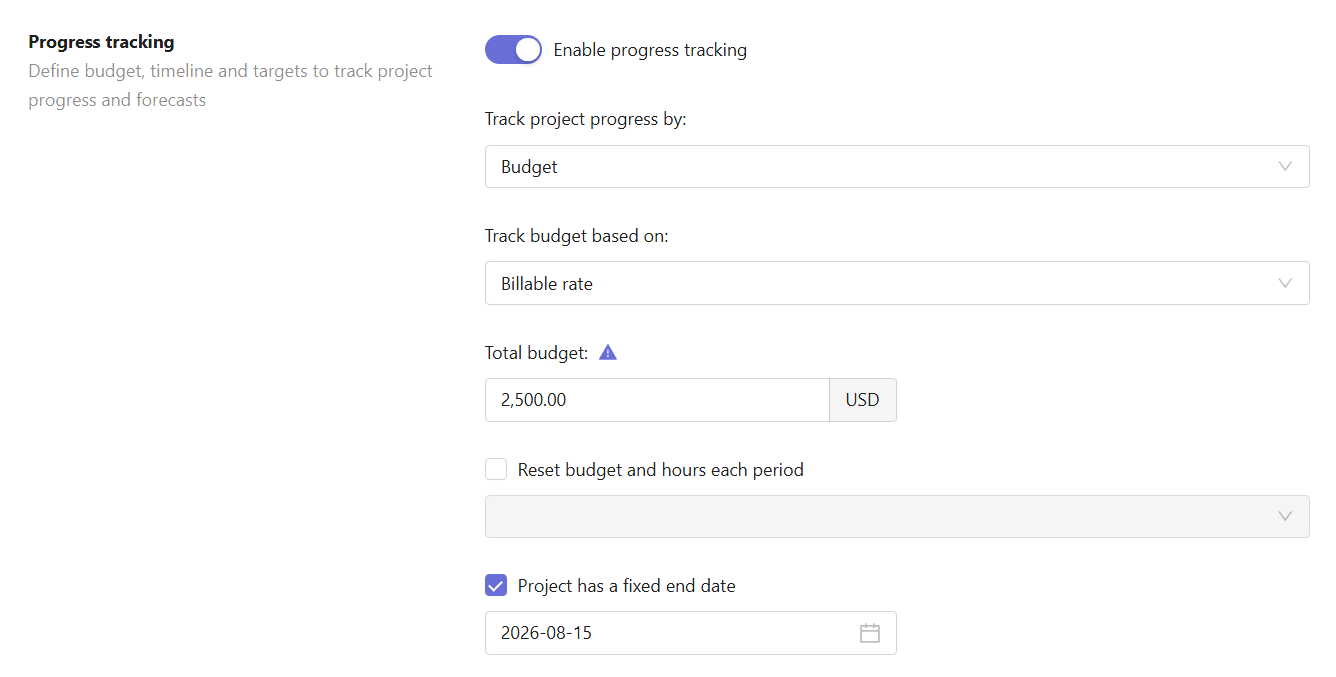
- Note: To enable accurate progress tracking and forecasting, make sure a billable/cost rate is set either for this project or for the team members assigned to it.
Configure progress periods
The following settings apply to both Hours and Budget tracking.
Reset budget and hours each period
Enable this option to automatically reset project progress at the start of each reporting period. Available reset periods:
- On the first day of each month
- On the first day of each week
- On January 1 each year
Project has a fixed end date
Enable this option to define when the project is expected to finish.
Select the date using the date picker.
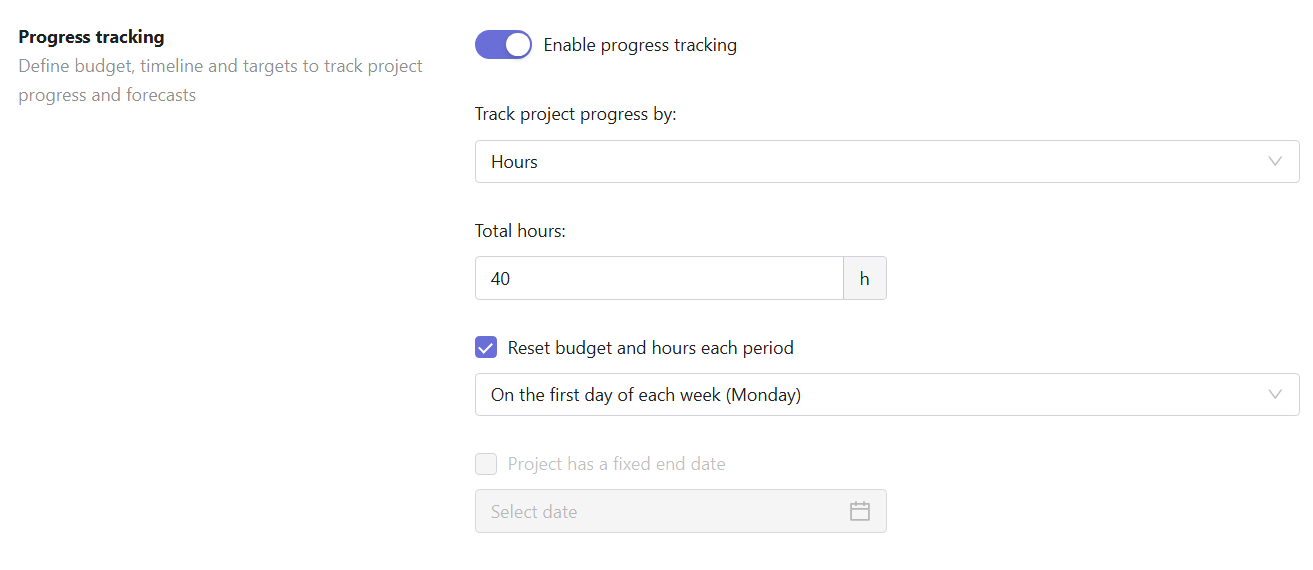
Note: You can enable either "Reset budget and hours each period" or "Project has a fixed end date", but not both.
View project progress
To open the project progress page:
Open the Projects section from the left sidebar, select the project you need and go to the Progress & forecasts tab (the tab is available only if progress tracking is enabled for this project).
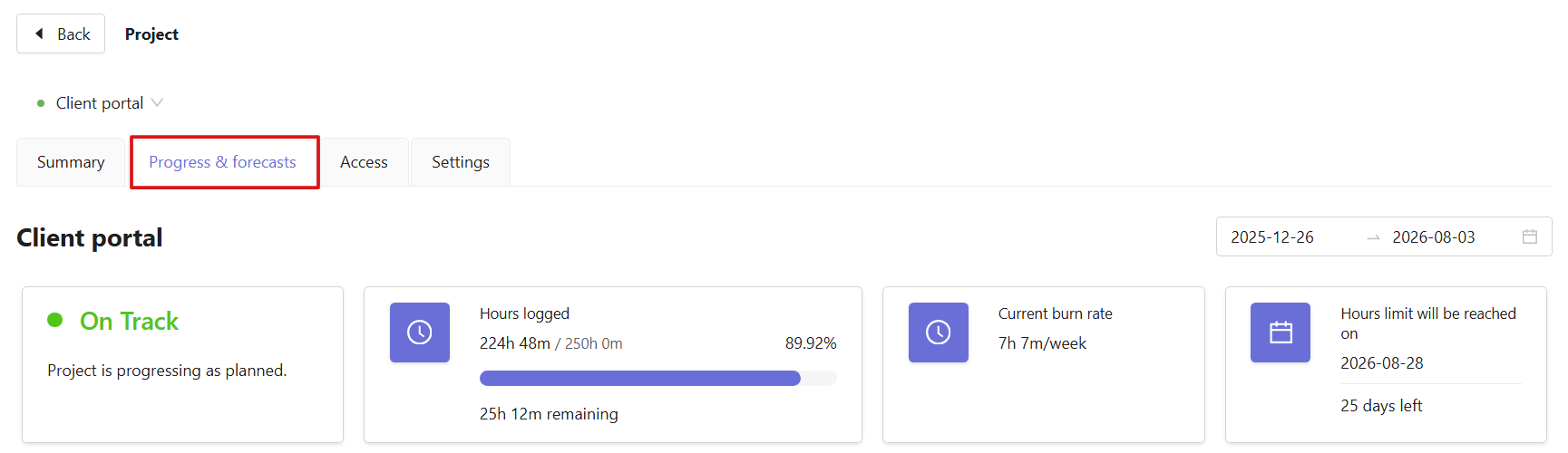
Note that forecasts and analytics become available after at least 20 hours have been logged for the project. Until enough data is collected, most sections on the page display Not enough data yet instead of forecasts.
Project status
The status card provides an overall assessment of project progress. Possible statuses include:
- On Track: The project is progressing within its planned hours or budget.
- At Risk: Based on the current pace, the project may exceed its planned hours or budget.
- Off Track: The project has already exceeded its planned hours or budget.
- Critical: The project has exceeded its planned hours or budget by more than 30%.
- Not Started: No time has been logged for the project.
- Completed: The project has reached its fixed end date or the current tracking period has ended.
Progress summary
The summary cards at the top of the page display the project's key metrics.
Depending on the selected tracking method, they include:
- - Hours logged or Budget used
- Current burn rate
- Estimated date when the planned hours or budget will run out 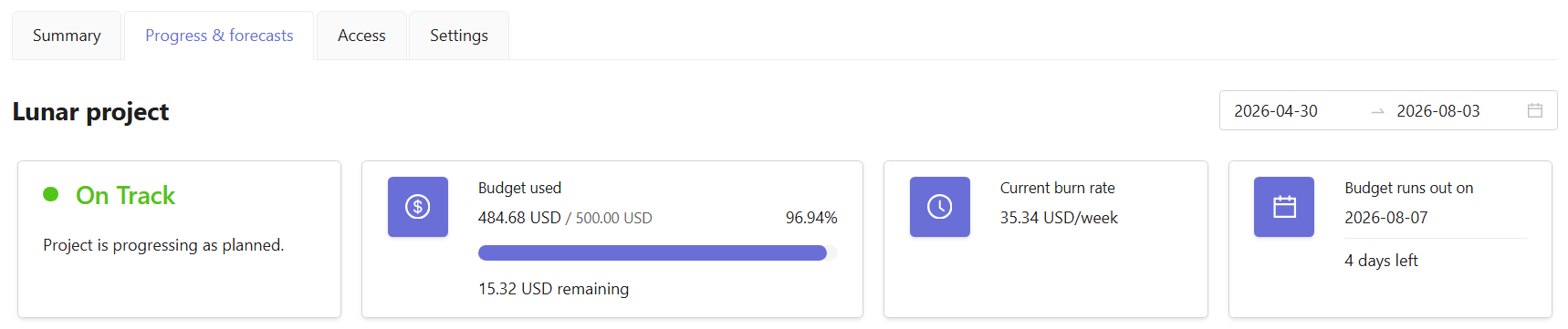
-
Depletion forecast chart
- The Depletion forecast chart compares actual project consumption with projected future usage.
- The solid line represents the hours or budget already consumed, while the green dashed line shows the projected consumption based on the current burn rate.
- The chart also shows the Hours limit or Budget limit, depending on the selected tracking method.
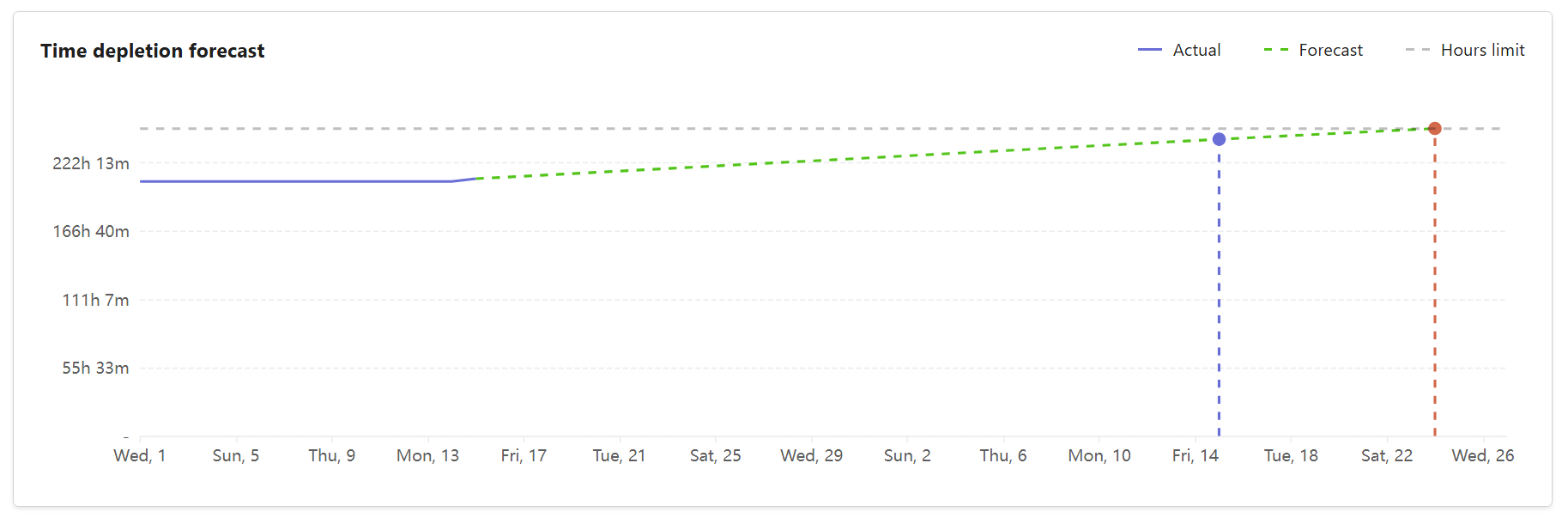
- Hover over the chart to see the details.
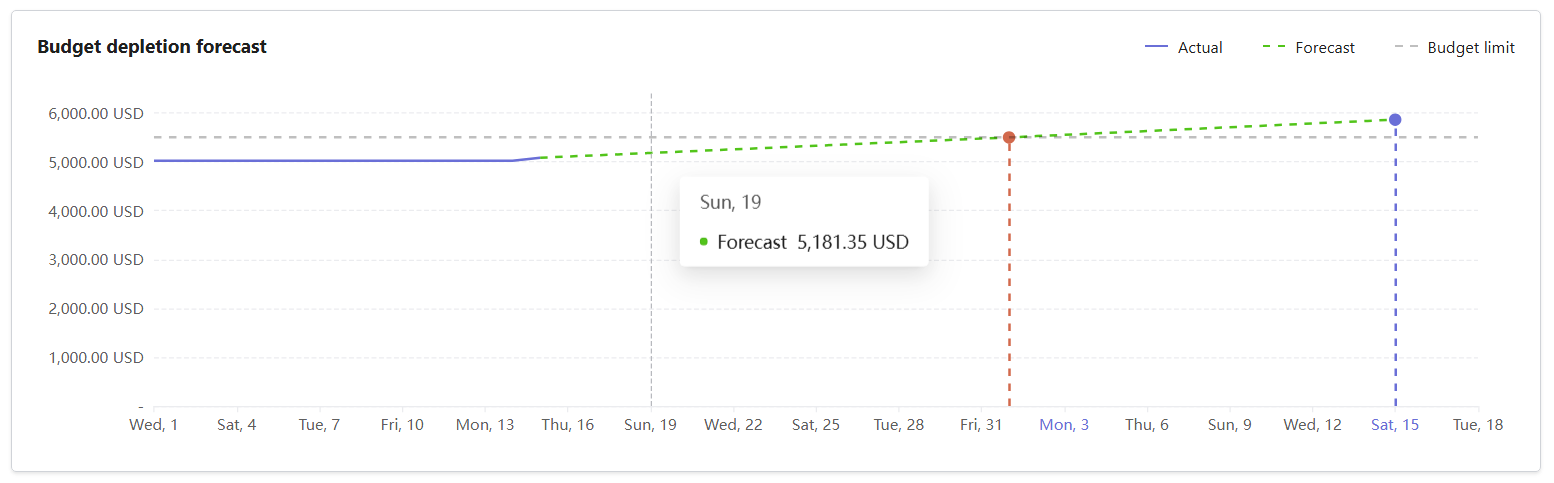
-
Time details / Budget details
If you track progress by hours, you will see the Time details section. It displays:
- - Planned limit
- Logged hours
- Remaining hours
- Percentage of the planned hours already used - For projects tracked by budget, the Budget details section displays:
- - Planned limit
- Used budget
- Remaining budget
- Percentage of the planned budget already used 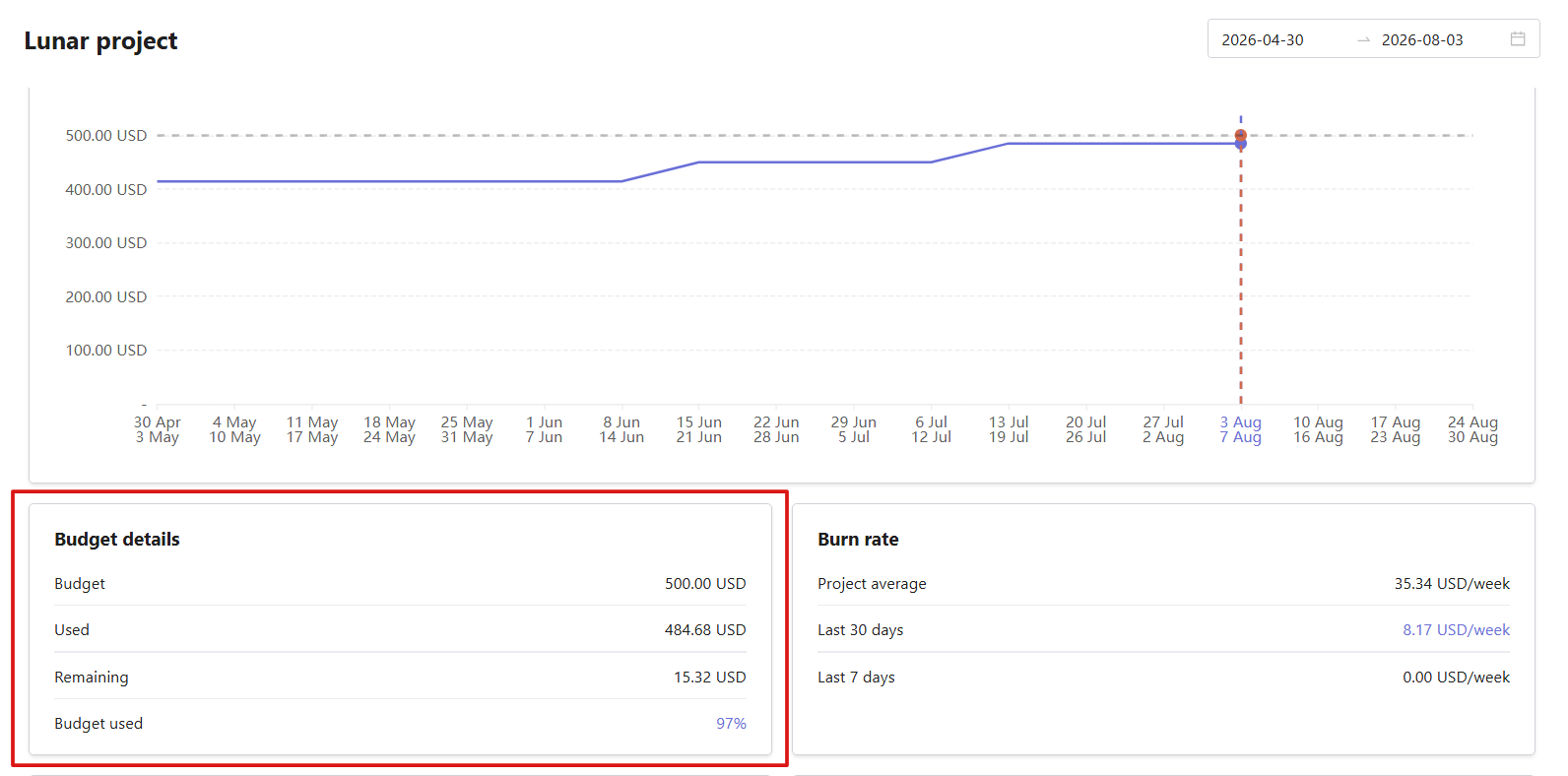
Burn rate
The Burn rate section shows how quickly the project is consuming hours or budget. It includes:
- - Project average
- Average for the last 30 days
- Average for the last 7 days 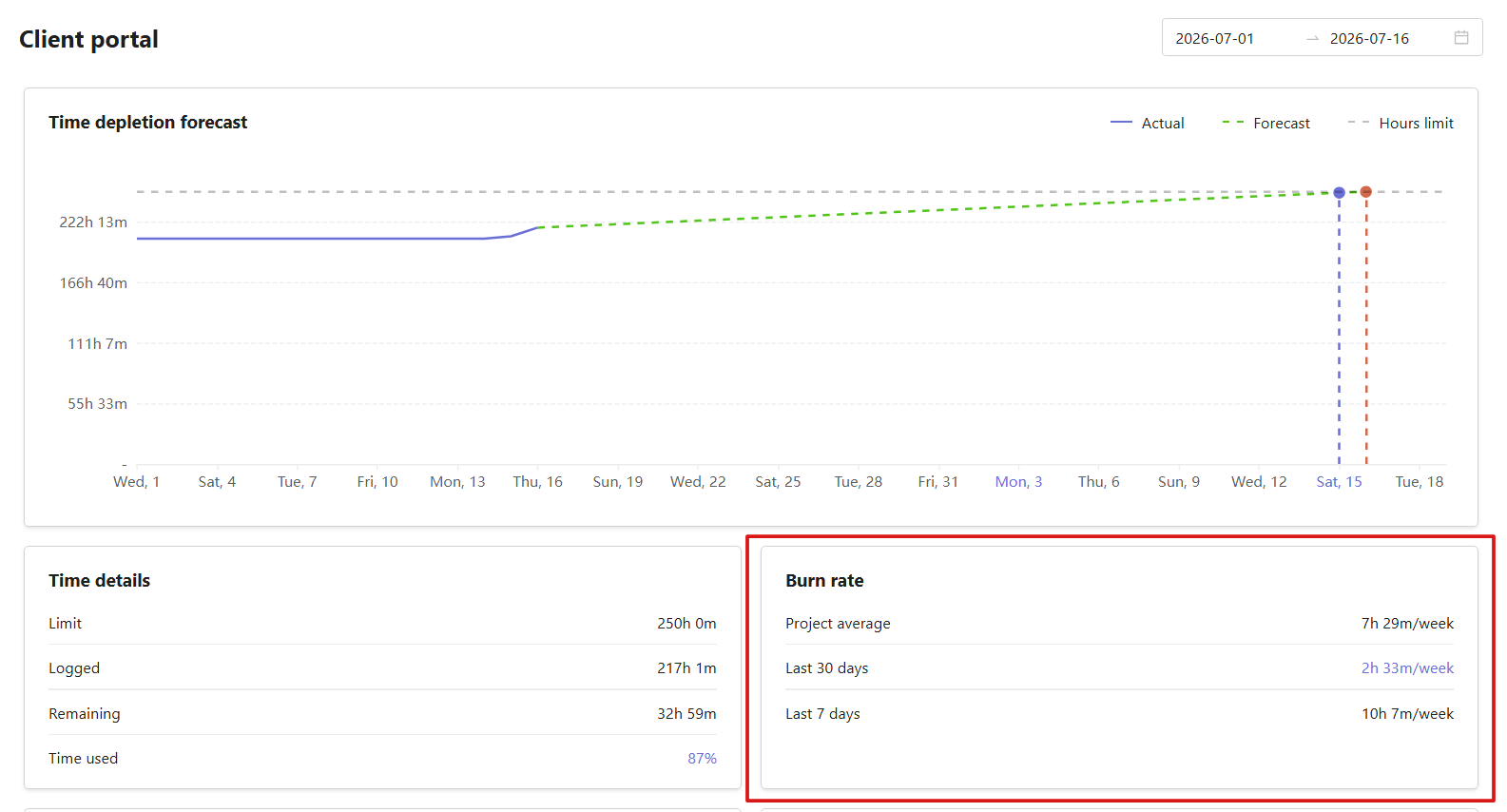
-
Depletion forecast
The Depletion forecast section summarizes the current forecast. It displays:
- - Remaining hours or budget
- Current burn rate
- Estimated date when the planned limit will be reached
- Remaining time until that date 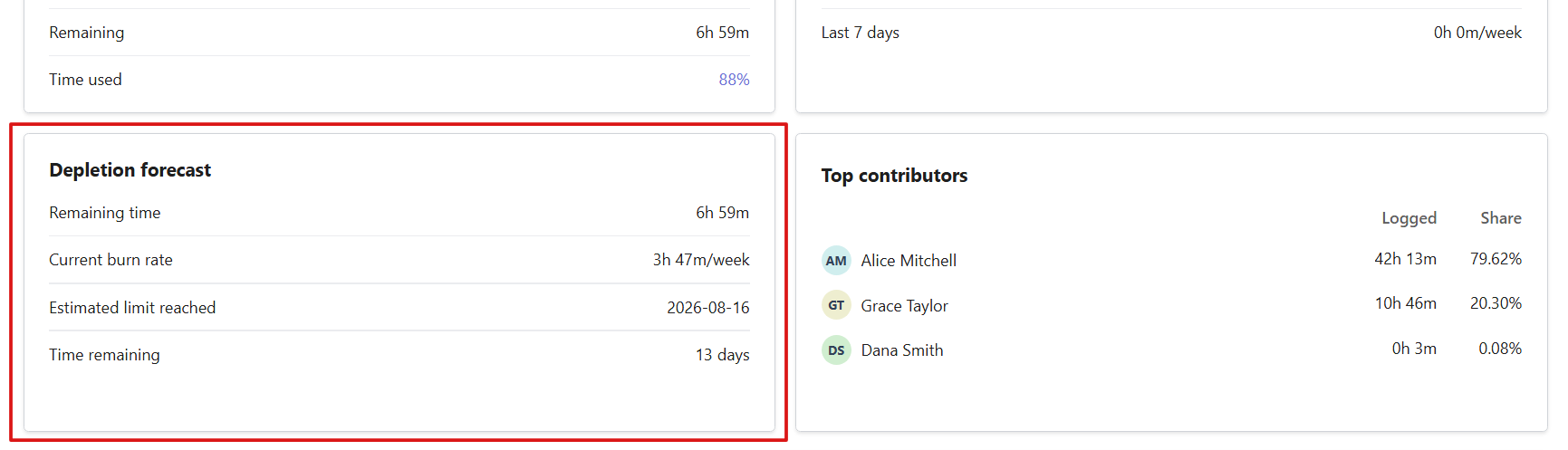
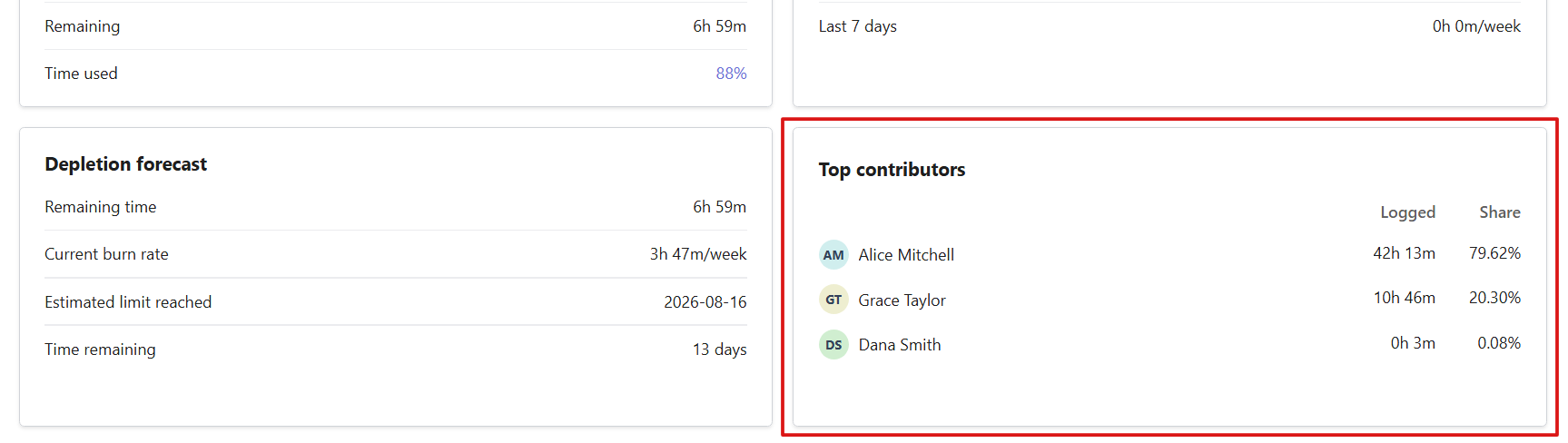
Top contributors
The Top contributors section lists the five team members who have contributed the most to the project.
For each contributor, Traqq displays:
- - Logged hours or budget used
- Percentage of the total project usage - Contributors are sorted from highest to lowest.
Insights
At the bottom of the page, the Insights section displays up to three automatically generated insights based on the project settings and current progress.

FAQ
Can I change how project progress is tracked?
Yes. You can switch between Hours and Budget tracking in the project settings. The Progress & forecasts tab updates immediately.
Why is my budget forecast unavailable?
Budget forecasts require a rate to calculate project usage. Make sure a billable or cost rate is set for the project or assigned team members. If all tracked time on the project is non-billable, no budget is consumed, and there is not enough data to generate a forecast.
What happens when a project exceeds its planned hours or budget?
When a project exceeds its planned hours or budget, its status changes based on how much the planned limit has been exceeded. The Progress & forecasts page continues to show actual usage and updated forecasts.
Why does my project show “Not enough data yet”?
This message appears when there is not enough tracked time to generate reliable forecasts. Forecasts become available after at least 20 hours have been logged for the project.