Managing clients
The Clients page allows you to store and manage client records.
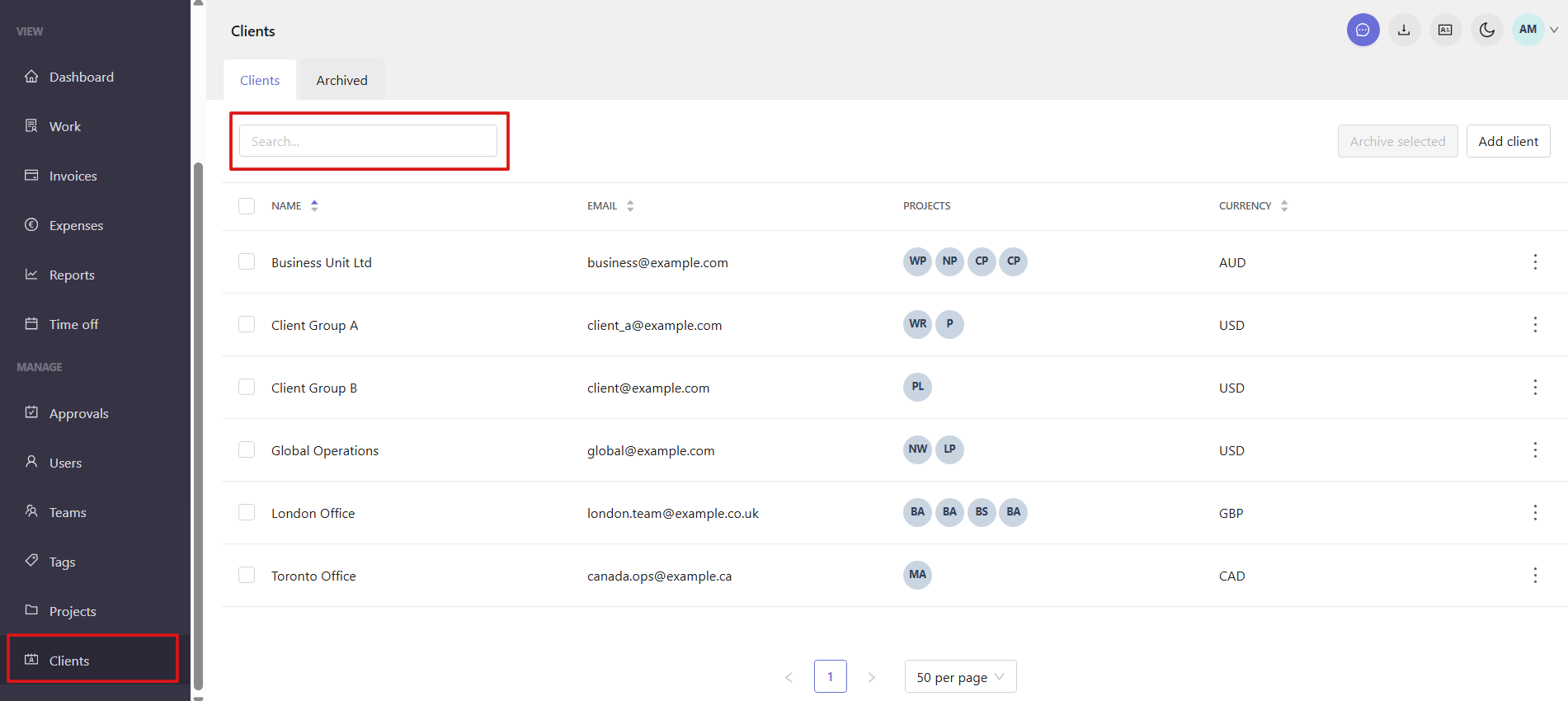
To access the page, open Clients from the left sidebar.
At the top of the list, the search field helps you find a specific client. The list also allows you to sort by name, email, or currency.
Add a client
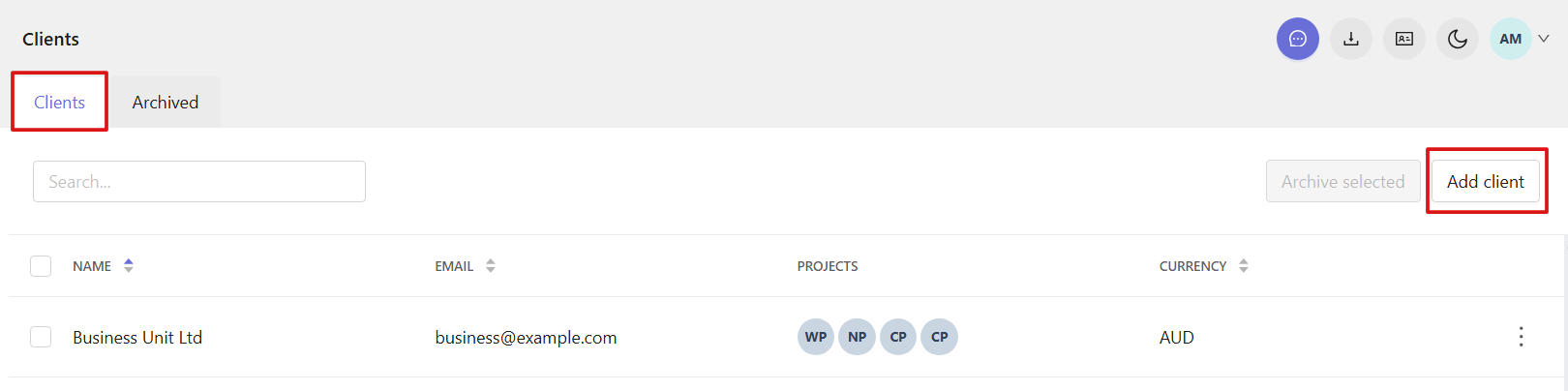
On the Clients page, find the Add client button at the top right.
In the form that opens, enter the following details: Name, Email, Address, Currency, and Notes.
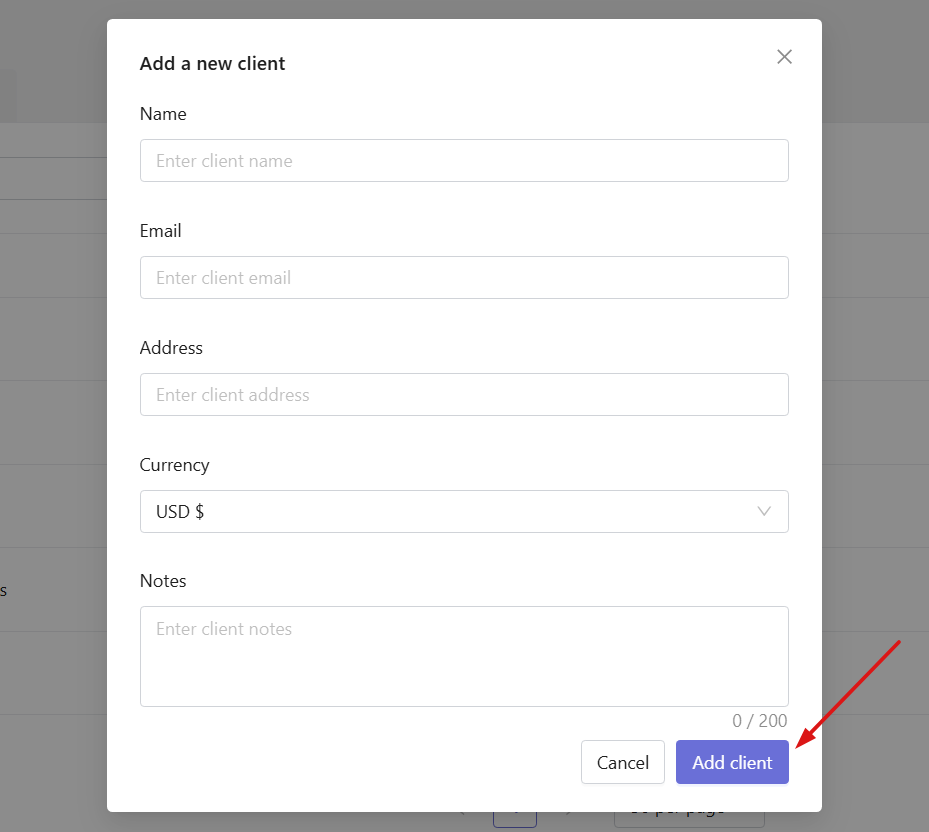
Click Add client to save. The client will appear in the Clients list and can be used for project assignment and reporting.
To learn how to assign a client to a project, see the article on Creating and managing projects.
Edit client details
Traqq allows you to update client information at any time.
To edit a client:
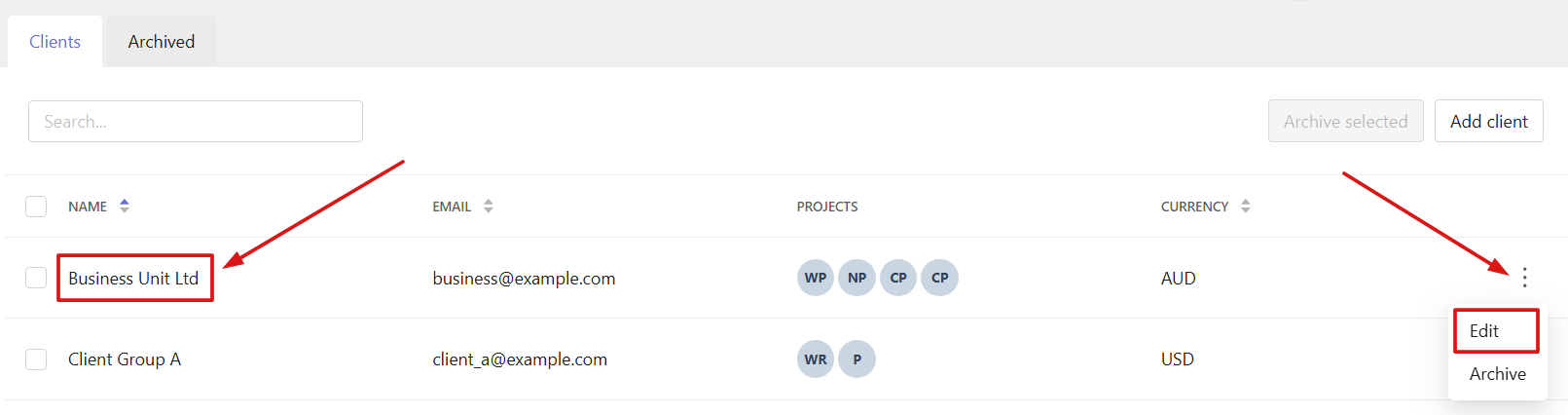
Click the client name to open the client profile, or select Edit from the three-dot menu next to the client.
Update the details in the form and click Update client to save changes.
Archive a client
Archive clients that are no longer active to keep the main list focused. Archiving keeps all historical data intact.
To archive a client, click the three-dot menu next to the client and select Archive.

Traqq moves archived clients to the Archived tab and removes them from the active list.
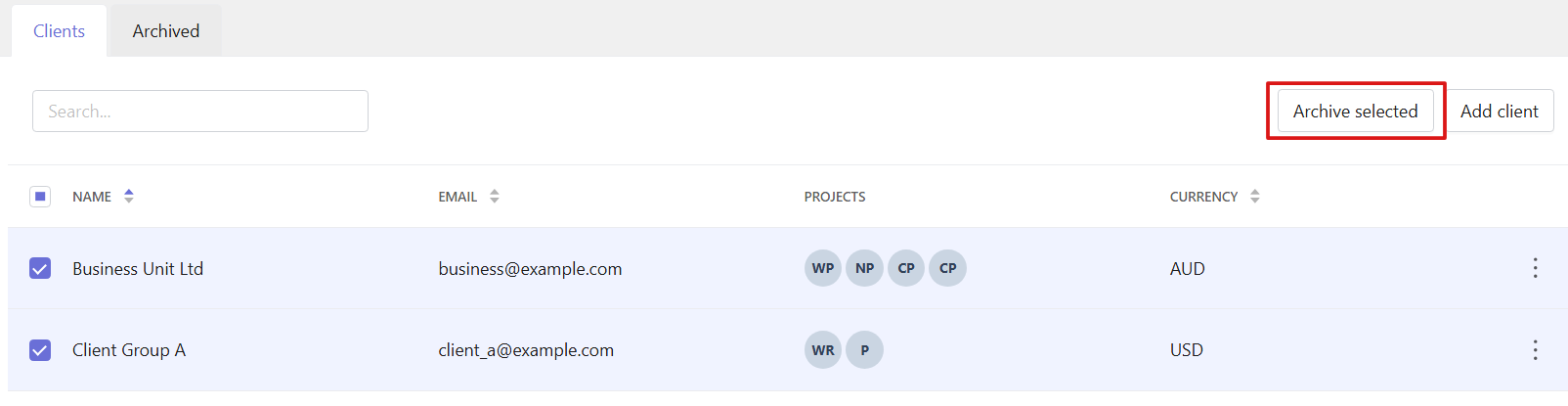
You can also archive several clients at once. Select the checkboxes next to the clients you want to archive and click Archive selected.
Restore a client
You can restore archived clients at any time.
On the Archived tab, select one or multiple clients using the checkboxes, then click Restore selected.
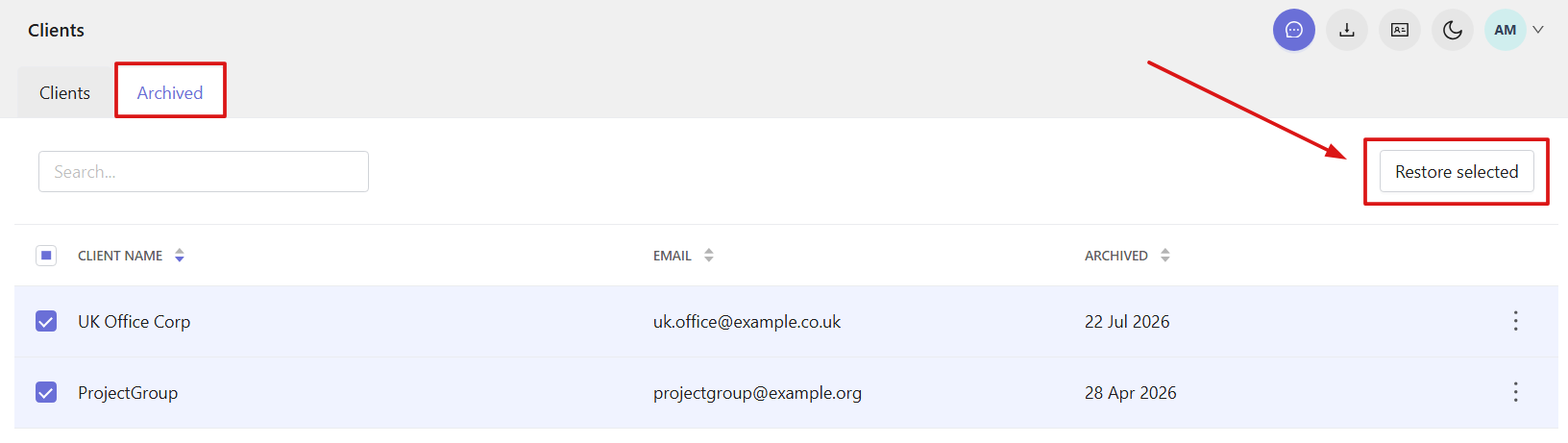
You can also restore a client by clicking the three-dot menu next to the client and selecting Restore.

Restored clients return to the active list.
Delete a client
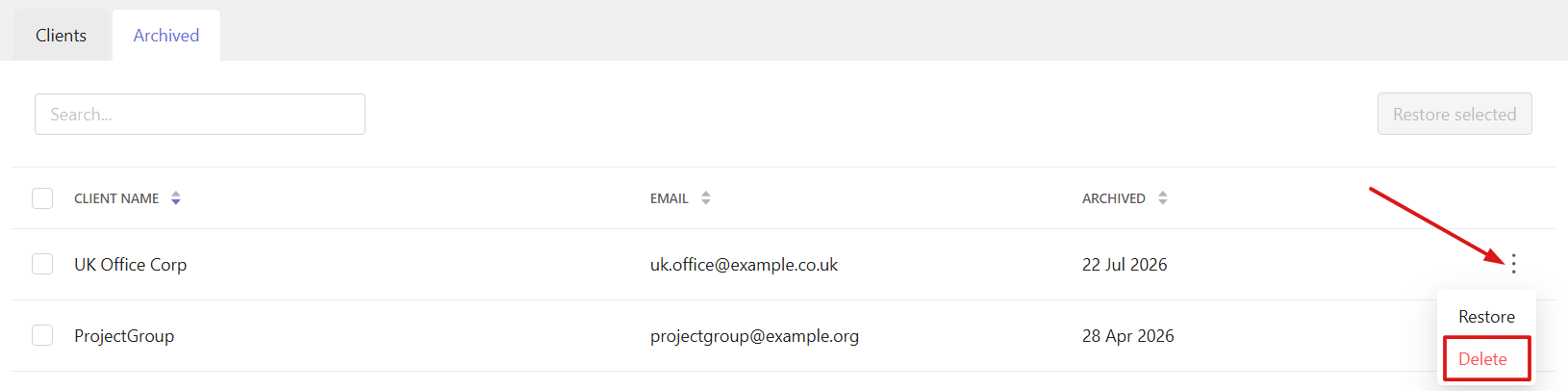
Clients can only be deleted from the Archived tab.
To delete a client, find the client in the Archived tab, click the three-dot menu and select Delete.
When a client is deleted:
- - It is removed from all associated projects and invoices
- Associated projects are updated to use the workspace currency
- Invoice amounts and totals remain unchanged
This action cannot be undone.
FAQs
Does Traqq support client management?
Yes. Traqq allows you to add and manage clients that can be used across projects, invoices, and reports.
Can I assign clients to projects?
Yes. You can assign a client when creating or editing a project. A client can also be used across multiple projects.
Who can manage clients in a workspace?
Workspace Owners and Admins have full access to client management. Managers can view client details for the projects they manage. Users do not have access to the Clients section.