Managing tags
Workspace Owners and Admins can create and manage tags that team members can use while tracking time. Tags help organize work entries and make it easier to group similar tasks across projects and reports.
Here are some examples of how teams can use tags:
- - Task type: Support ticket, Bug fix, Research, Meeting, Documentation
- Priority level: Low Priority, High Priority, Critical
- Work category: Internal, Client Request, Improvement, QA
- Workflow stage: Review, In Progress, Waiting for Approval
- Team-specific processes: Discovery, Knowledge Sharing, Innovation -
Open the Tags section
- Open the Tags section from the left sidebar.
- The page contains two tabs:
- Tags — displays all active tags
Archived — displays archived tags 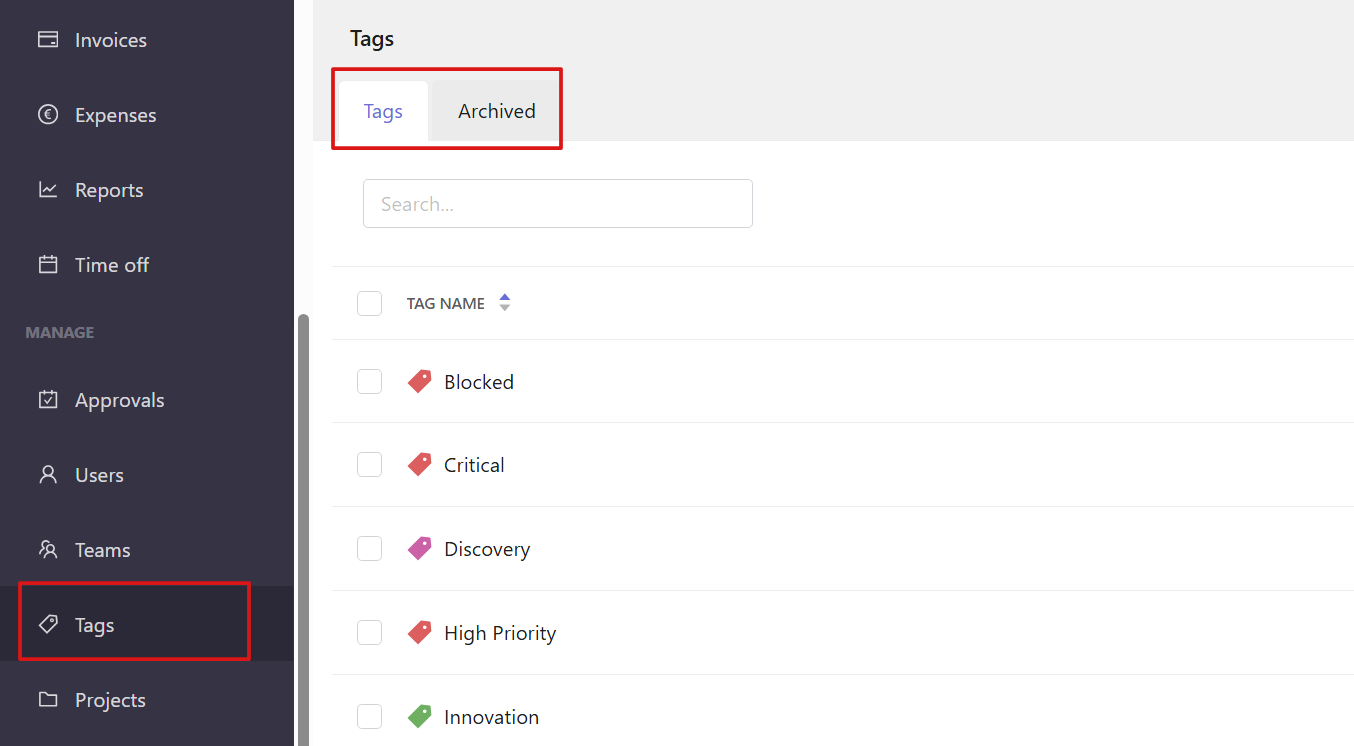
-
Add a new tag
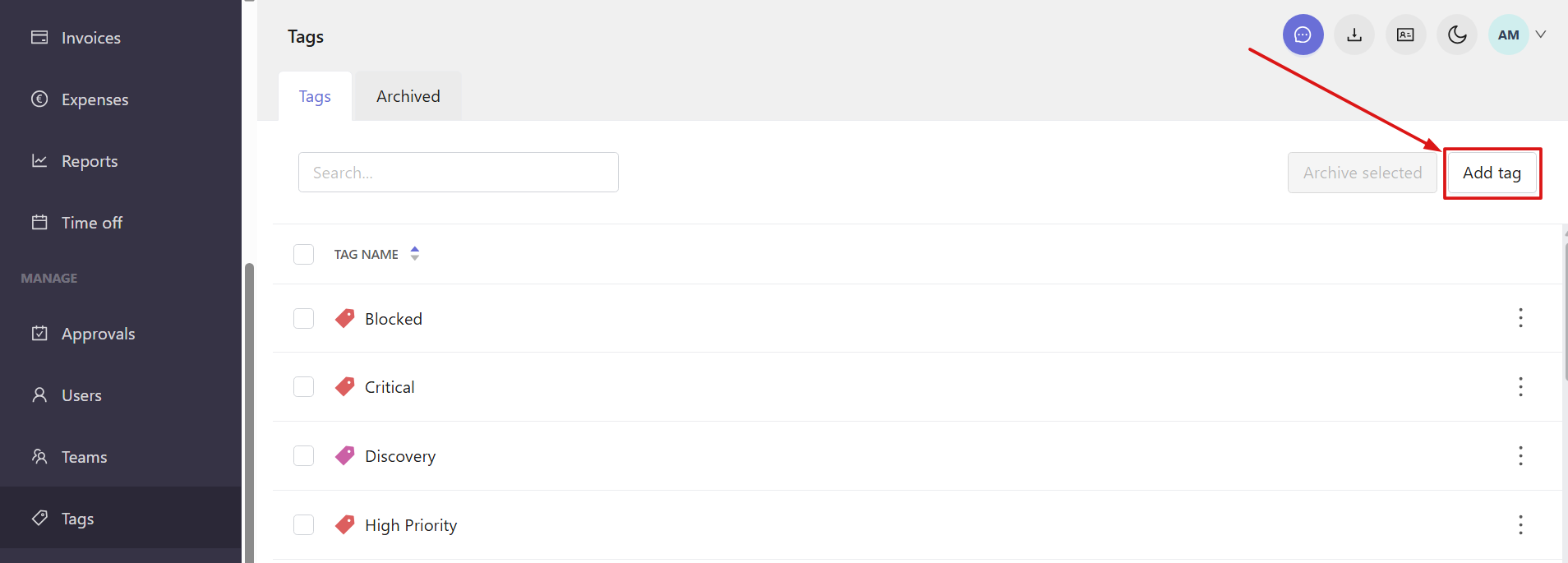
- To create a new tag, click Add tag in the top-right corner.
- In the window that opens:
- Enter the tag name
- Choose a color for the tag
- Click Add - The new tag becomes available immediately for organizing tasks and tracking time.
-
Edit or archive tags
- To manage an existing tag, click the three-dot menu next to the tag name.
- From there, you can:
- Edit the tag name or color
- Archive the tag 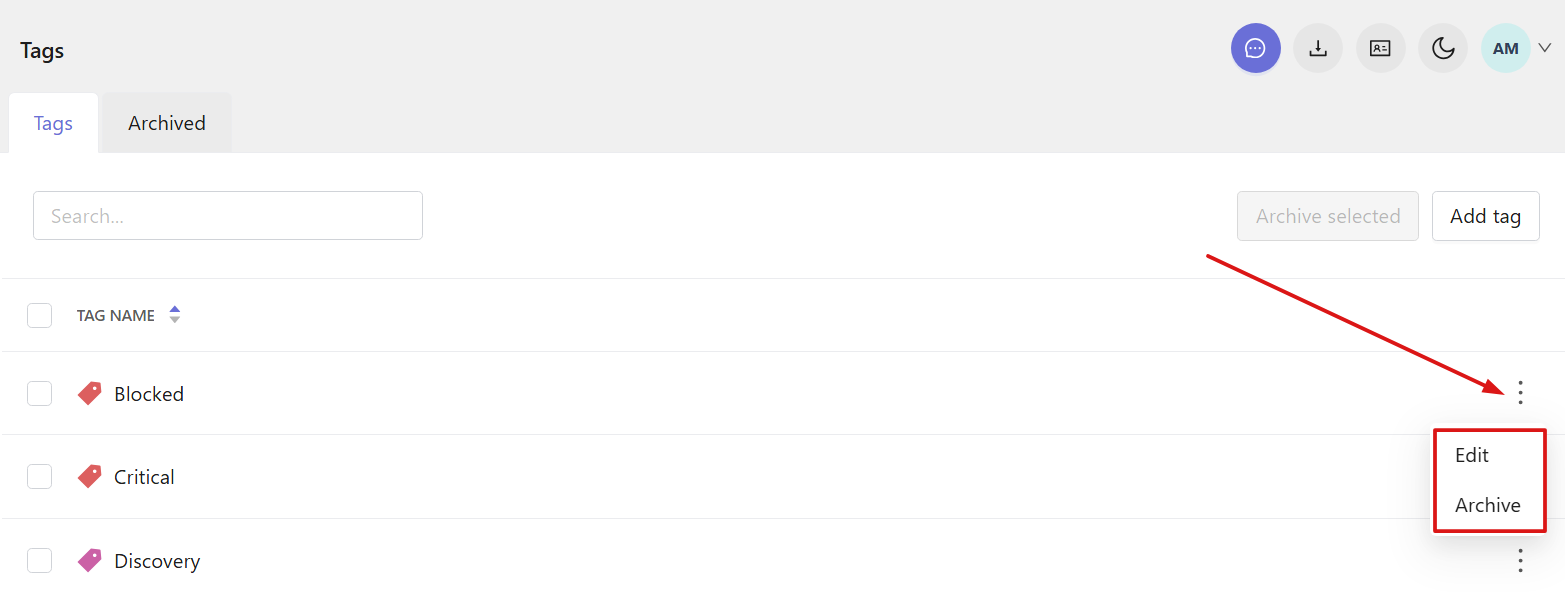
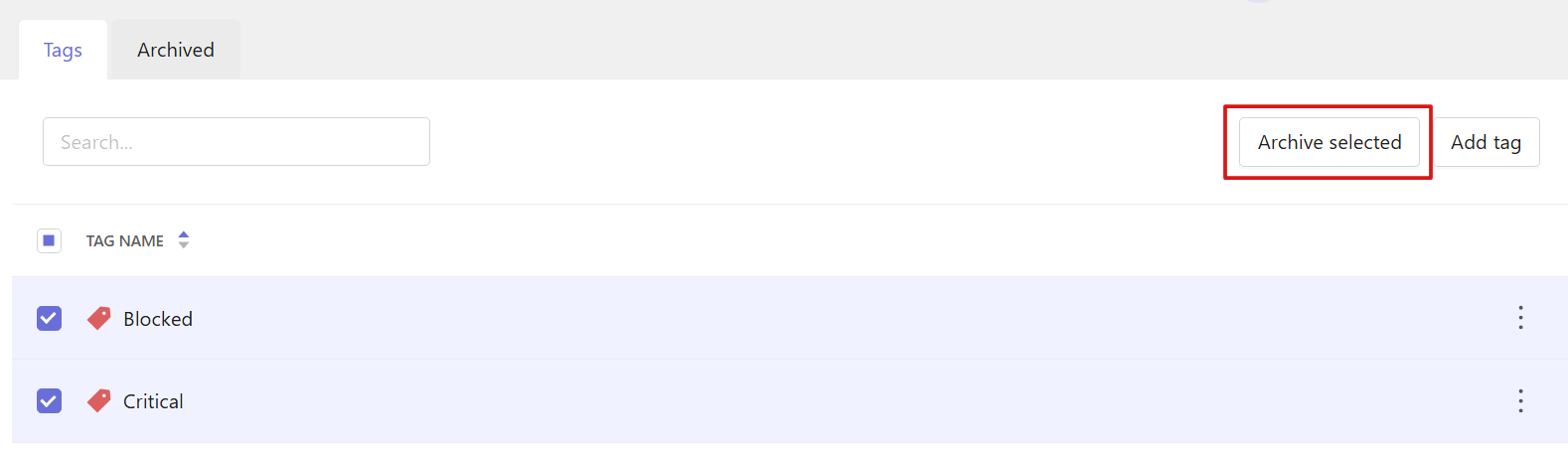
- Archived tags are moved to the Archived tab and are no longer available for active use. To archive multiple tags, select the checkboxes and click Archive selected.
-
Restore or delete archived tags
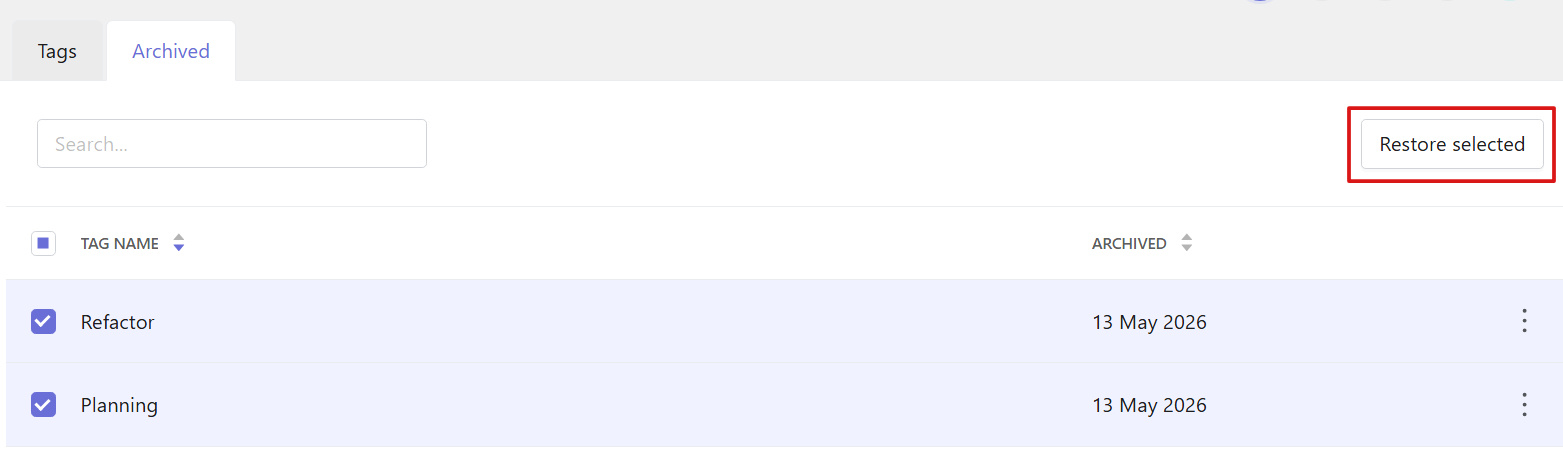
- Open the Archived tab to manage archived tags.
- From there, you can:
- - Restore individual tags from the three-dot menu
- Delete tags permanently (deleted tags cannot be restored) 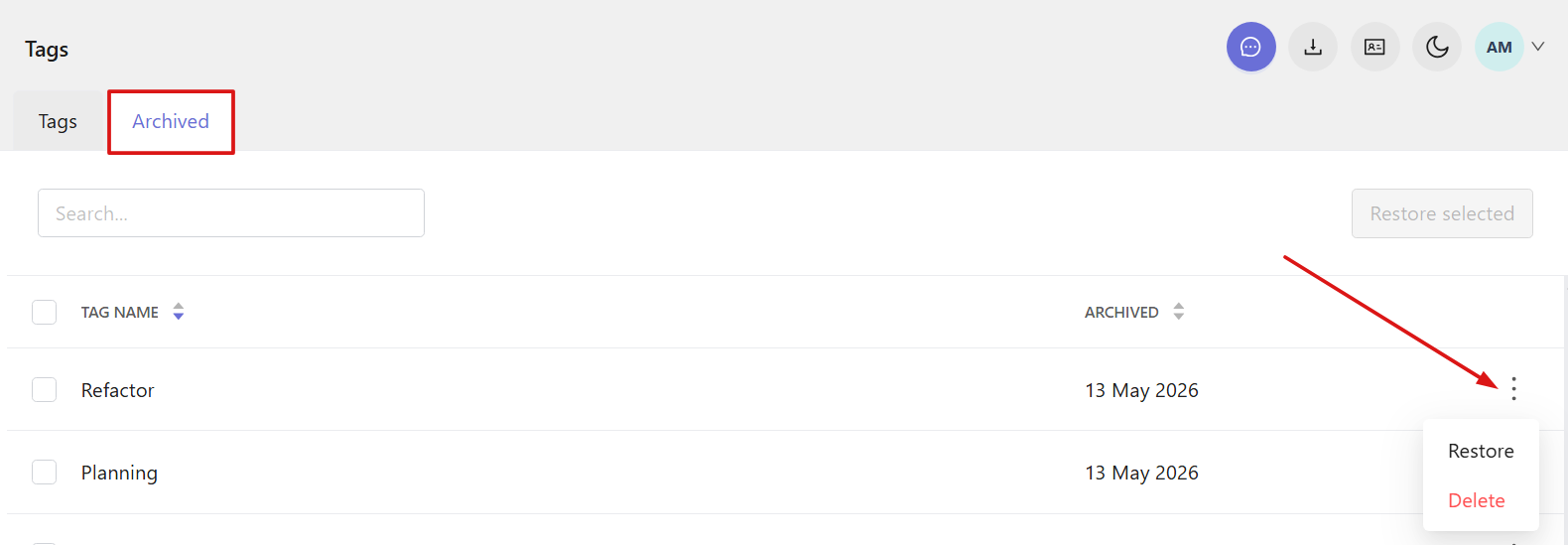
- - Restore multiple tags at once using the checkboxes and the Restore selected option