Reviewing individual user performance
You can review a user’s tracked time, workload, and account information from the Users section.
Owners and Admins can view every user profile. Team Managers and Project Managers can only view the profiles of users who belong to their teams or projects.
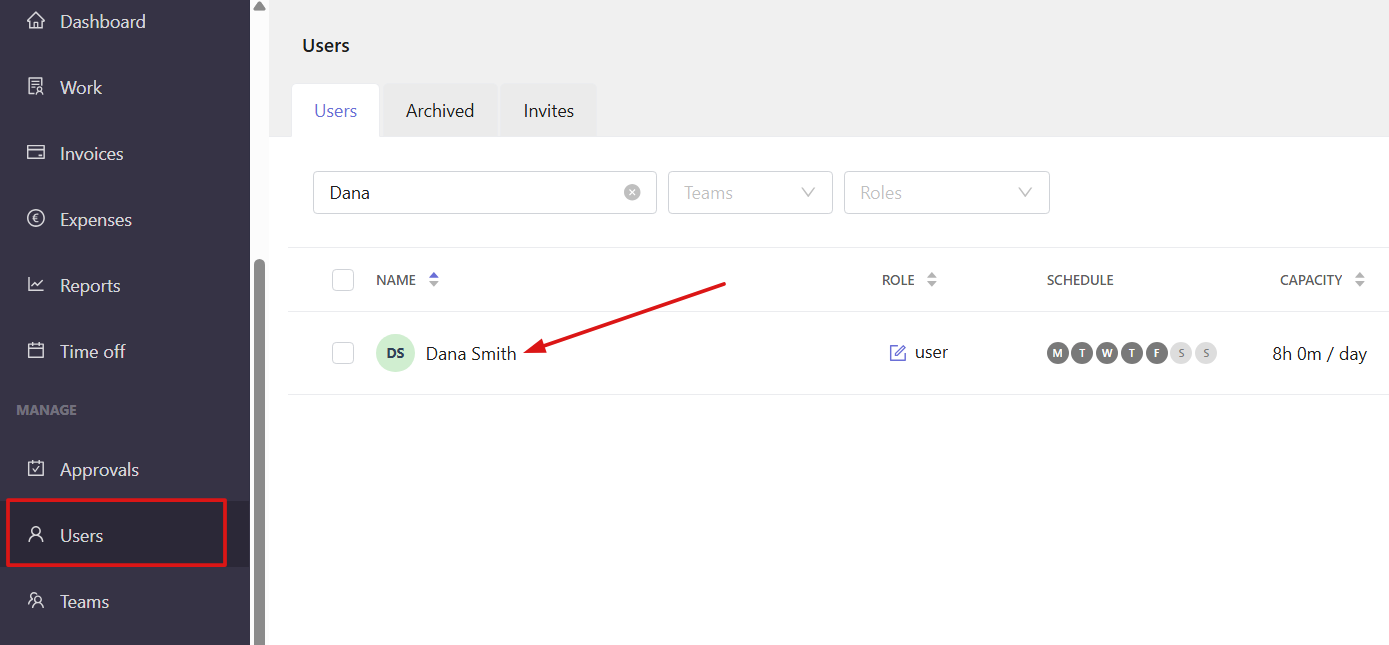
To open a user profile, go to Users from the left sidebar and click a user.
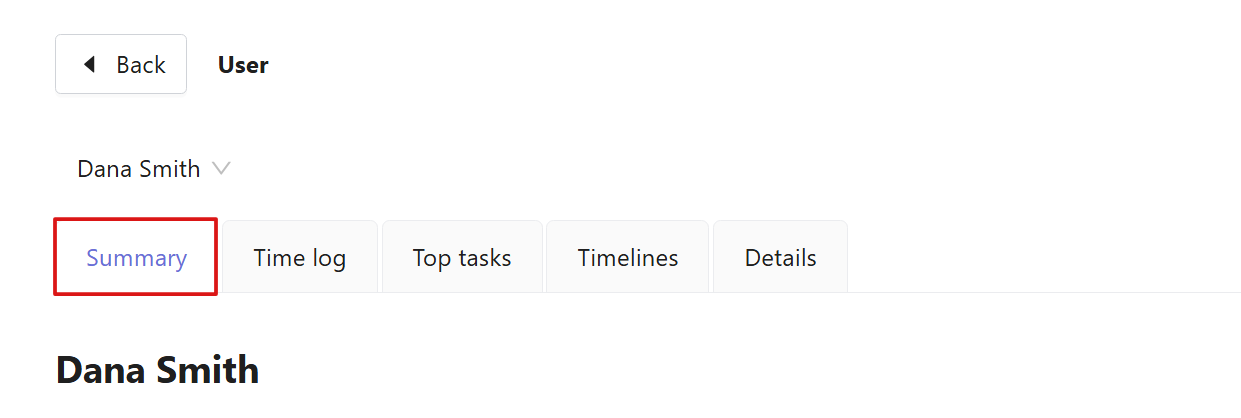
Summary
The Summary tab provides an overview of a user’s tracked time, capacity, and work allocation.
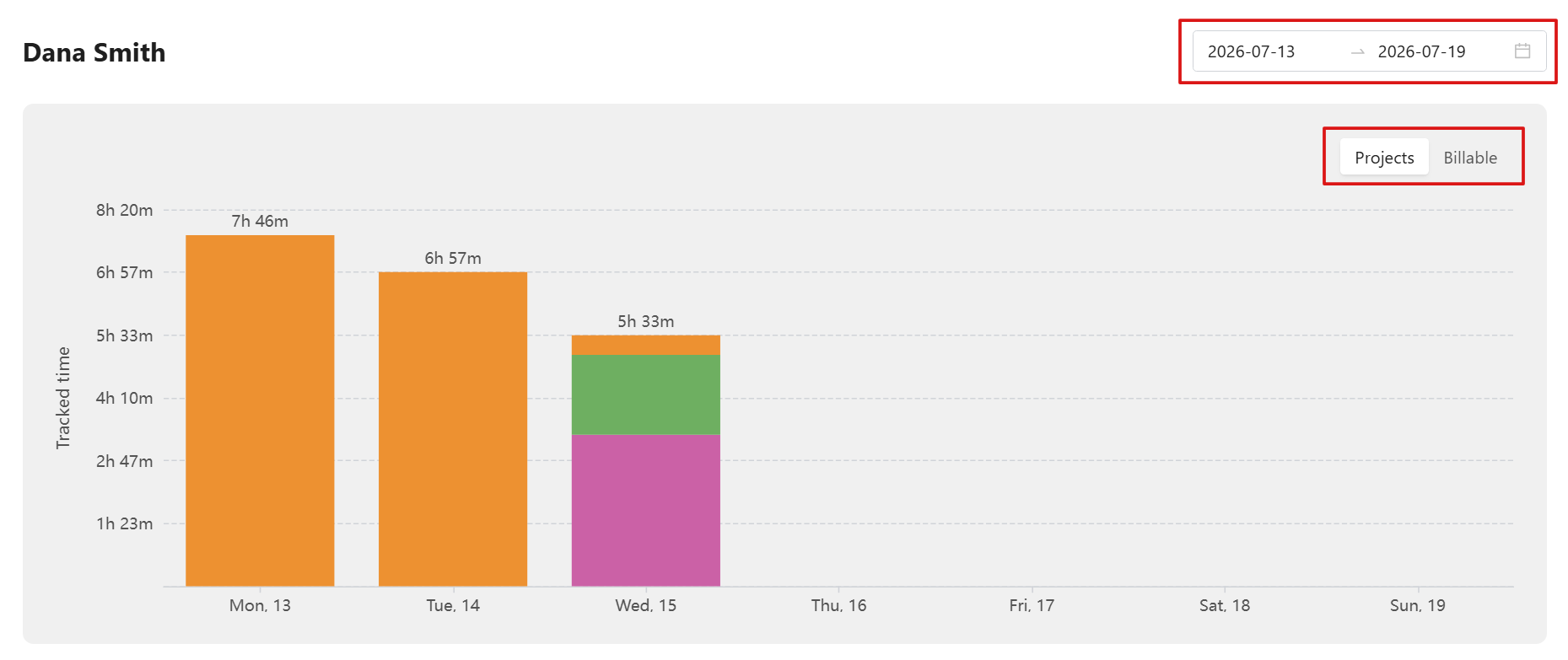
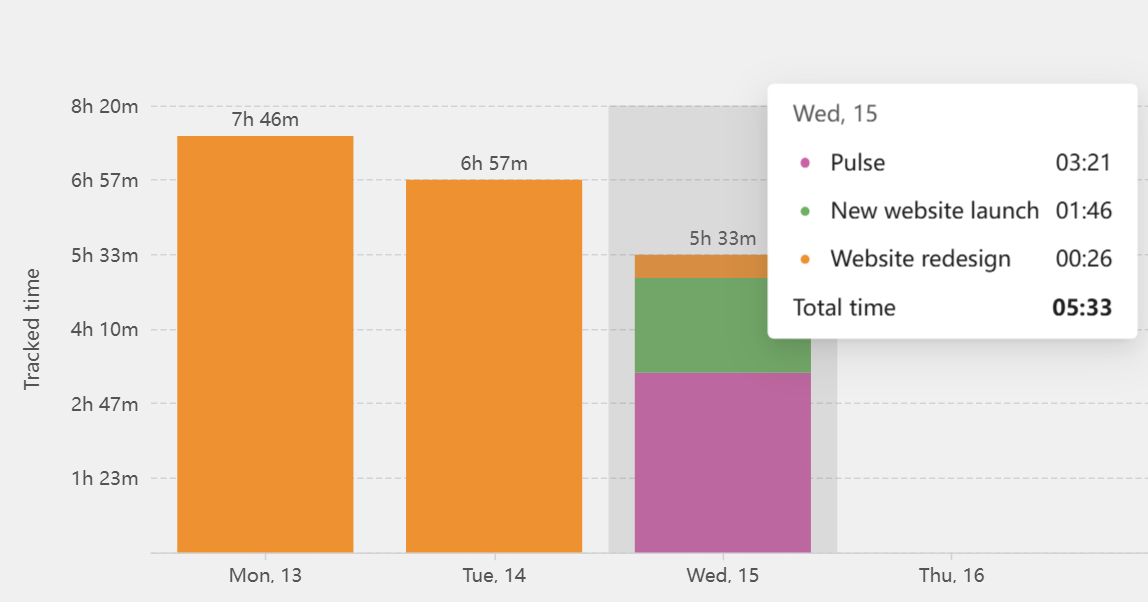
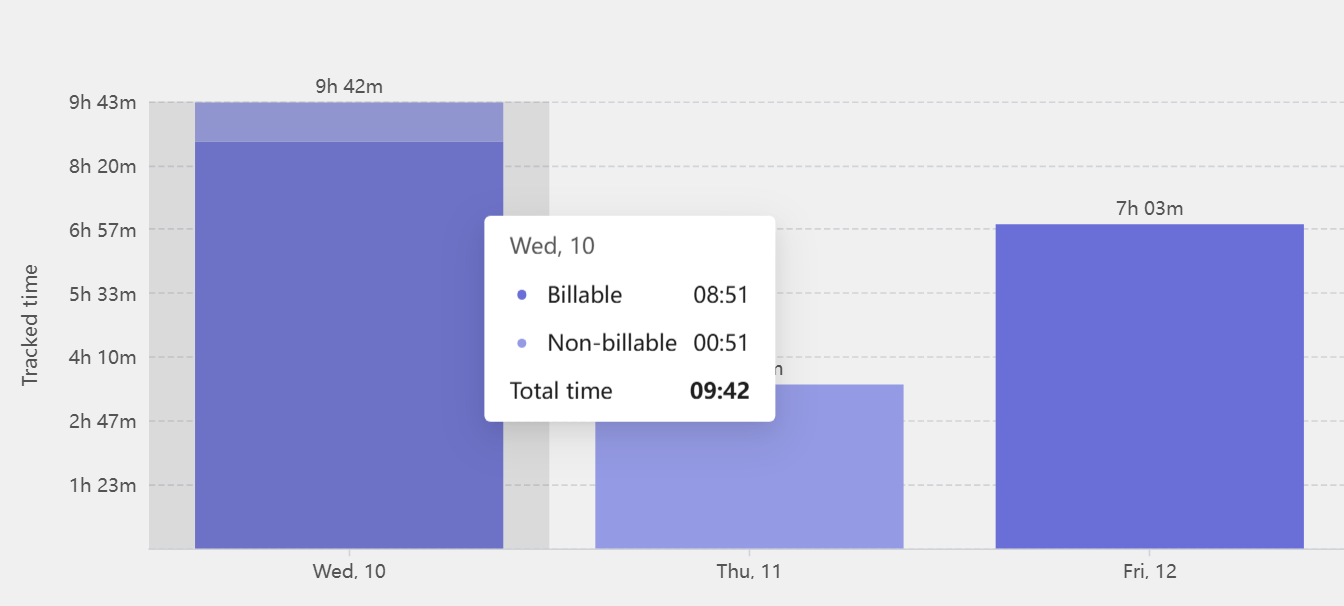
Tracked time is displayed as a chart that you can filter by date range. You can also choose to display the chart by project or billable status.
Projects
Shows tracked time grouped by projects. Each project is displayed using its assigned project color. Hover over the chart to see project details.
Billable
Highlights billable and non-billable time separately. Hover over the chart to see more details.
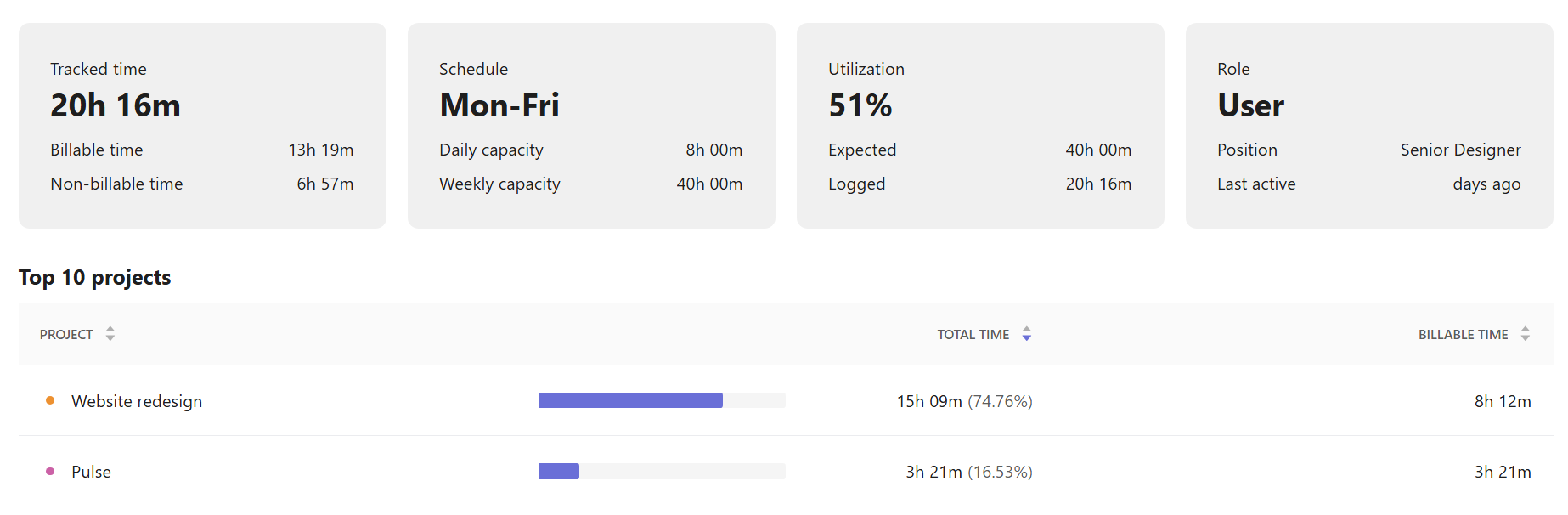
Below the chart, you can view:
Tracked time — total tracked time for the selected period, including billable and non-billable time.
Schedule — working days, daily capacity, and weekly capacity.
Utilization — capacity usage based on expected and logged time.
Role — role and account information.
Top projects — the top 10 projects for the selected period.
Time log
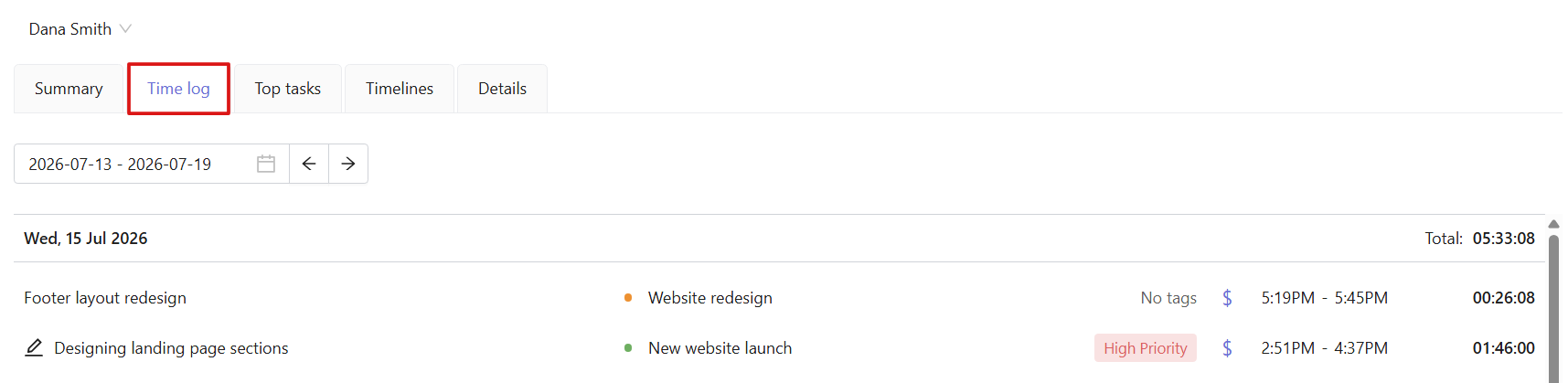
The Time log tab provides detailed information about a user’s tracked time entries.
You can filter time entries by date and view the following:
- Date
- Task
- Project
- Tags
- Billable status
- Duration
- Tracked time
Top tasks
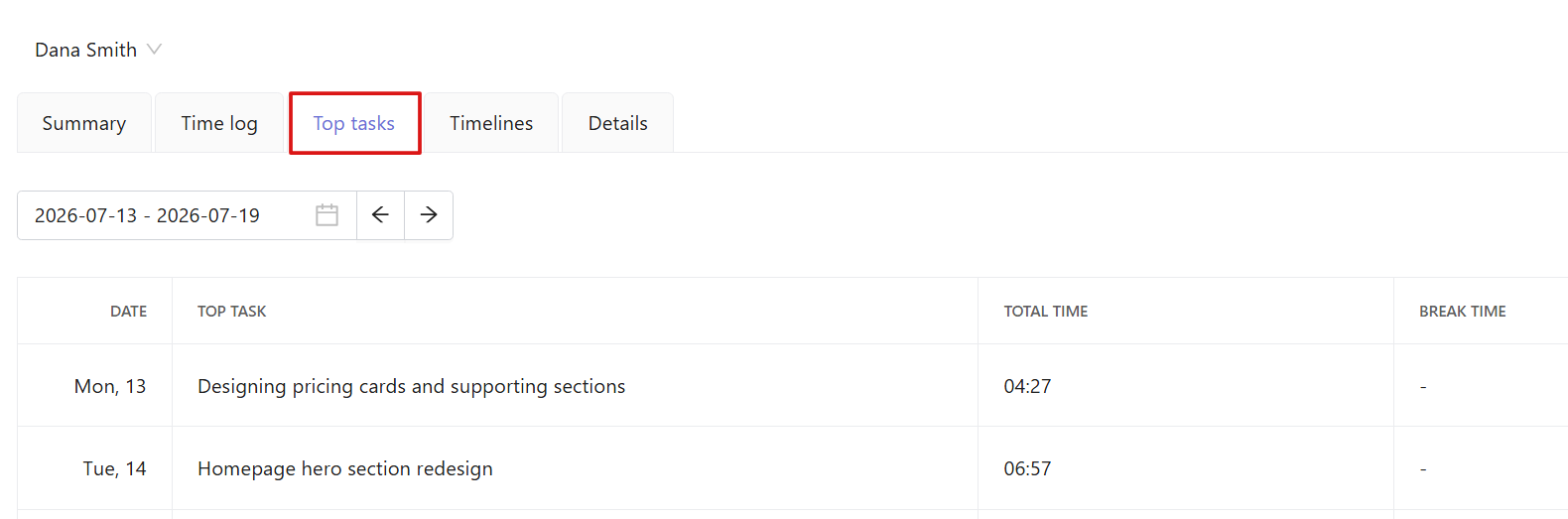
The Top tasks tab shows the tasks that took the most time during the selected period.
You can filter the data by date and view the following:
- Date
- Top task
- Total time
- Break time
Timelines
The Timelines tab displays a user’s tracked time throughout the day.
Traqq does not track user activity. The timeline only displays tracked time entries grouped by project and shown in the project colors configured in project settings.
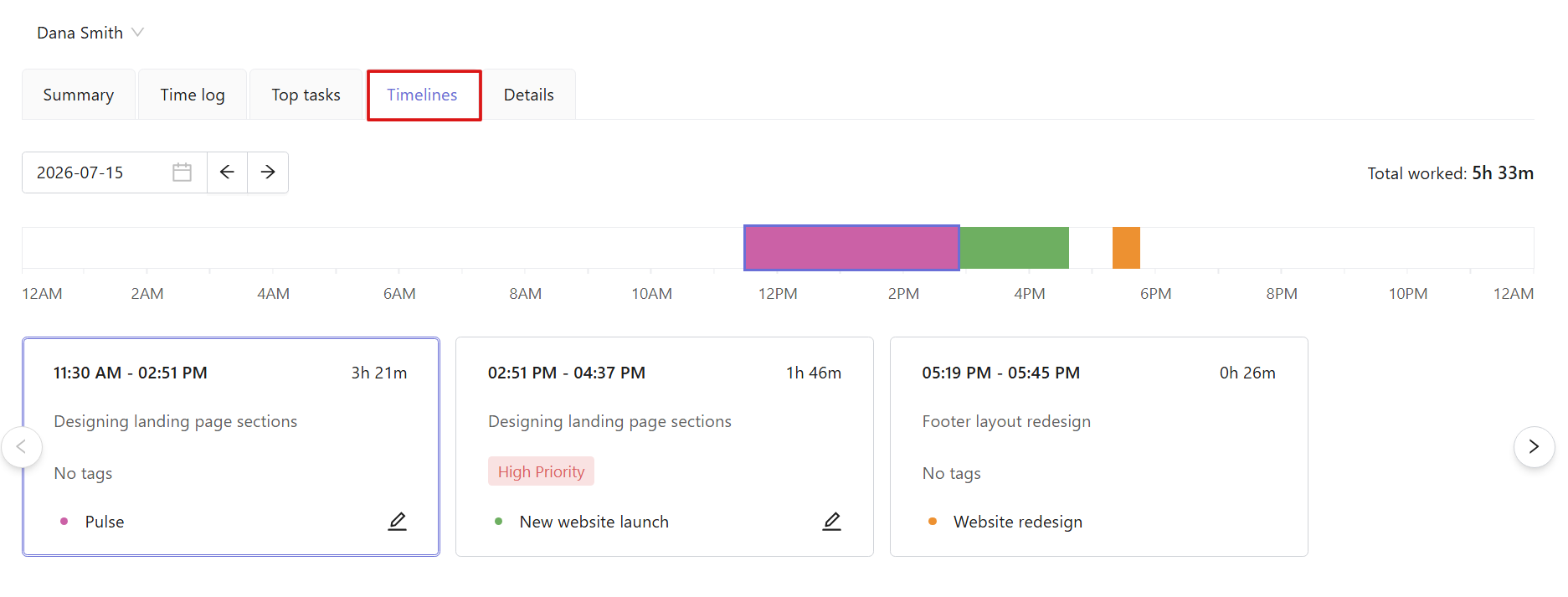
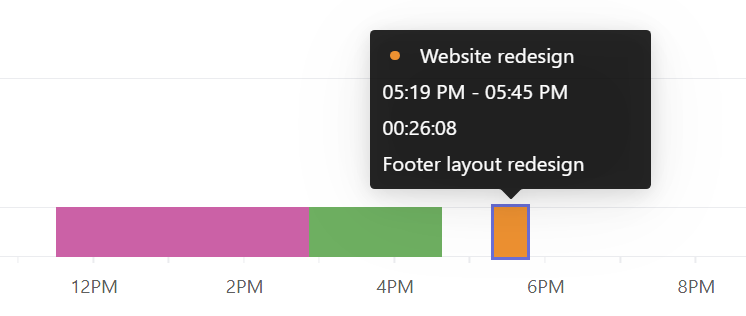
You can filter the timeline by date and hover over any time block to view more details, including:
- Project name
- Time range
- Duration
- Task description
Details
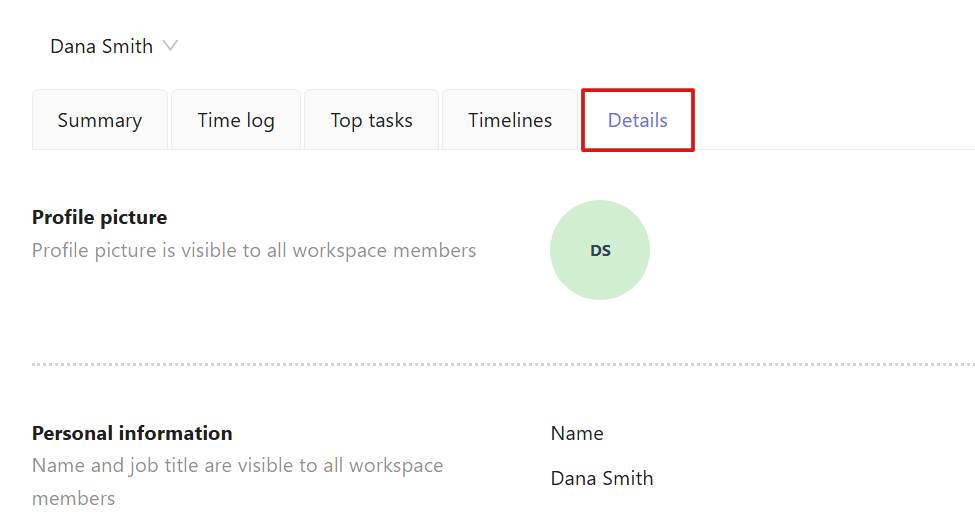
The Details tab contains the user’s account, workspace, and work-related information.
Personal information
This section includes the user's name, email, and position. The Position field can be updated by Owners or Admins.

Account information
In this section, you can view the user's local time and last active status. Owners can also change the user's role.
Schedule
This section shows the user’s working schedule and capacity. Schedule settings are managed by Owners and Admins.
Rates
This section shows the user’s hourly billing and internal cost rates. Rates are managed by Owners and Admins.
Teams & roles
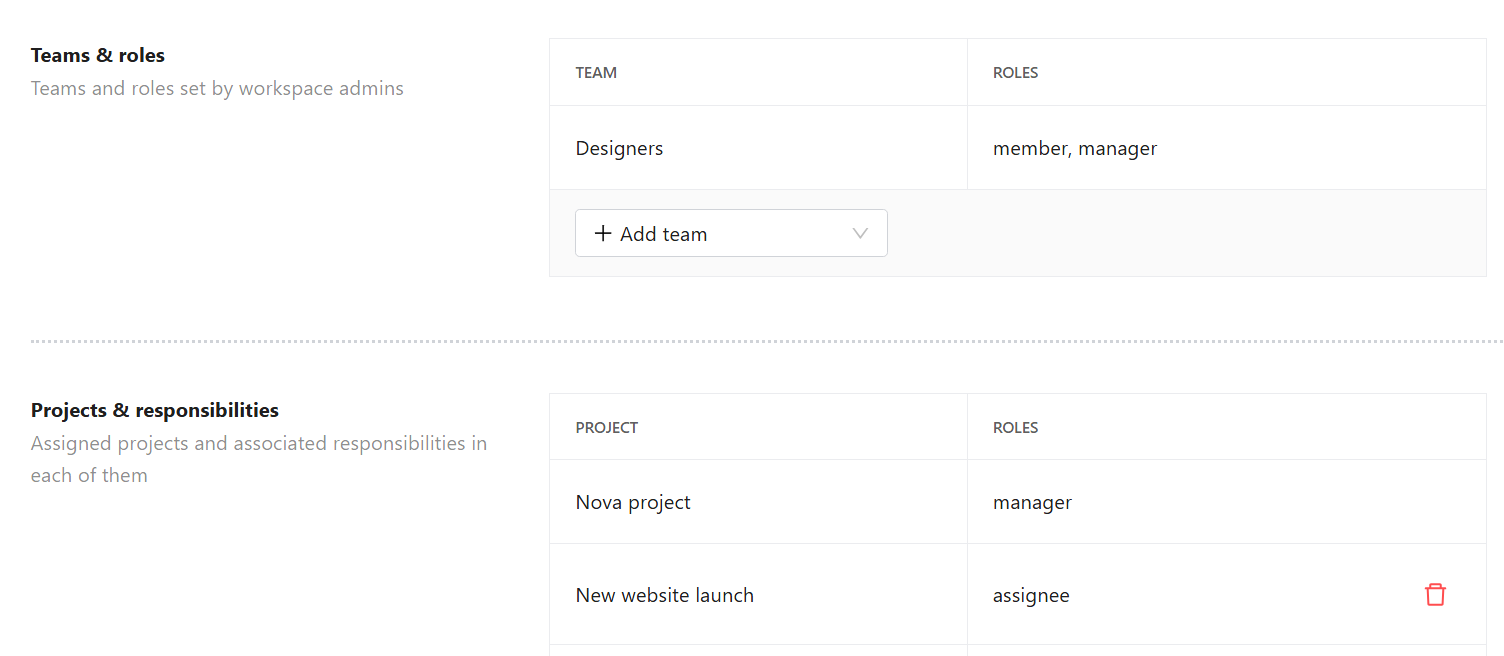
This section shows the teams the user belongs to and the user’s role within each team.
Projects & responsibilities
This section shows the projects assigned to the user and the user’s role in each project.