Access, roles and permissions
Traqq uses roles to control what each user can access and manage within a workspace. Each role comes with a different level of visibility and permissions for users, teams, projects, and settings.
Roles overview
Users:
Users can track time and view their own reports.
Managers:
Besides their own data, Managers can view and manage data for all users in their assigned teams and projects.
Admins:
Admins can manage users, teams, projects, and workspace settings. They also have access to financial data, such as rates, revenue, and expenses.
Owners:
Owners have full access to the workspace. They can manage all users and control all workspace settings.
Assign roles
You can set or change a user’s role from their profile.
Step 1
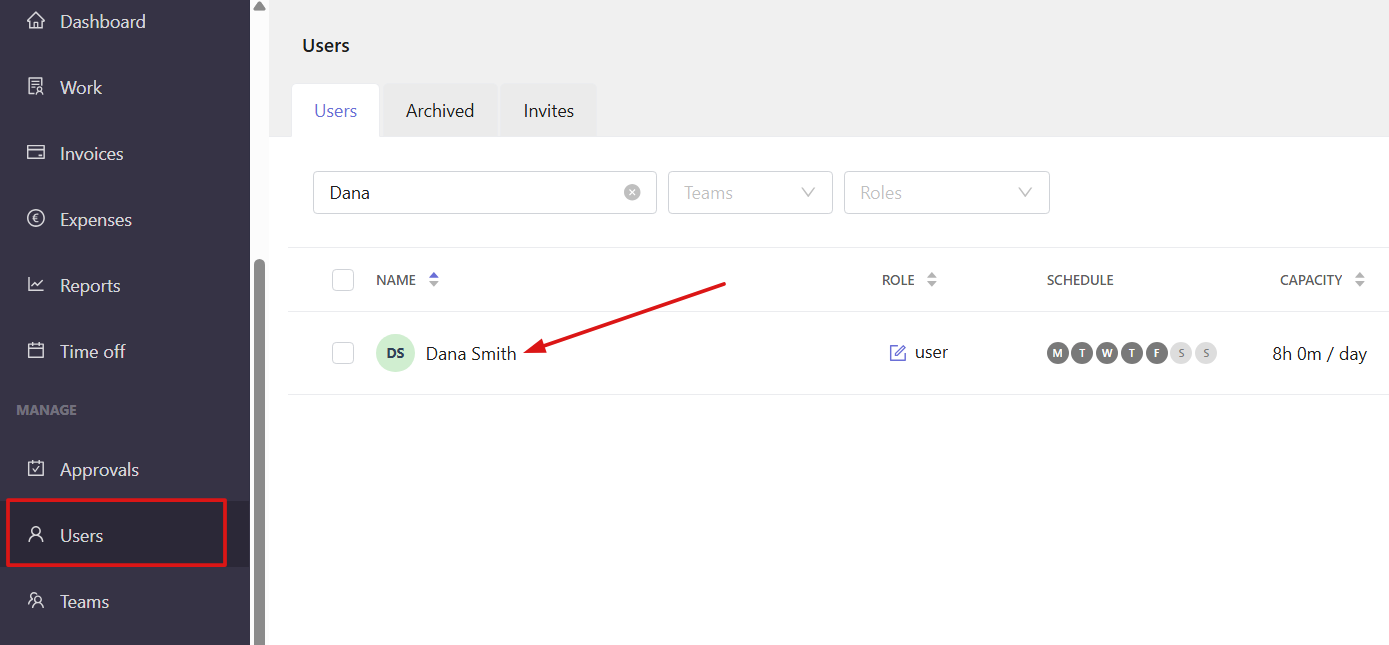
Open the Users section and click on the user’s name.
Step 2
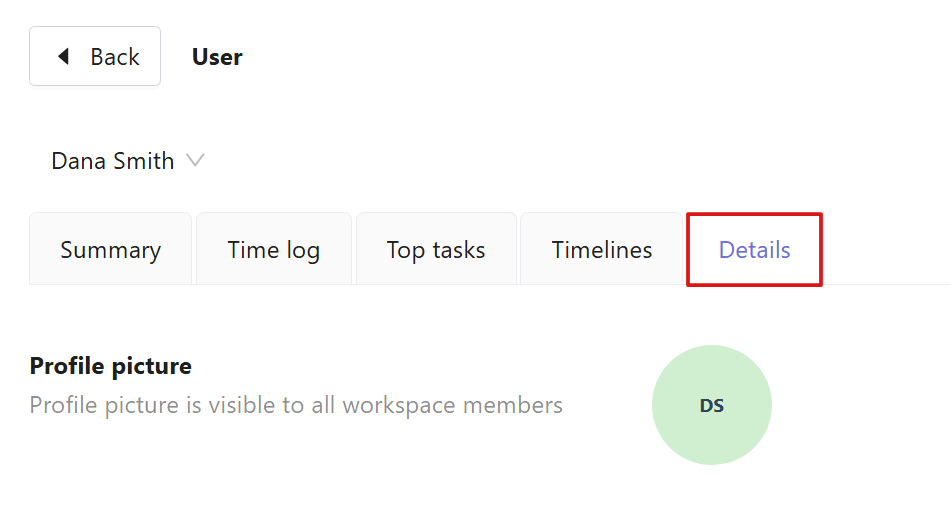
In the user profile, go to the Details tab.
Step 3
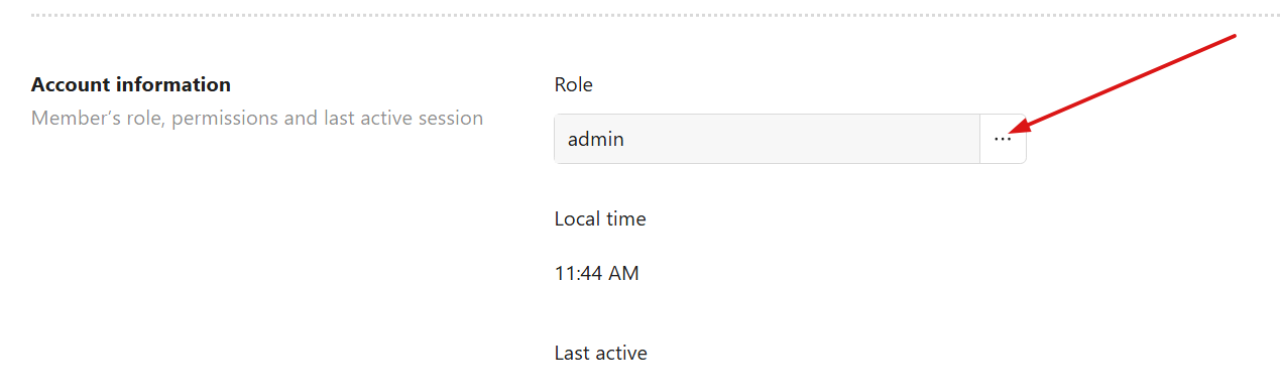
Scroll down to the Account information section.
Next to the current role, click the three-dot menu and choose either Admin or User.
Step 4
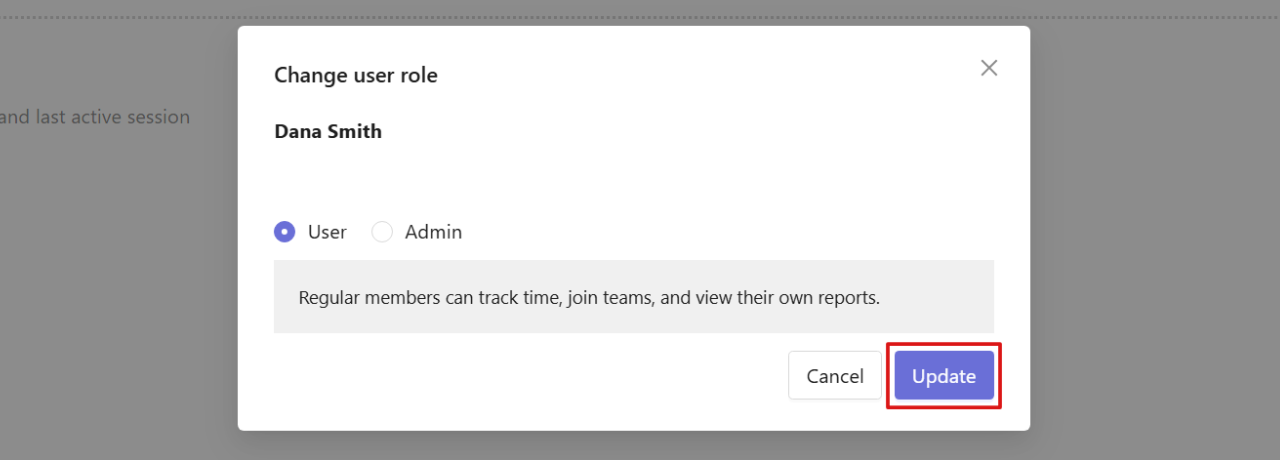
Click Update to save the changes.
Note: Only Owners can assign the Admin role.
Set team and project managers
Owners and Admins can assign managers to teams and projects to support work coordination and reporting structure.
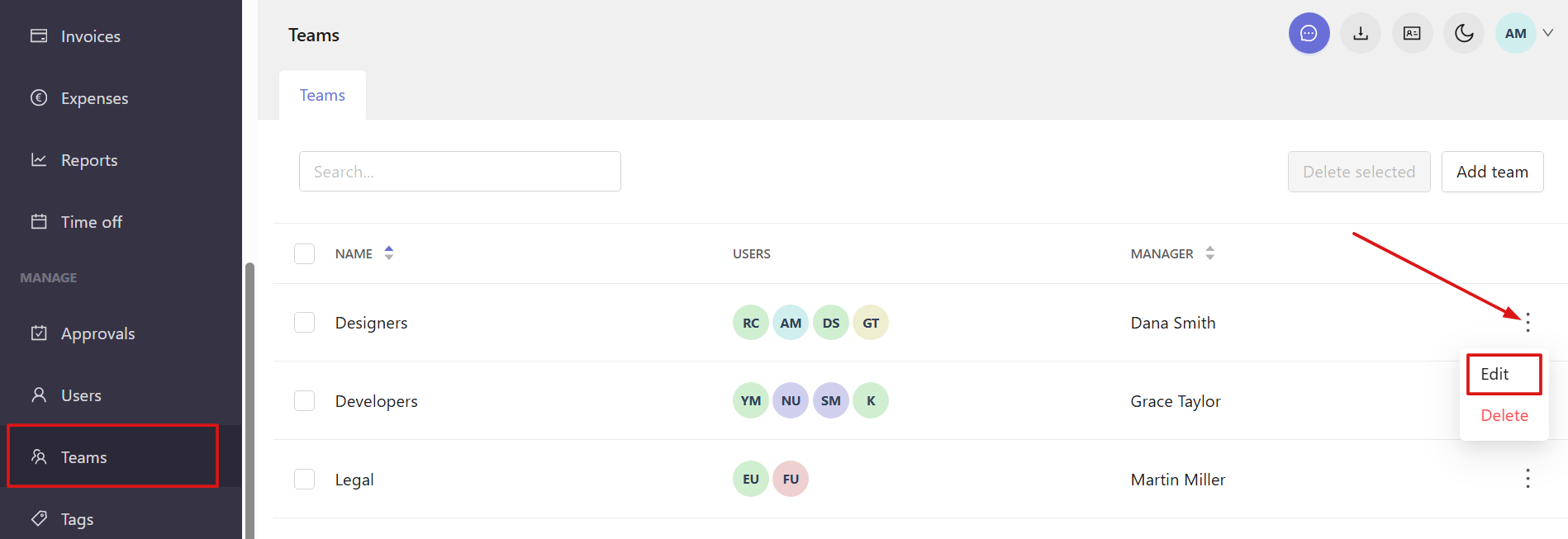
Assign a team manager
Open the Teams section and either create a new team or select an existing one. In the team settings, choose a user in the Manager field and save the changes.
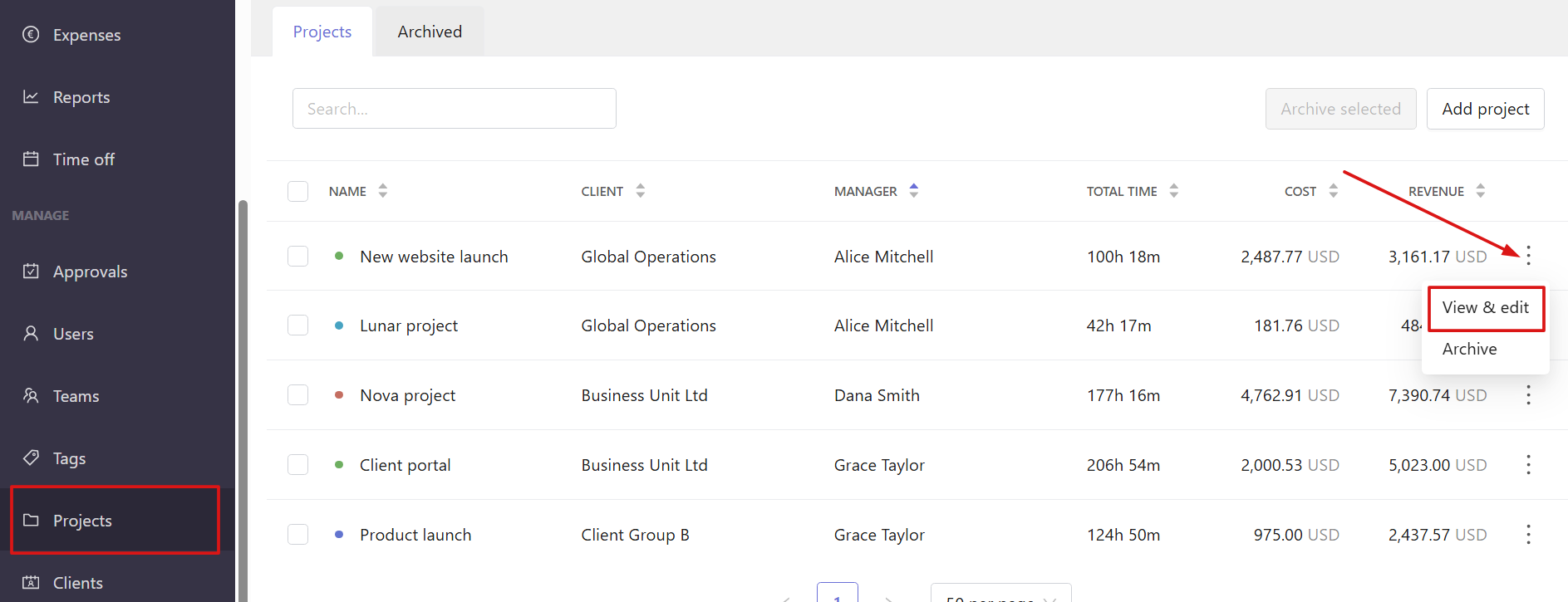
Assign a project manager
Open the Projects section and select View & edit from the three-dot menu next to the project.
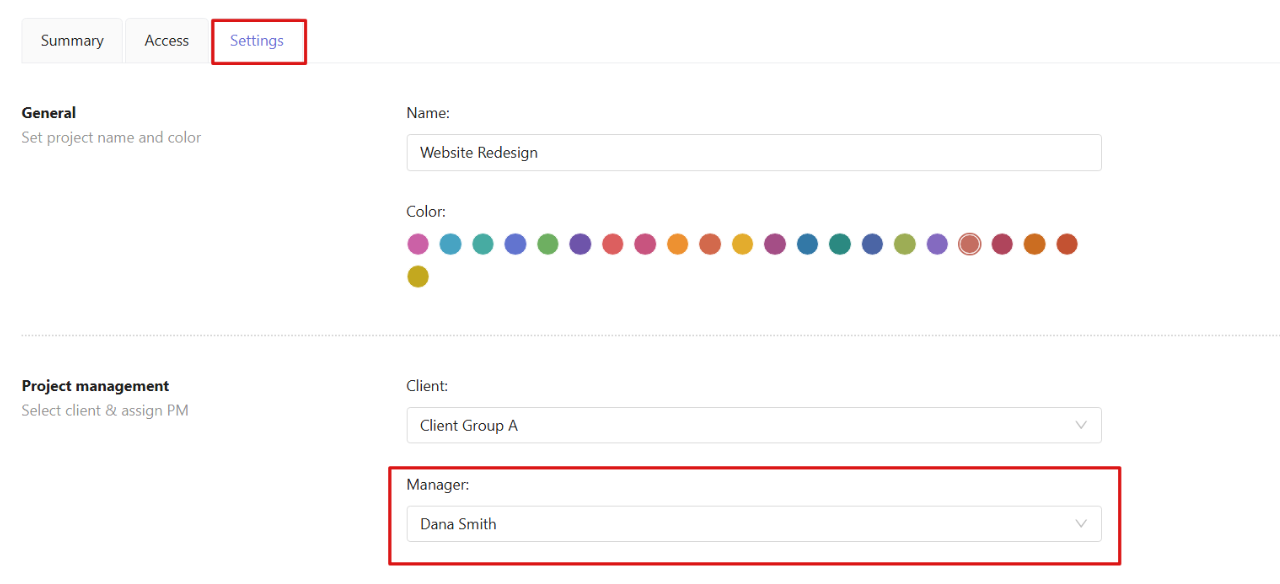
In the Settings tab, find the Project management section and select a user in the Manager field.
Configure timesheet and expense approvers
Owners can define who can approve timesheets and expense sheets in workspace settings.
Step 1
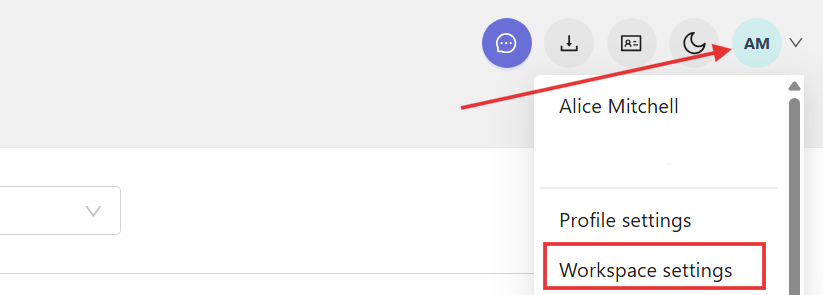
Click the profile icon in the top-right corner and open Workspace settings.
Step 2
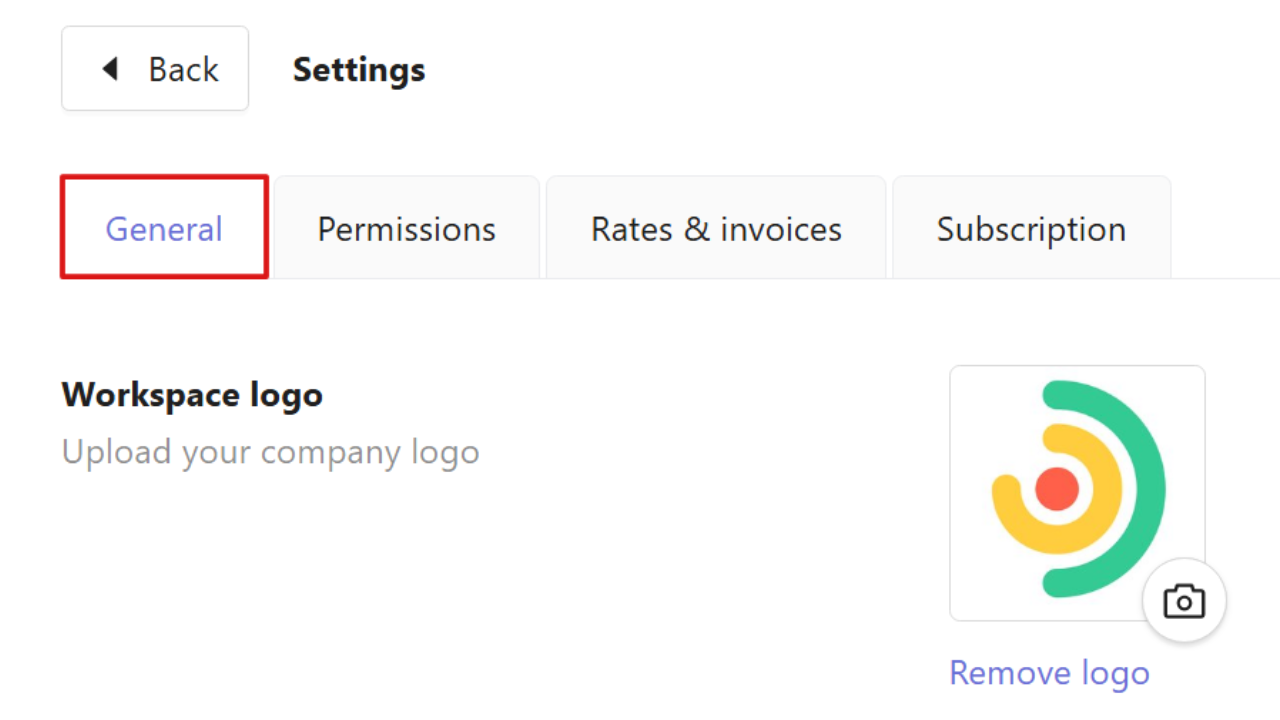
Go to the General tab.
Step 3
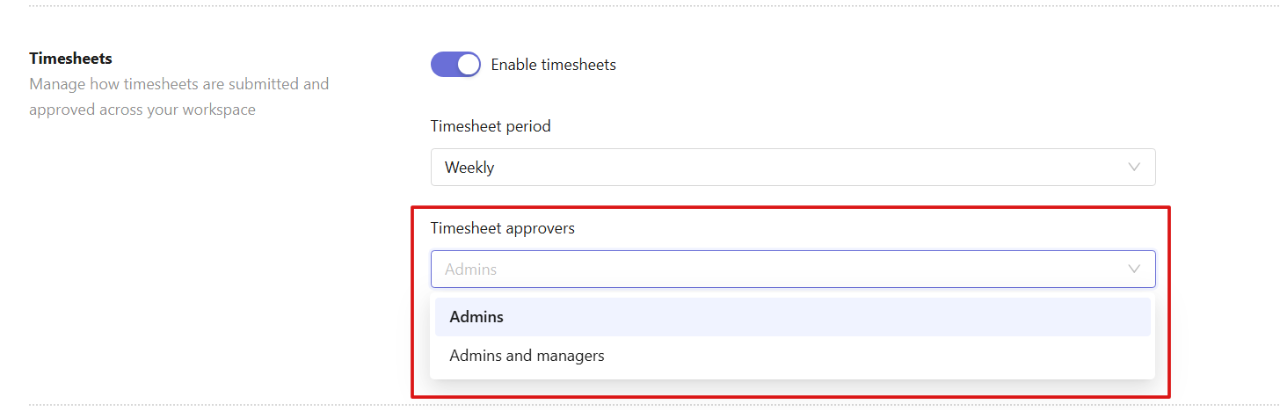
Scroll down to Timesheets and choose who can approve timesheets:
- Admins
- Admins and managers
Step 4
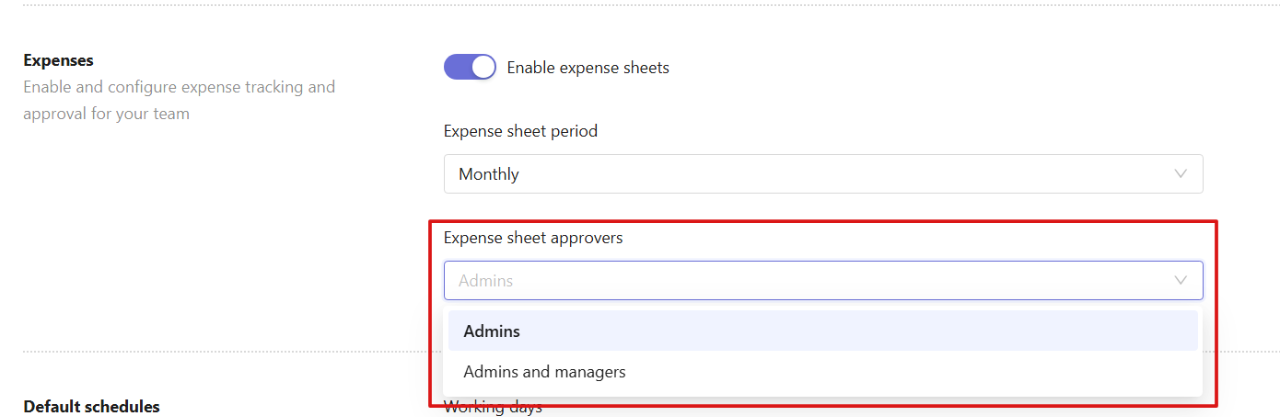
Scroll down to Expenses and choose who can approve expense sheets:
- Admins
- Admins and managers
View teams and project responsibilities
In the user profile, you can review assigned teams, roles, and project responsibilities. Open the Details tab and scroll down to see the following data:
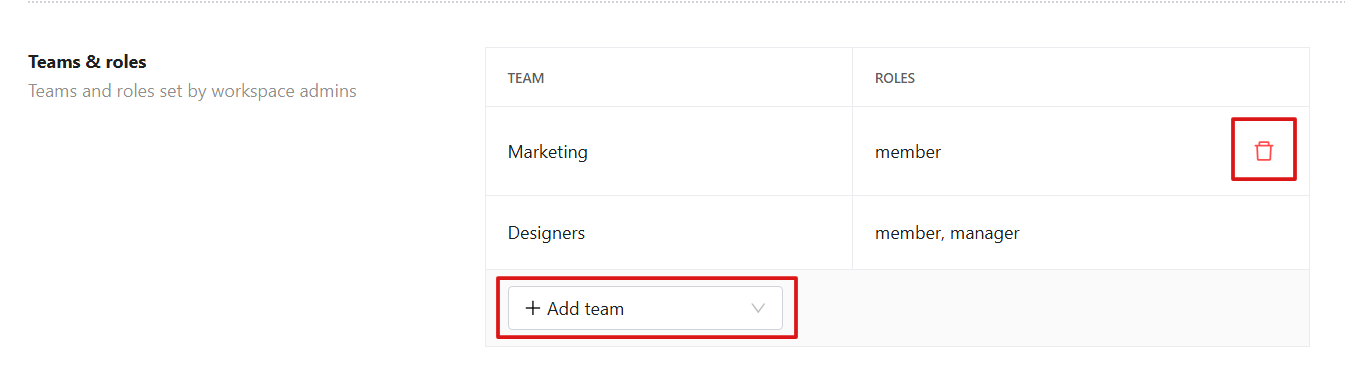
Teams & roles
This section shows the teams a user belongs to and their role within each team.
You can add the user to a new team by clicking Add team.
You can also remove the user from a team by clicking the trash icon next to the team. This option is available only for team members, not team managers.
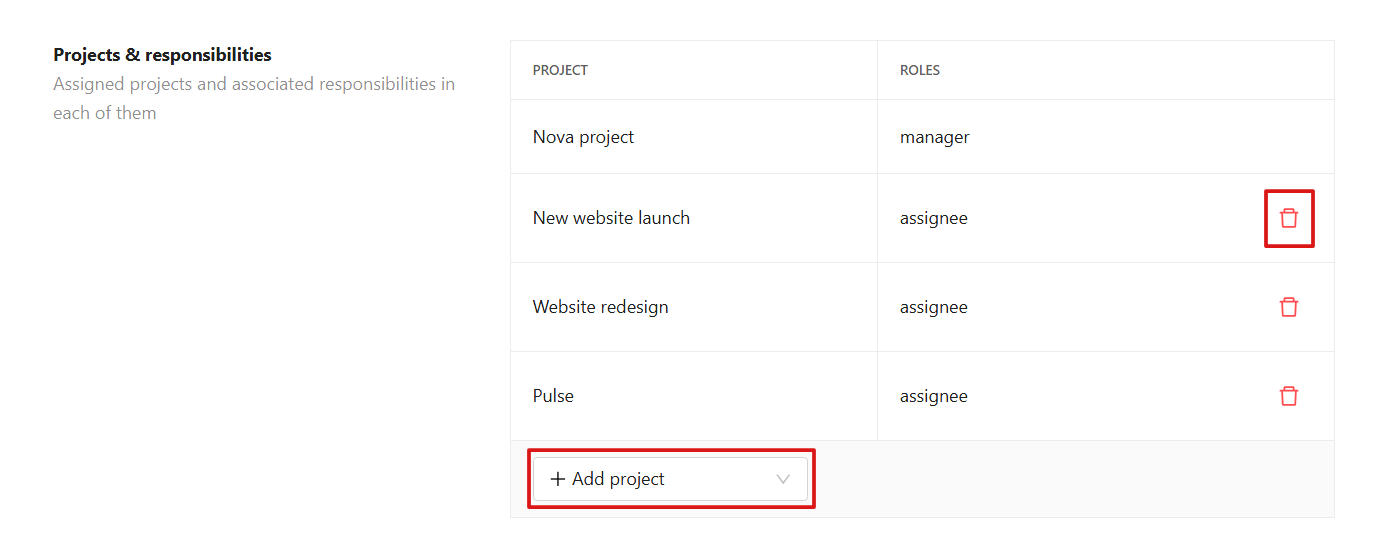
Projects & responsibilities
This section shows assigned projects and the user’s role in each project.
You can assign the user to a new project by clicking Add project.
You can remove the user from projects by clicking the trash icon next to the project. Project managers cannot be removed this way.
FAQs
Why does Traqq use access levels and roles?
Traqq uses roles to help organize workspace access and ensure each user only sees and manages the data relevant to them. This improves security, clarity, and control in team management.
What is the difference between Admin and Owner?
There is only one Owner of the workspace, and they have full control, including assigning Admin roles and managing all settings. Admins can manage users, teams, and projects, and view financial and time data, but they cannot assign other Admins.
Who can assign or change roles in Traqq?
Only Owners can assign or change Admin roles. Both Owners and Admins can assign and change Manager roles.