Removing users
Owners and Admins can remove a user’s access by archiving them or permanently delete them if needed.
Archive a user
Open the Users section from the left sidebar, then click the three-dot menu at the end of the user’s row and select Archive.
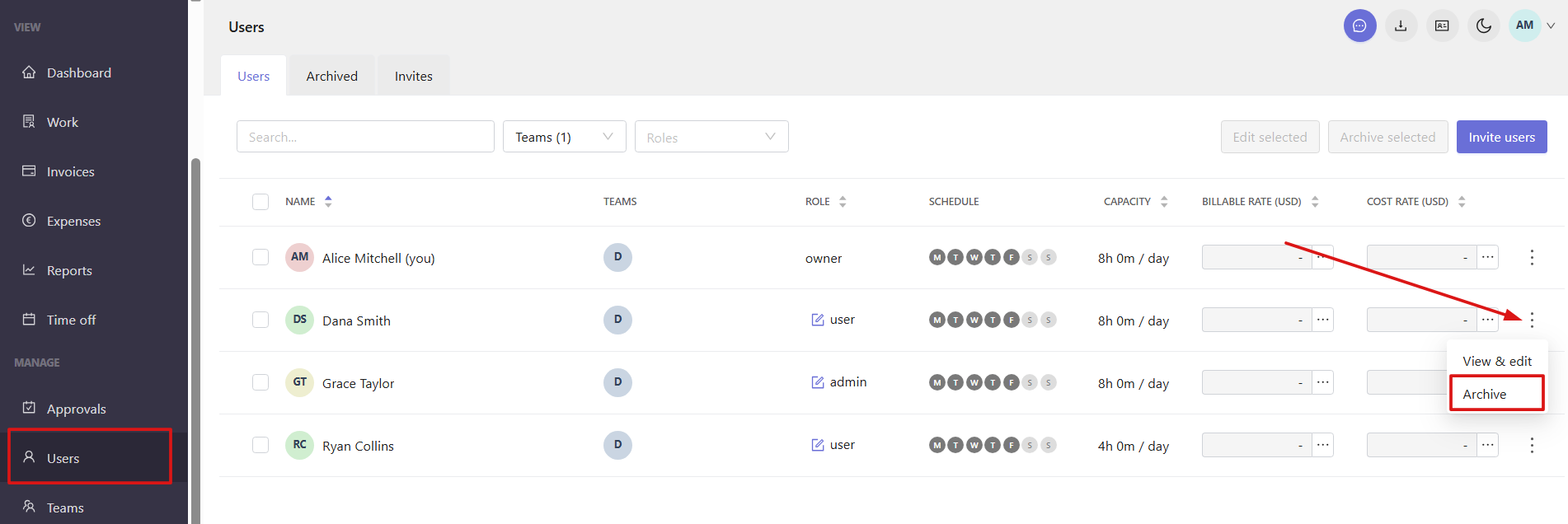
Archived users immediately lose access to their accounts and can no longer track time in the workspace. Their basic information, including name, email, and role, remains available in the Archived tab.
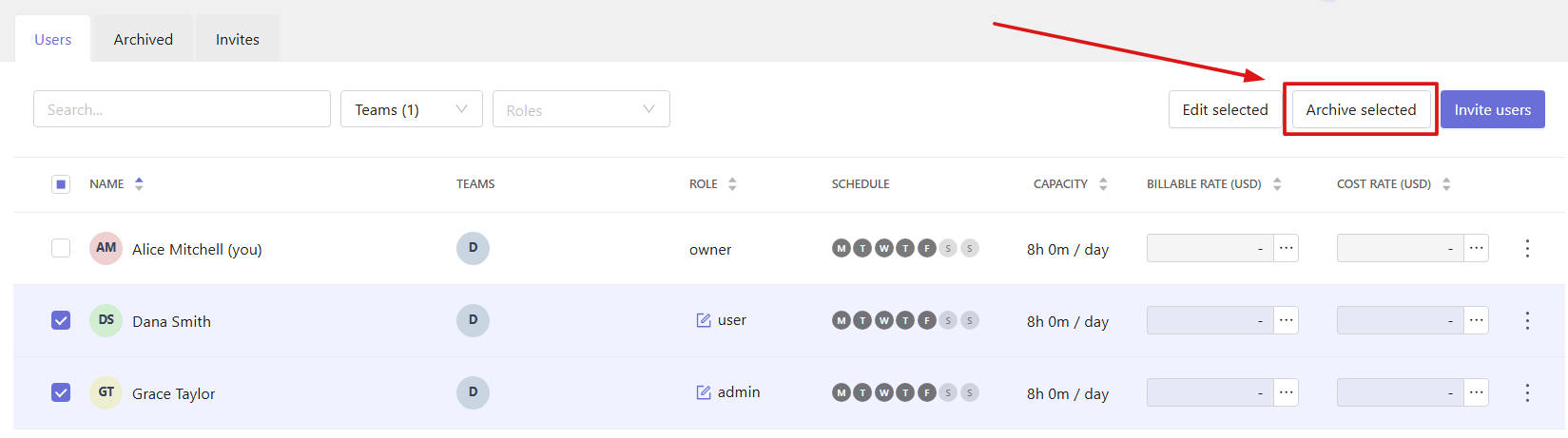
You can also archive several users at once. Select the checkboxes next to the users you want to remove and click Archive selected in the top-right corner.
Restore a user
To bring a user back to the workspace, open the Archived tab, then click the three-dot menu next to the user and select Restore. Restored users can access their accounts and track time again.
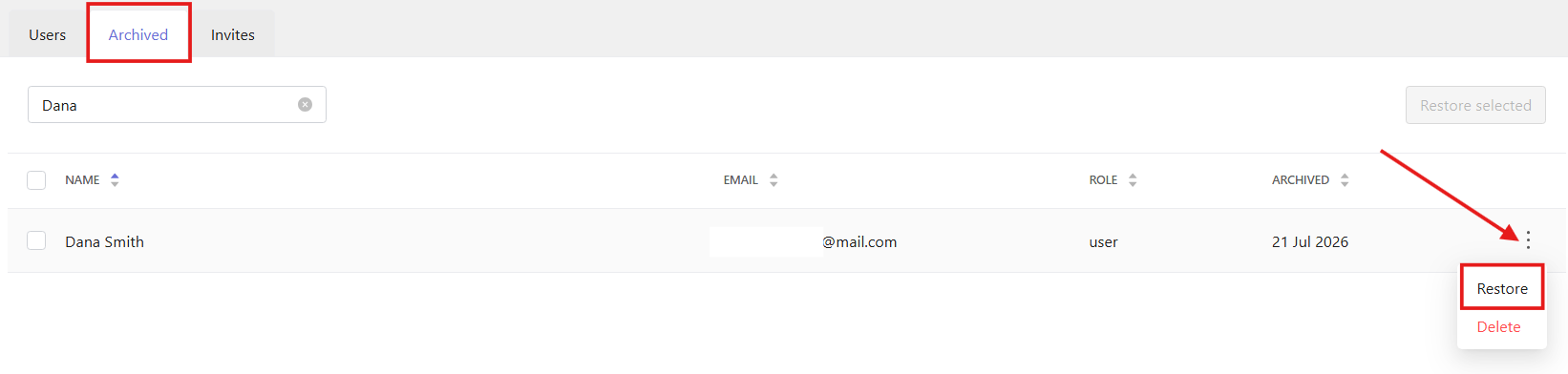
You can also restore multiple users at once by selecting them with checkboxes and clicking Restore selected.

Permanently delete a user
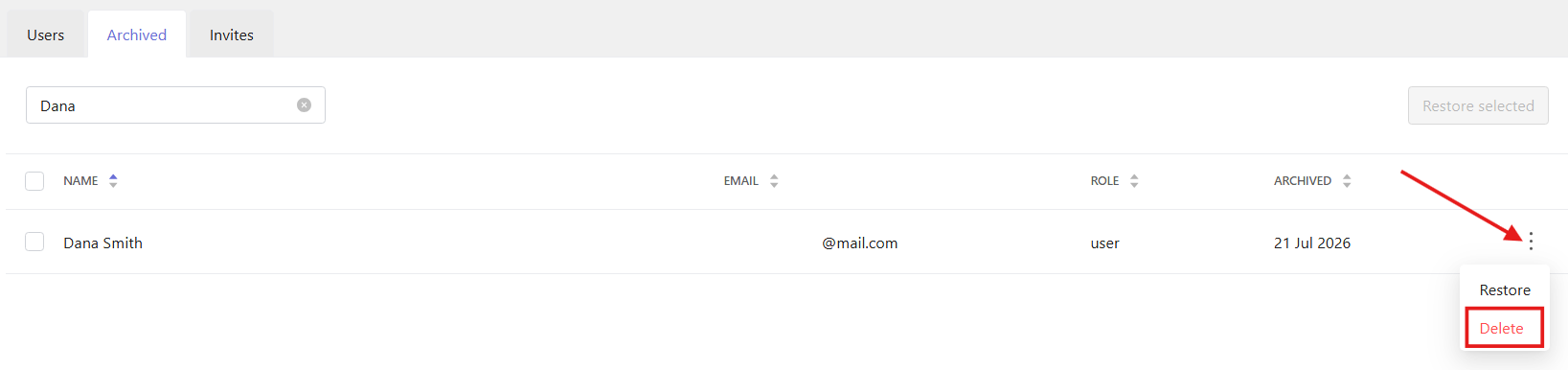
To permanently remove a user from the workspace, go to the Archived tab, then click the three-dot menu next to the user and select Delete. This action cannot be undone.