Timelines and calendar
The Timelines and Calendar tabs provide alternative ways to review your tracked time in Traqq. You can use them to see how much time you spent on projects, clients, and tasks.
Timelines
The Timelines tab shows your tracked time throughout the selected day.
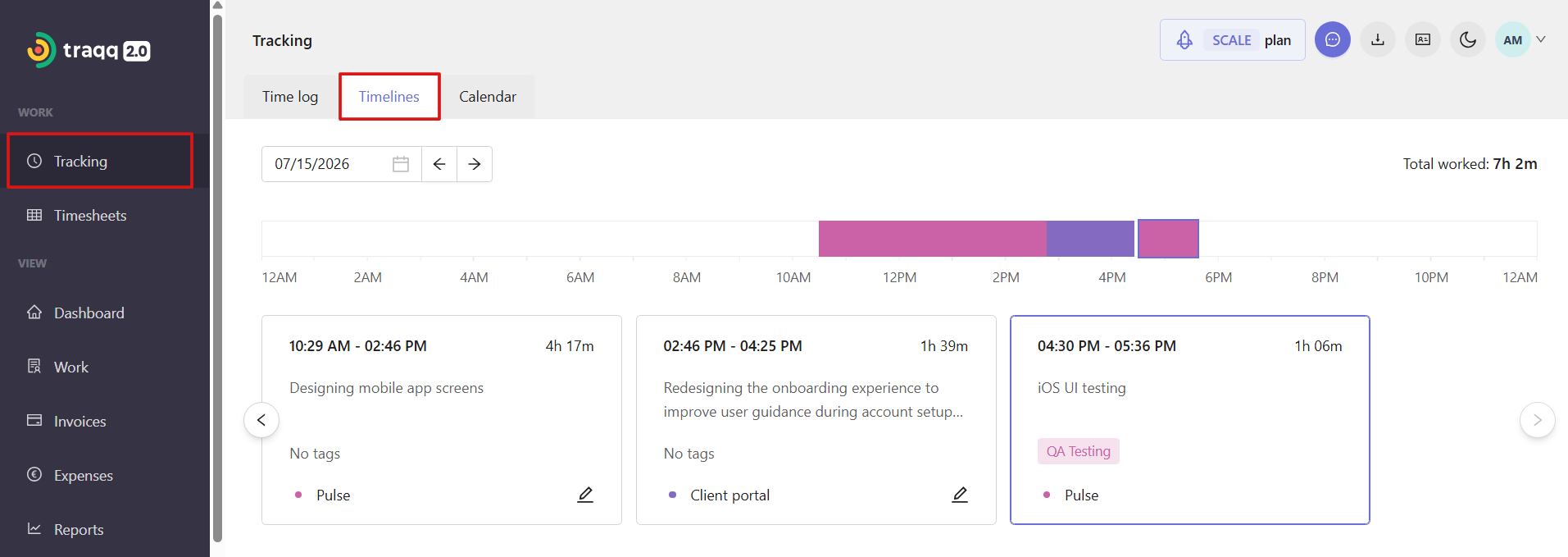
Each project is displayed in a different color (the color matches the one selected for the project in the project settings).
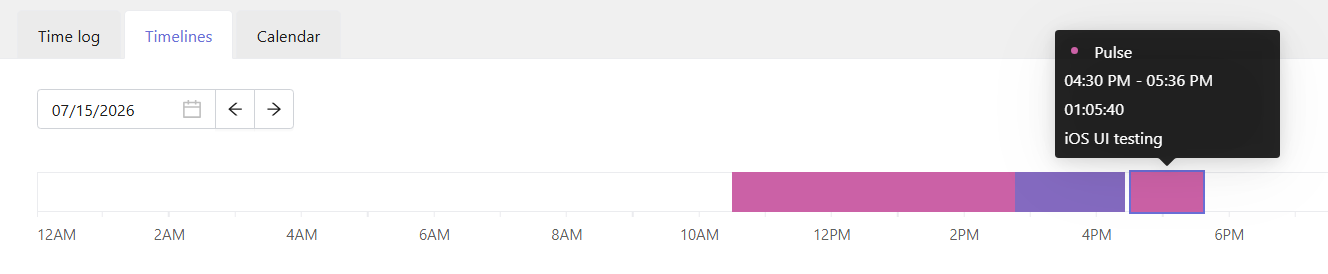
Hover over a time entry on the timeline to see more details, including the project, task, time range, and duration.
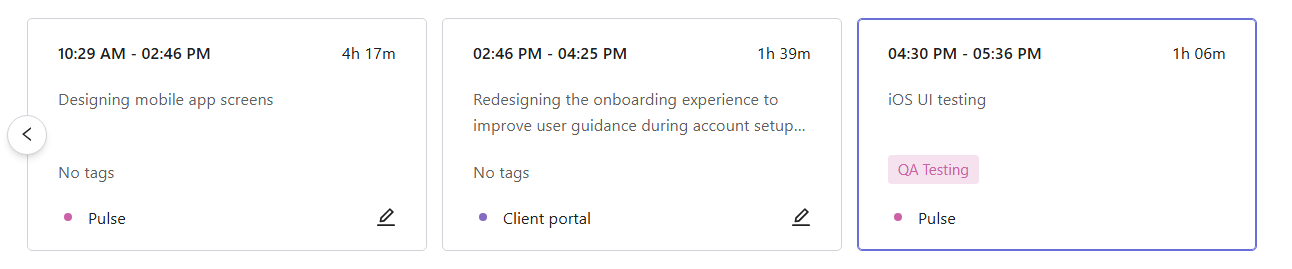
The time entries are also displayed below the timeline. Each entry shows the tracked time and task details.
Note that the Timelines tab shows tracked time only. Traqq does not measure or evaluate your activity or productivity.
Calendar
The Calendar tab displays your tracked time in a calendar view.
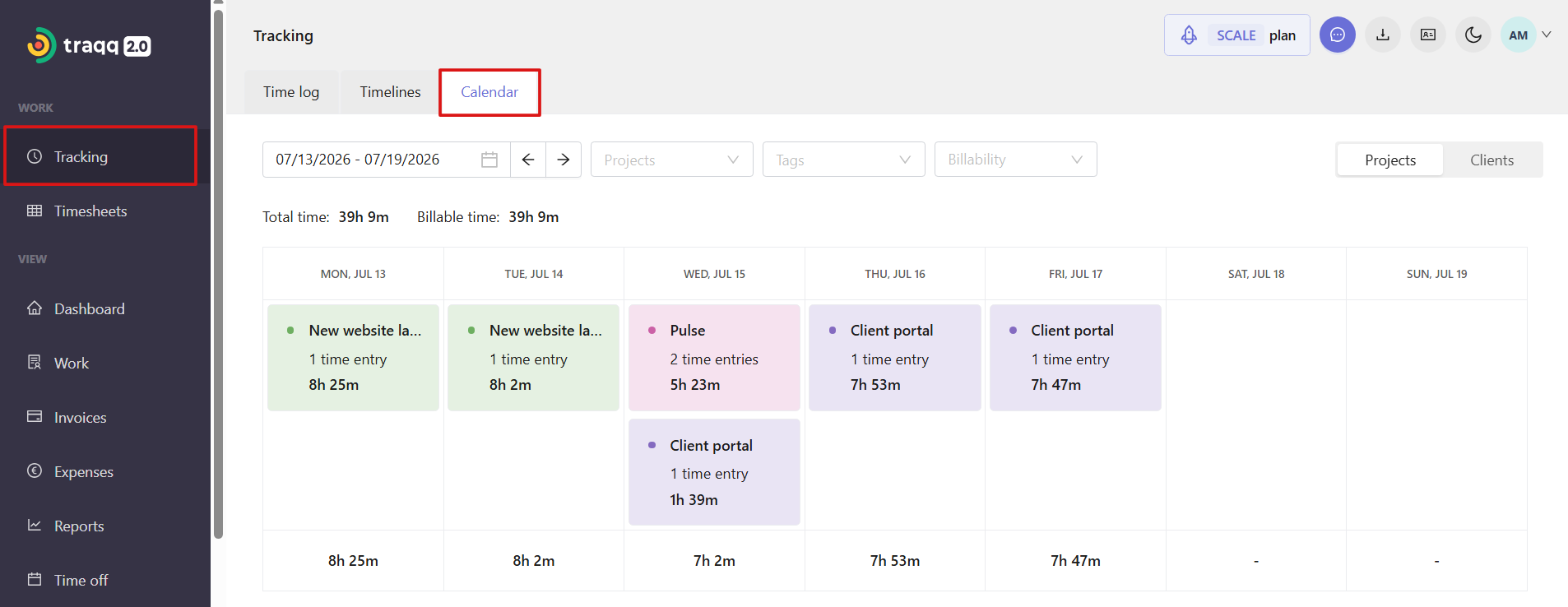
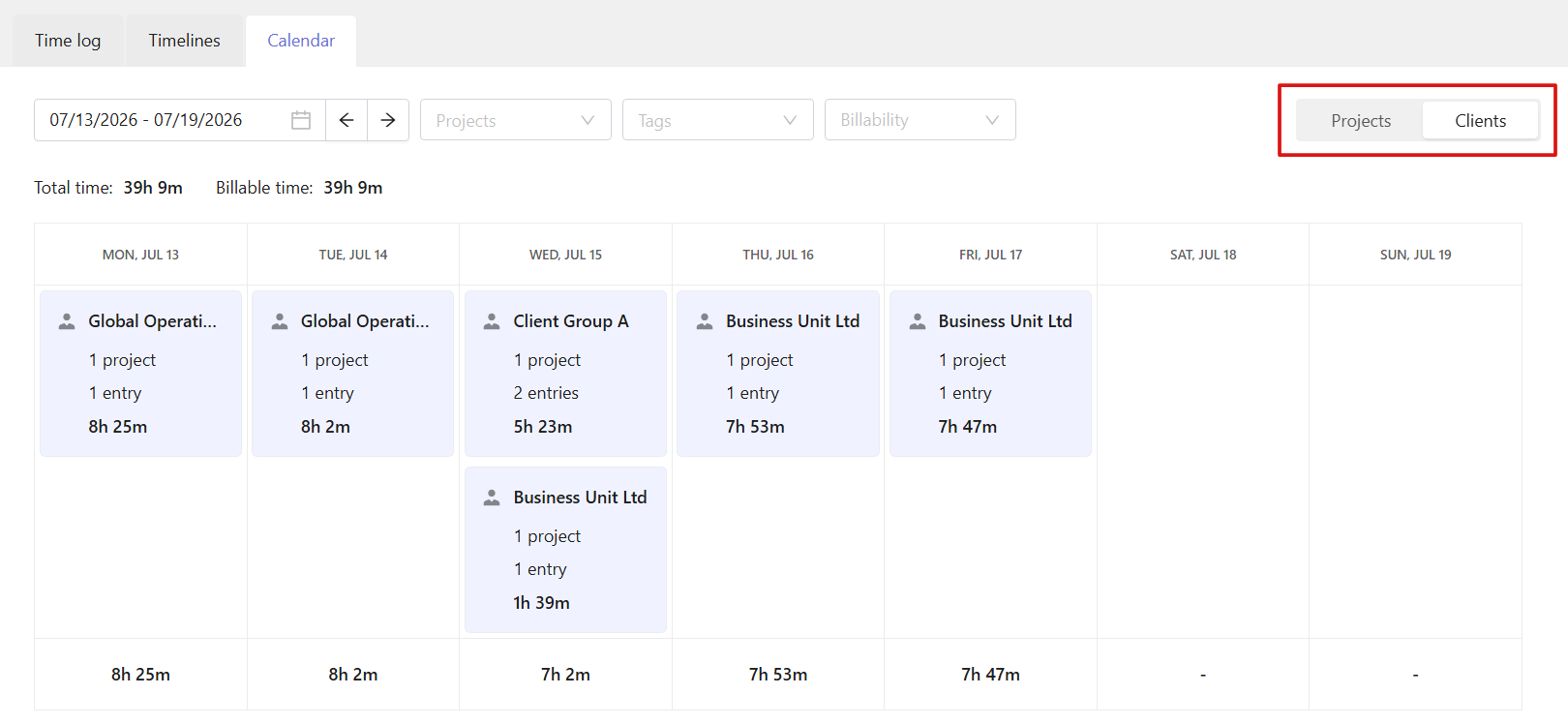
Use the Projects and Clients toggle to choose how your tracked time is grouped.
In the Projects view, each block represents a project you worked on that day. The block shows the number of time entries and the total time tracked for the project.
In the Clients view, each block represents a client. The block shows the number of projects, time entries, and the total time tracked for that client.
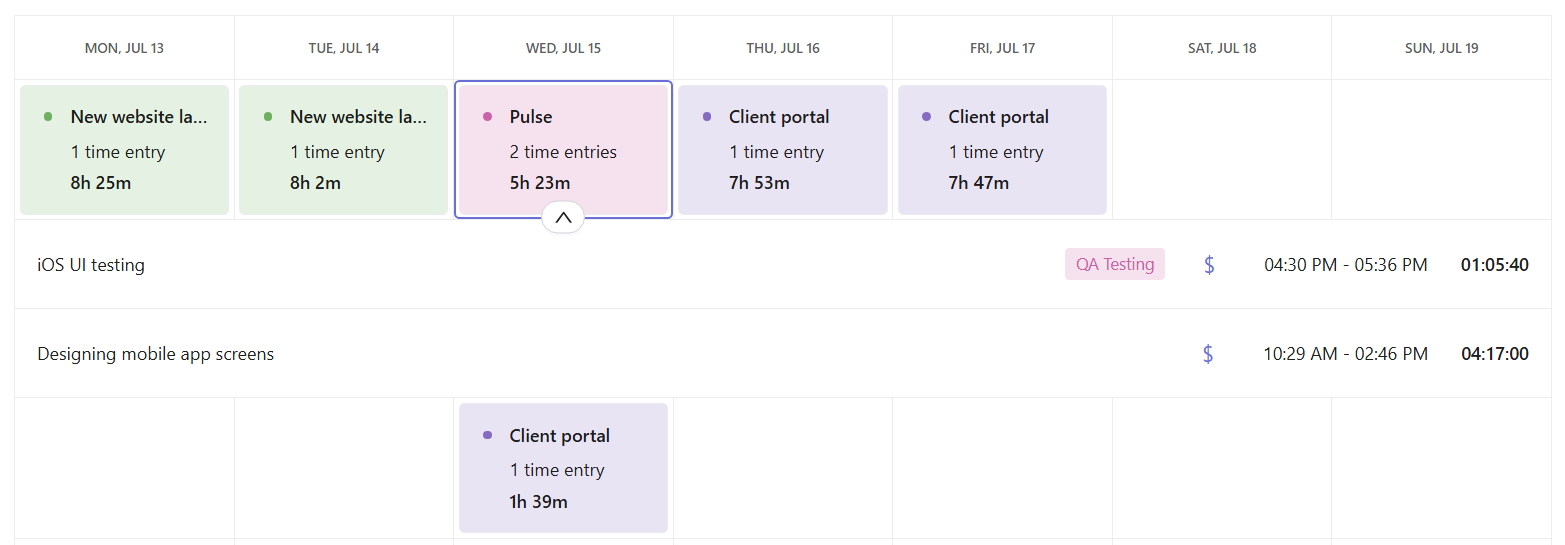
Click a project or client block to view the individual time entries associated with it, including task names, time ranges, durations, tags, and billable status.
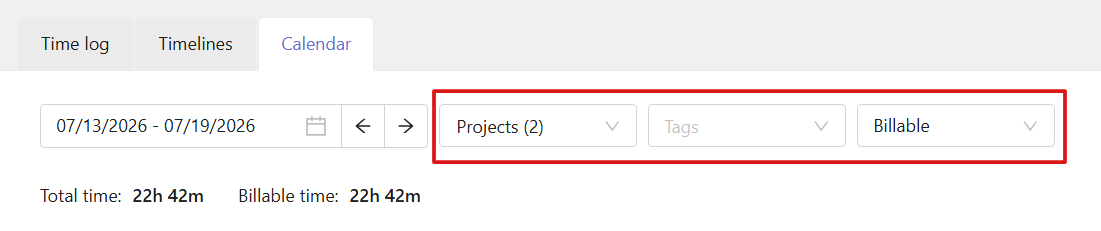
Use the filters to narrow down the information by projects, tags, and billability.