Tracking with Traqq desktop apps
Traqq provides desktop apps for Windows and macOS that let you track time directly from your computer.
Download the desktop app
To download the Traqq desktop app:
- Open the Traqq web app.
- Click the Download apps icon in the top-right corner.
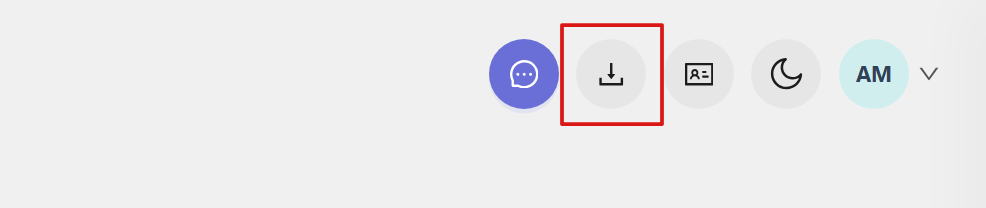
- On the download page, select your operating system:
- Download for macOS
- Download for Windows 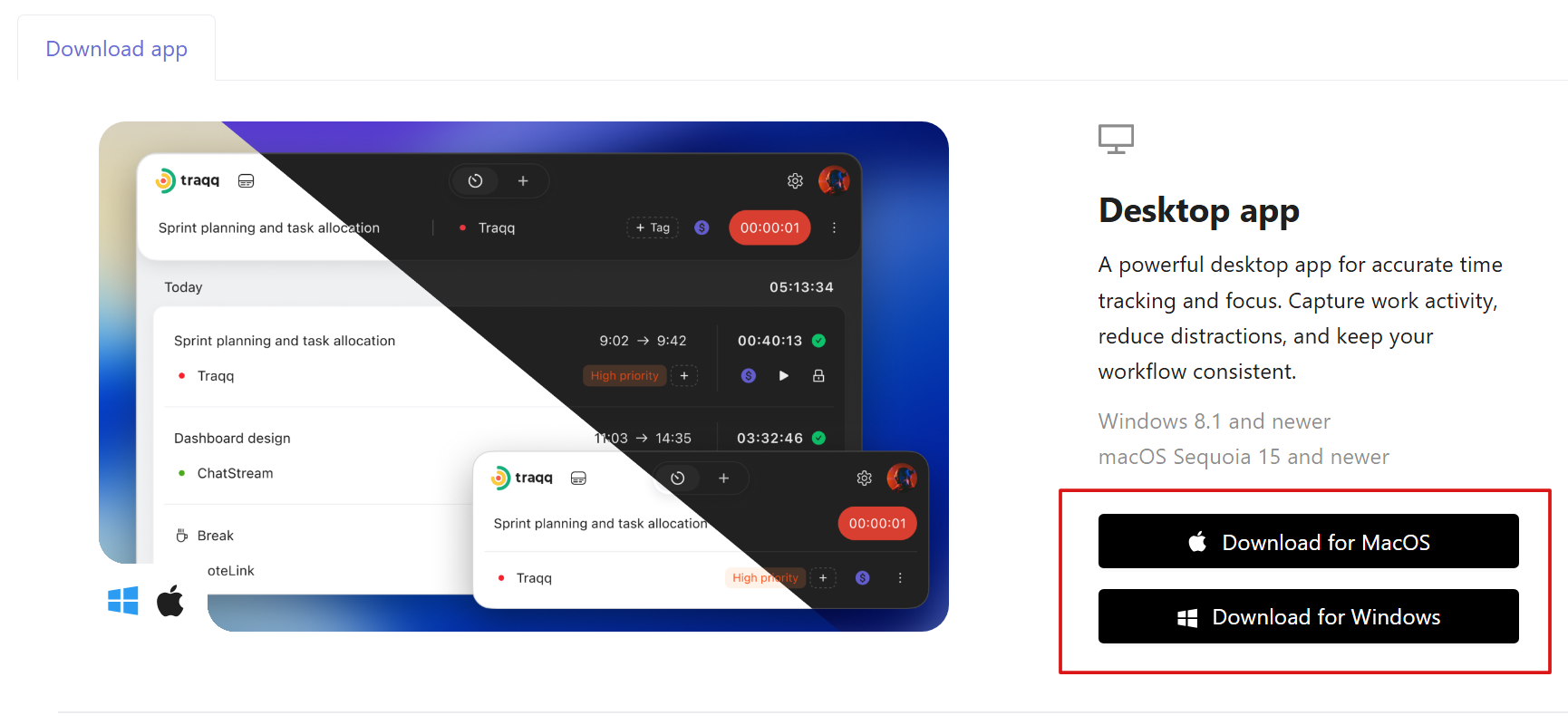
After installing the app, sign in with your Traqq account to start tracking time.
Customize the tracking window
The desktop app window can be resized by dragging its edges or corners.
You can also click the Show task list button to show or hide the Time log.

Track time with desktop apps
The desktop apps support the same tracking features as the web app. You can:
- - Switch between Timer and Manual modes using the toggle at the top.

- - Start the timer using the Play button.

- - Add a task name, select a project, add tags, and set the billable status.

- - Track break time by clicking the cup button.

- - View and edit time entries.
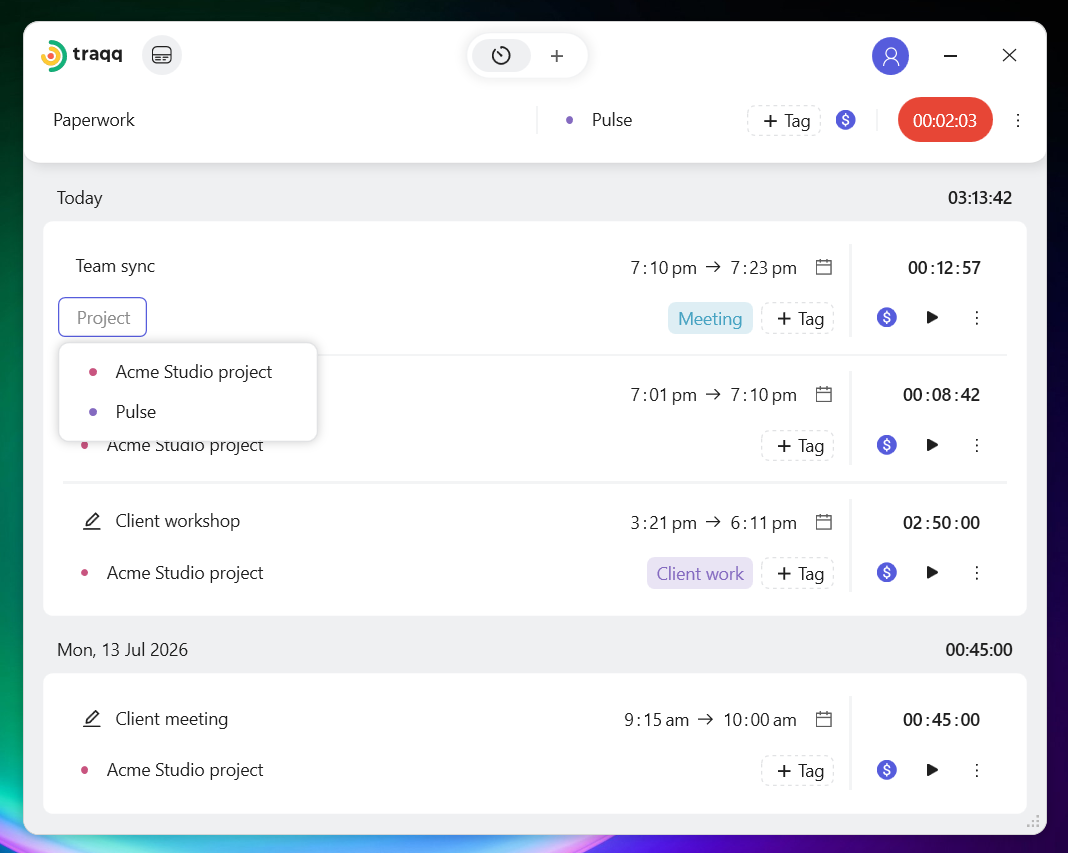
For more information about tracking modes and managing time entries, see Tracking time in Traqq.
Smart time tracking
Smart time tracking automatically pauses tracking when you use non-work apps and resumes it when you switch back to work apps.
To enable Smart time tracking:
- Click your profile icon in the top-right corner of the desktop app.
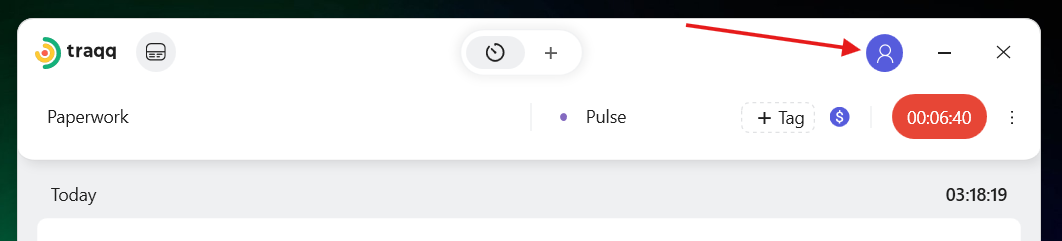
- Select Settings, go to Smart Tracking, and turn on the Smart Tracking toggle.
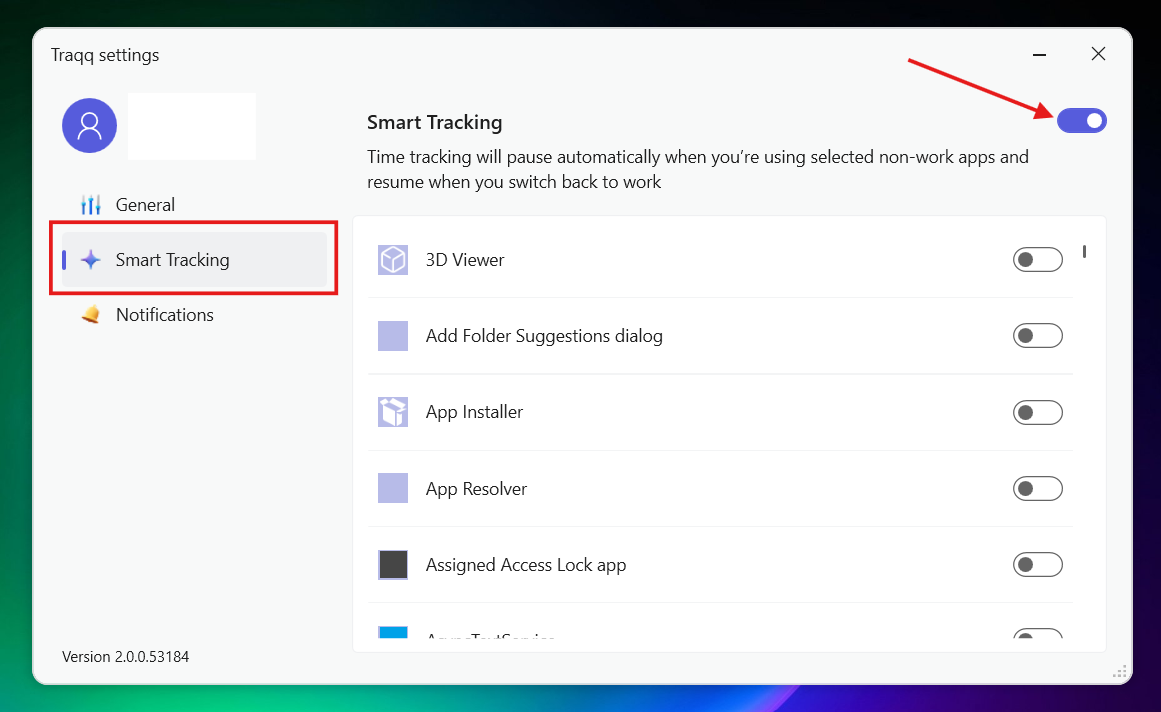
- Enable or disable tracking for specific apps using the toggles next to each app.
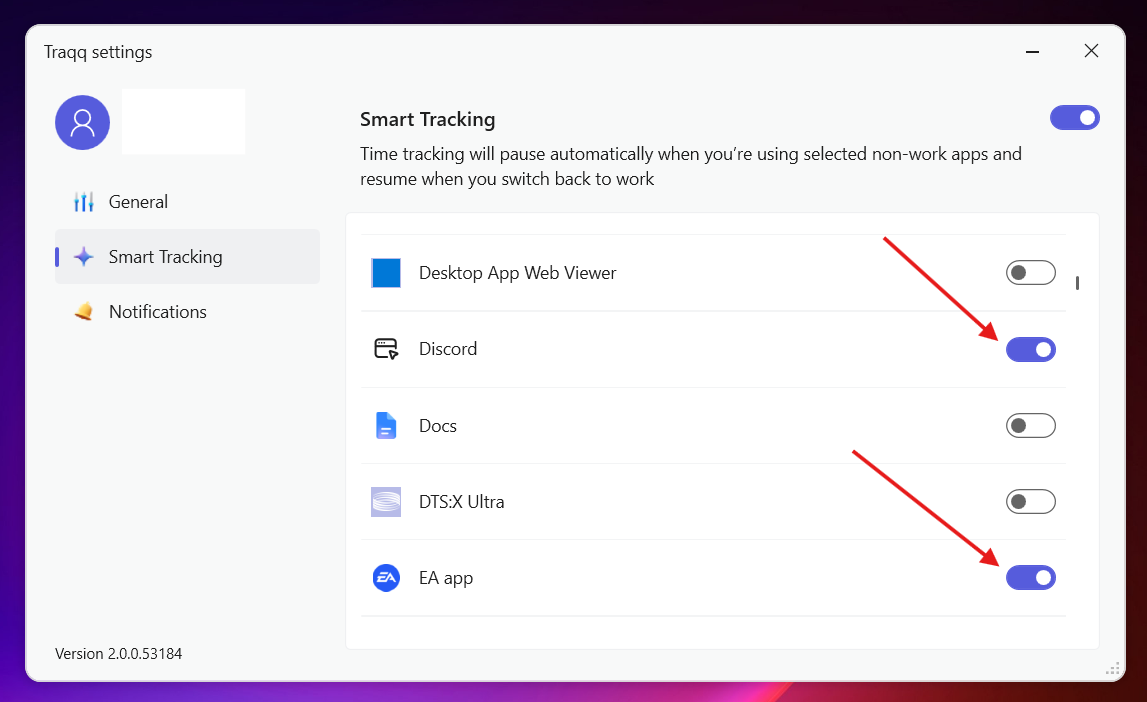
-
Notifications
You can customize tracking notifications in the desktop app settings.
To manage notifications:
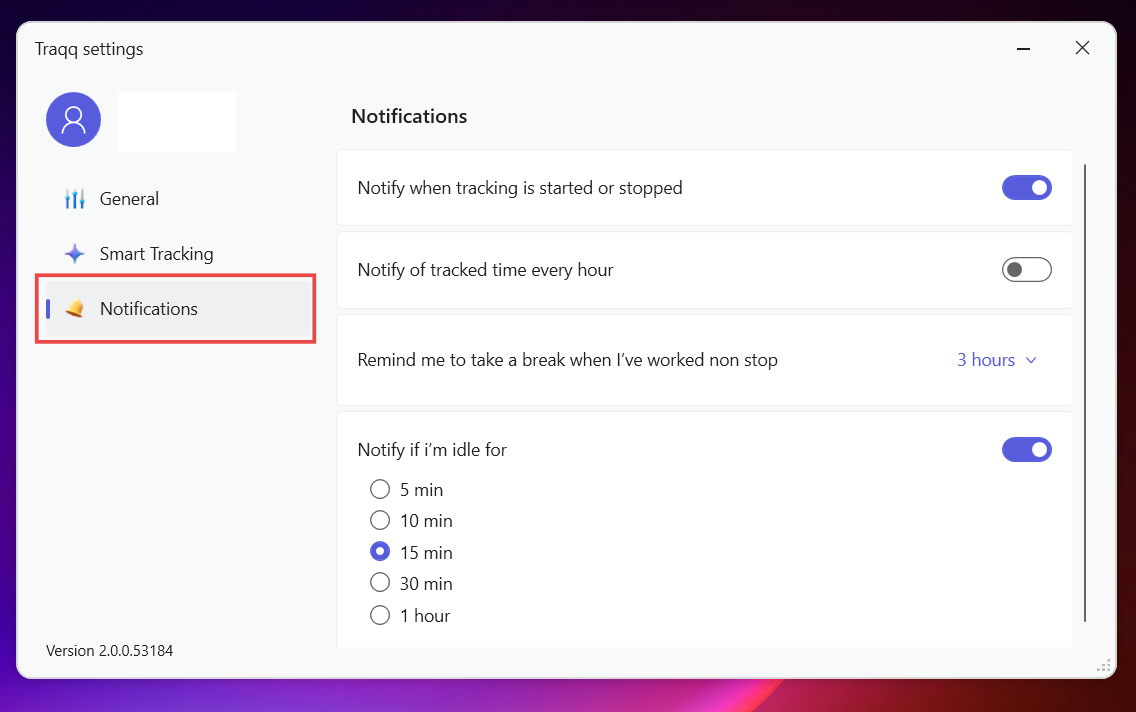
Click your profile icon in the top-right corner of the desktop app, select Settings, and open Notifications.
-
You can configure the following options:
- Notify when tracking is started or stopped — receive notifications when the timer starts or stops.
- Notify of tracked time every hour — receive hourly reminders about tracked time.
- Remind me to take a break when I've worked non-stop — get a reminder after a selected period of continuous work. You can choose:
- - Don't remind
- 1 hour
- 2 hours
- 3 hours
- 4 hours
- 5 hours - Notify if I'm idle for — get a notification after a selected period of inactivity. Available options:
- - 5 minutes
- 10 minutes
- 15 minutes
- 30 minutes
- 1 hour