Downloading and installing Traqq desktop apps
The Traqq desktop app lets you track time from your computer and automatically syncs your time tracking data with the Traqq web app and browser extension.
Supported operating systems:
- Windows 8.1 and newer
- macOS Sequoia 15 and newer
Download the Traqq desktop app
To download the desktop app:
Open the Traqq web app.
Click the Download apps icon in the top-right corner.

On the download page, select your operating system:
- Download for macOS
- Download for Windows
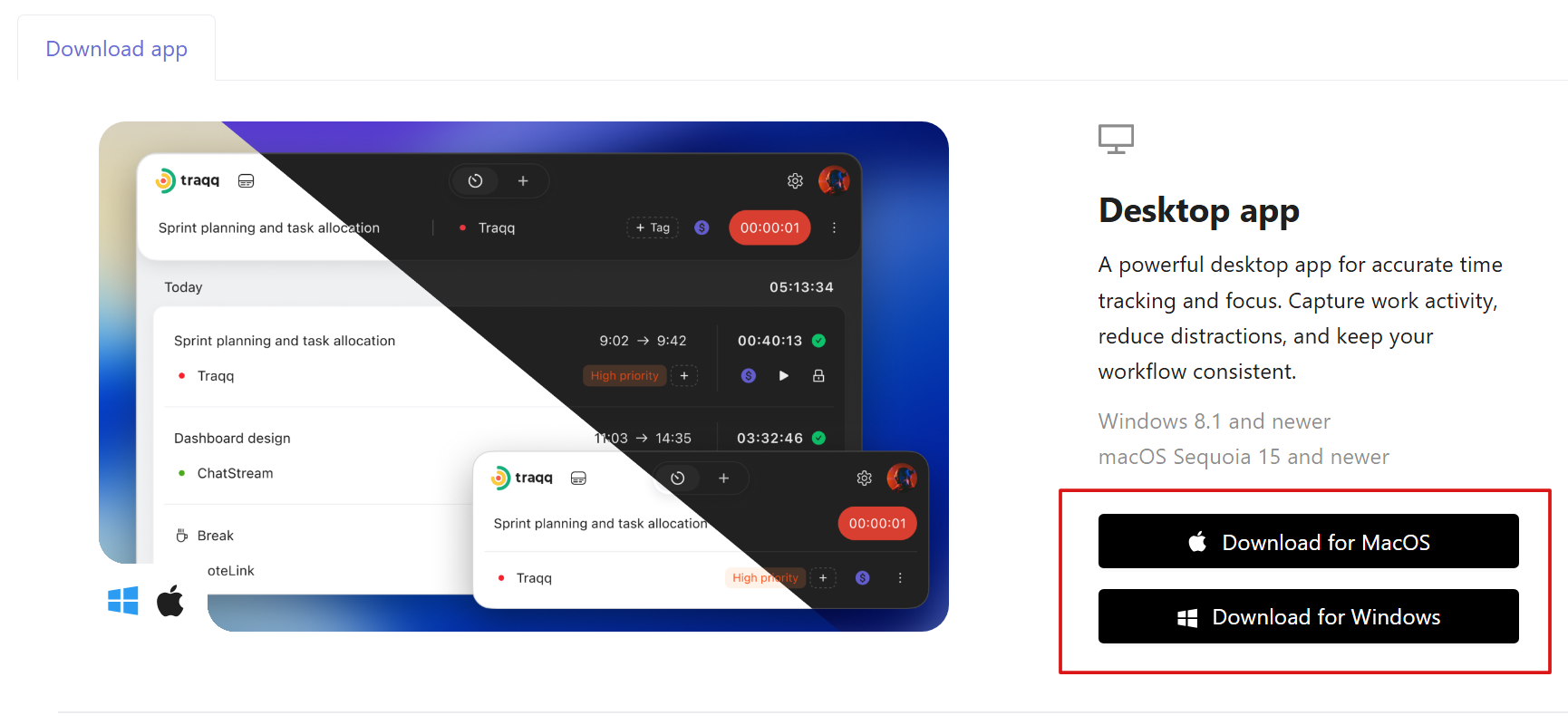
For macOS, the .pkg file downloads automatically.
For Windows, choose one of the following installation options:
.exe — a regular installer
.msi — an installer for deploying Traqq on multiple computers
After selecting the installer, the file downloads automatically.
Install the desktop app
Open the downloaded file to start the installation.
If an older version of Traqq is installed, it will be removed automatically before the update.
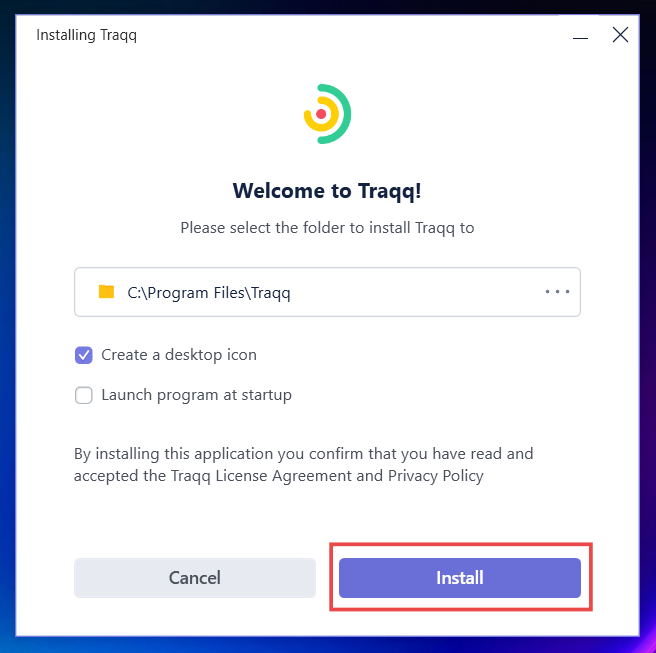
In the installation window, you can choose the installation folder and configure additional options:
- Create a desktop icon
- Launch program at startup
Click Install to continue.
After installation, you can choose whether to launch Traqq immediately.
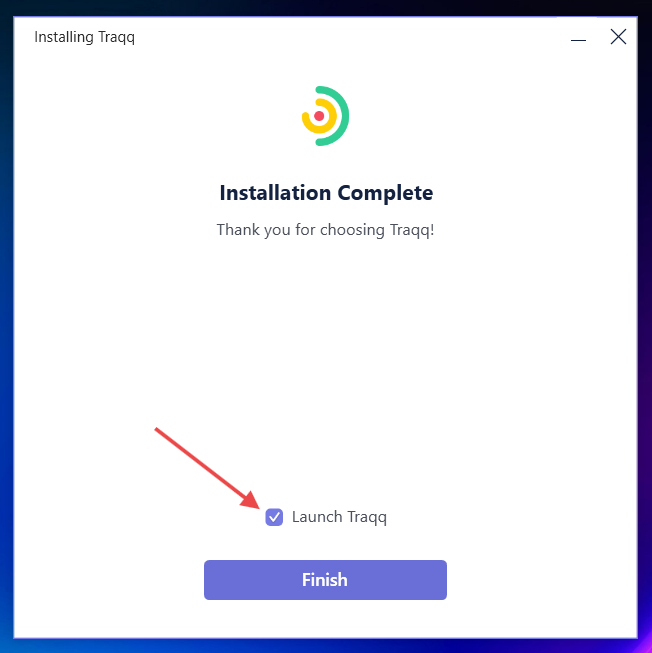
Select or clear the Launch Traqq checkbox, then click Finish.
Connect the desktop app to your account
After installation, a new window opens where you can connect the desktop app to your Traqq account.
Click Connect to sign in automatically, or choose Log in to enter your credentials manually.
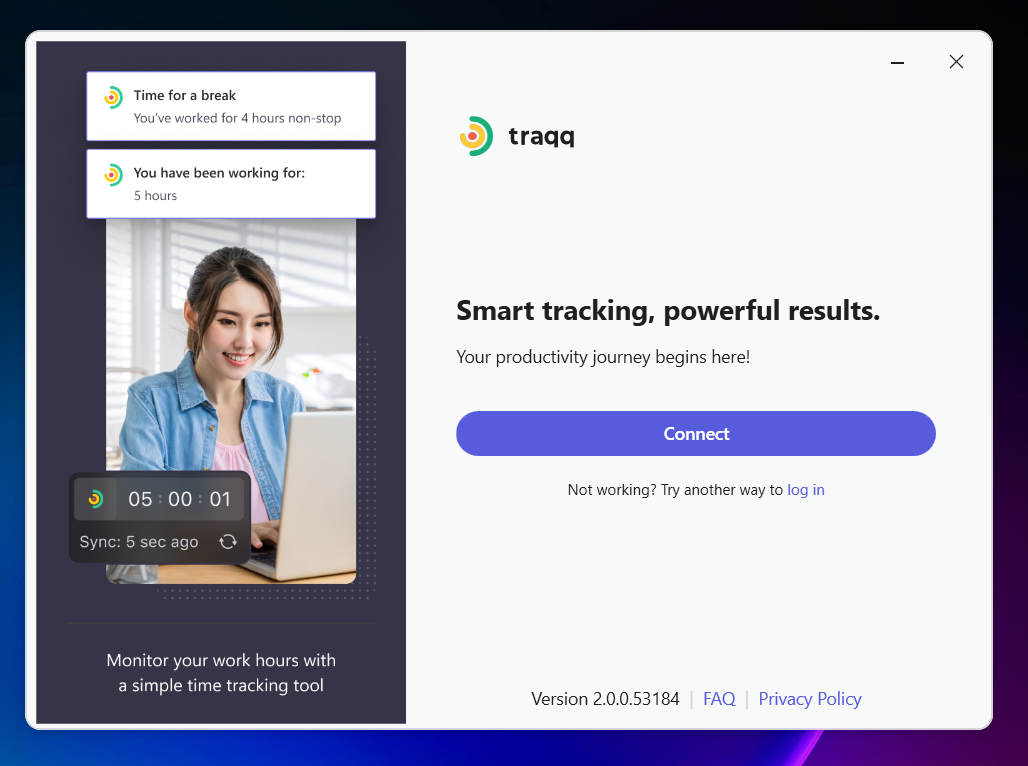
After connecting the app, you can start tracking time. Your existing time entries will appear in the desktop app, and new entries will sync automatically across the Traqq desktop app, web app, and browser extension.
Uninstall the Traqq desktop app
To uninstall Traqq, follow the standard uninstall steps for your operating system.
On Windows:
- Open Settings → Apps → Installed apps.
- Find Traqq and select Uninstall.
- Follow the on-screen instructions.
On macOS:
- Open Applications.
- Find Traqq.
- Move the app to Trash.