Setting up your Traqq desktop app
The Traqq desktop app settings let you customize app behavior, appearance, notifications, and automatic tracking options.
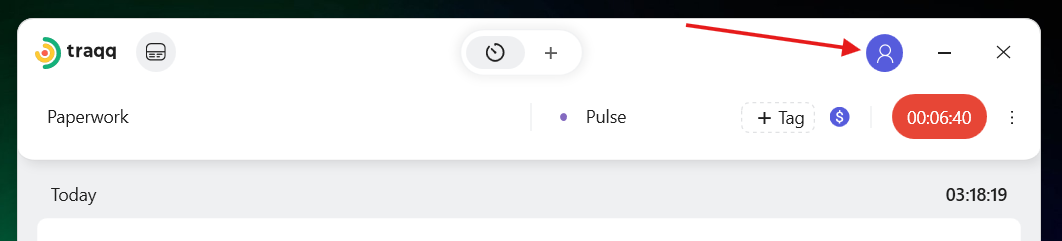
To open settings, click your profile icon in the top-right corner of the desktop app and select Settings.
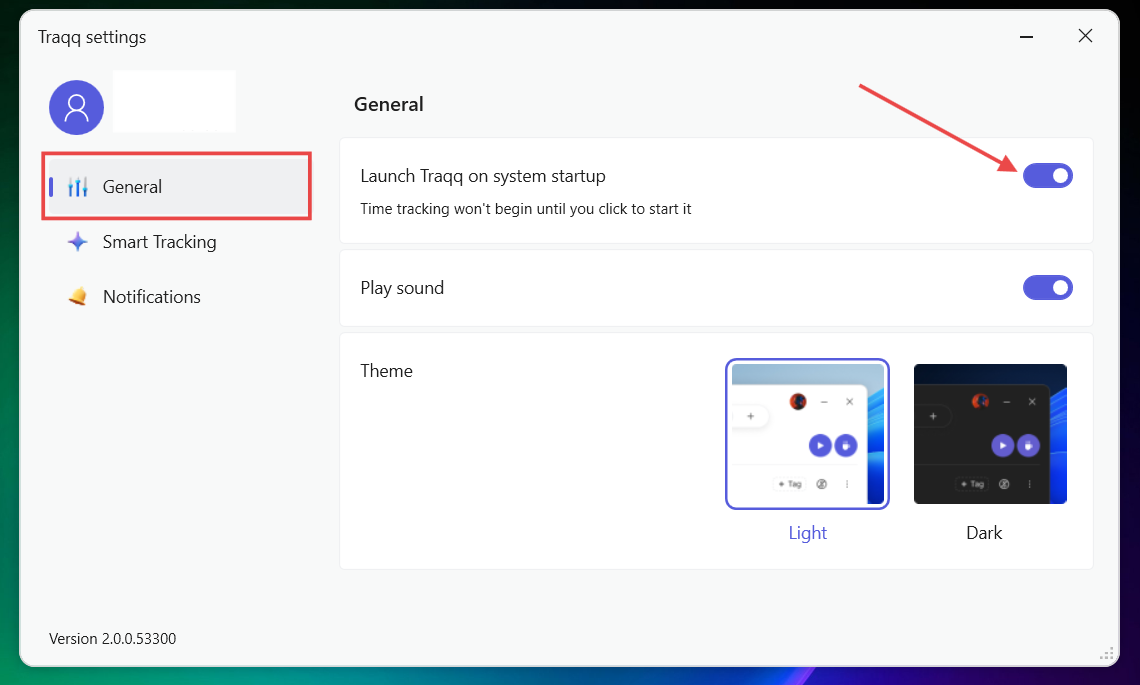
General settings
You can configure the following options:
Launch Traqq on system startup
Enable this option to open Traqq automatically when you start your computer.
Traqq will open, but time tracking will not start until you click the Play button.
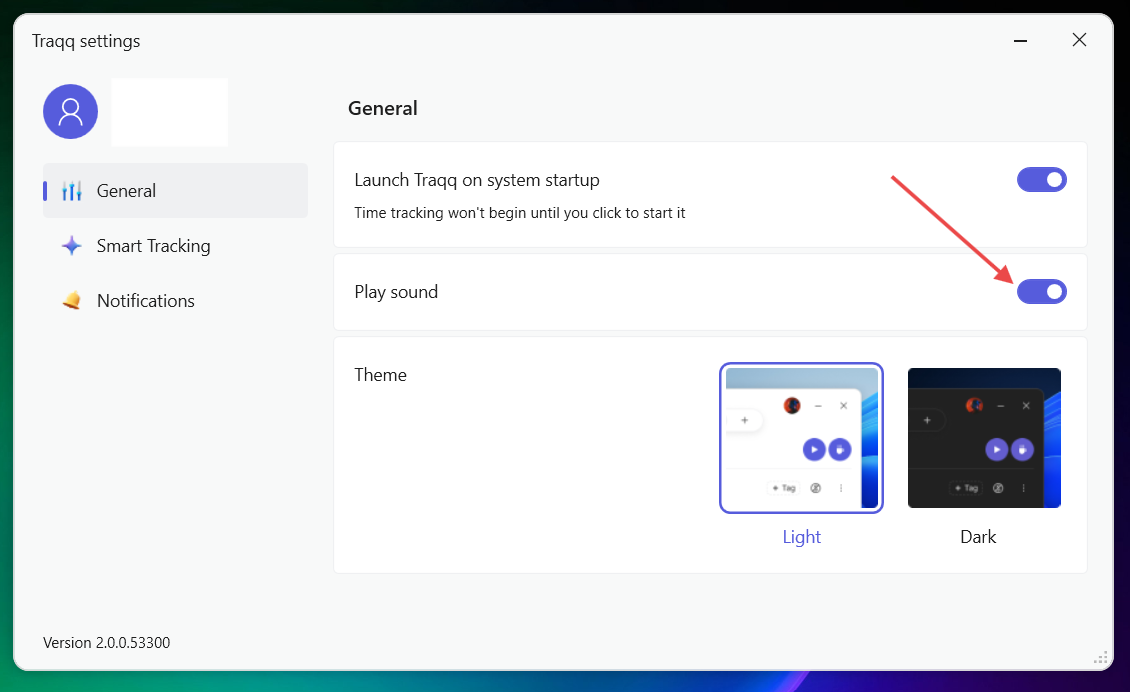
Play sound
Enable or disable notification sounds.
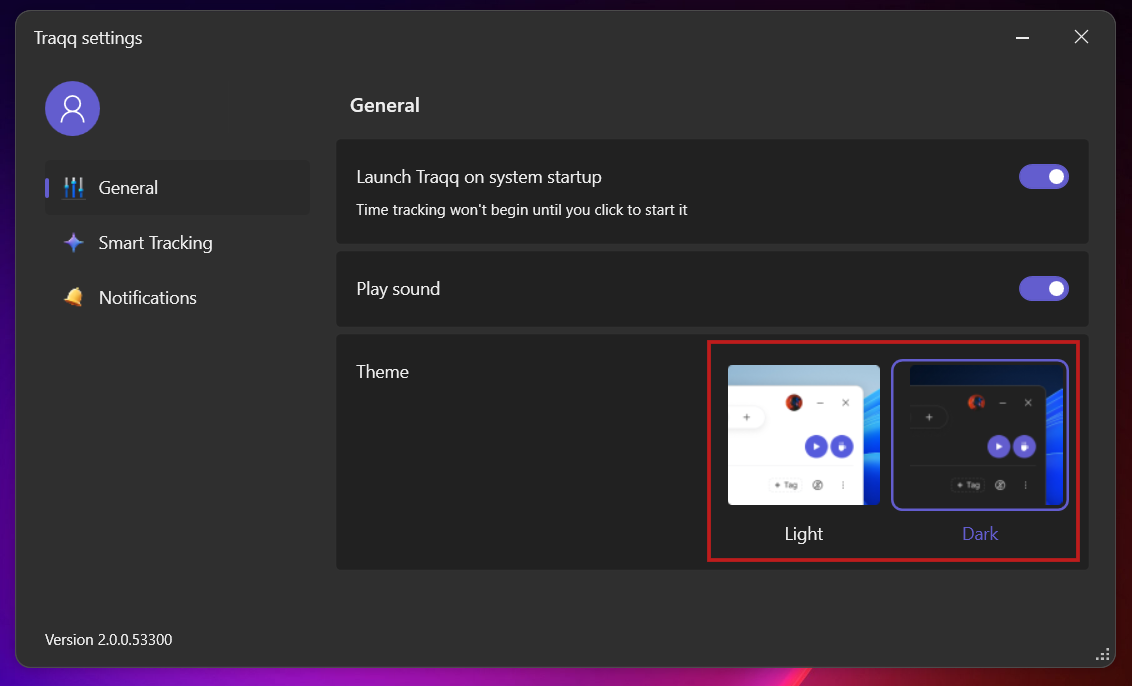
Theme
Choose between Light and Dark themes.
Smart time tracking
Smart time tracking automatically pauses tracking when you use non-work apps and resumes it when you switch back to work apps.
- Open Settings, go to Smart Tracking, and turn on the Smart Tracking toggle.
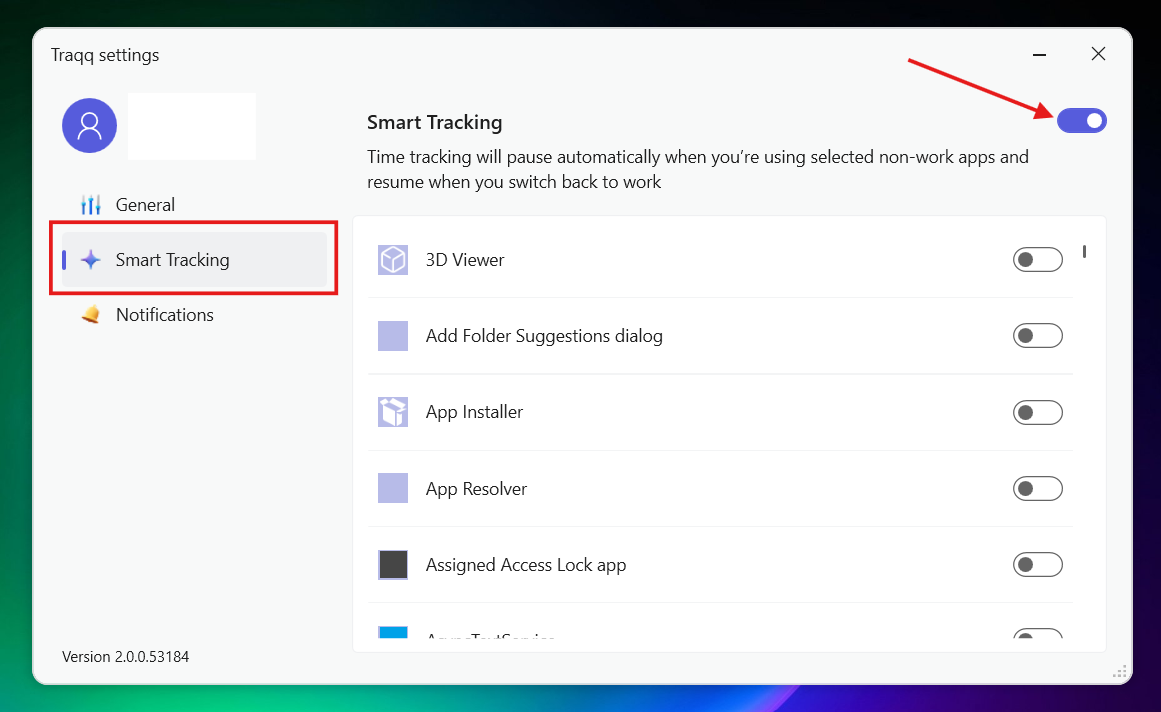
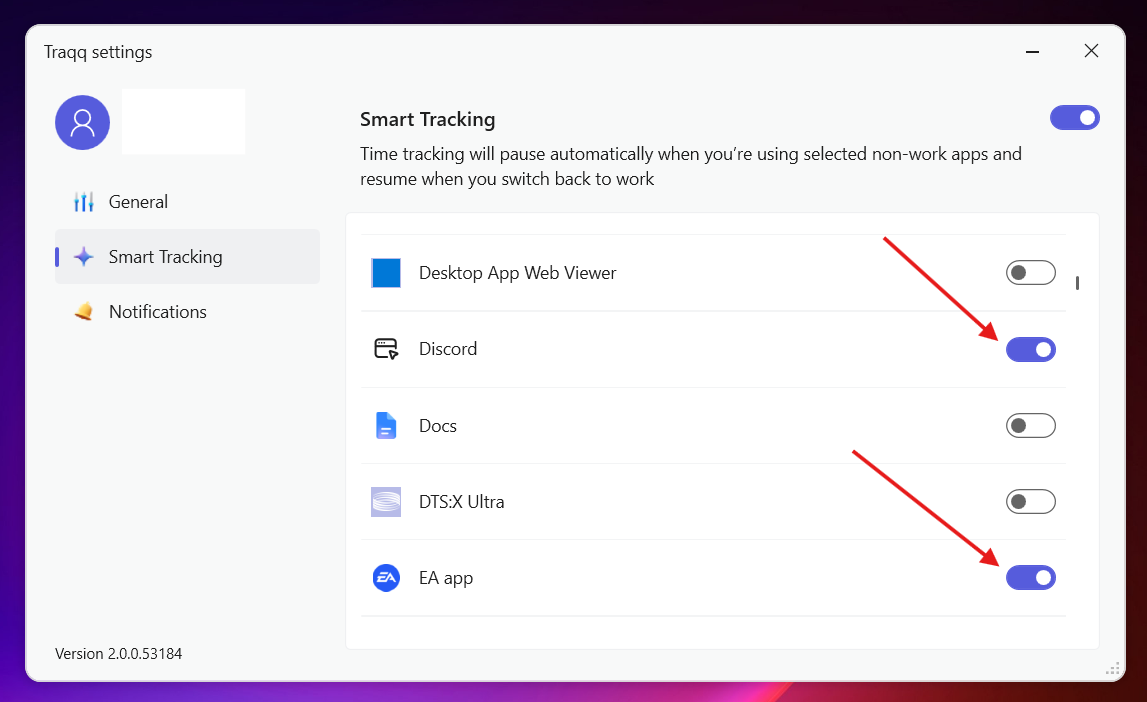
- Enable or disable tracking for specific apps using the toggles next to each app.
Notifications
To manage notifications, open Settings and go to Notifications.
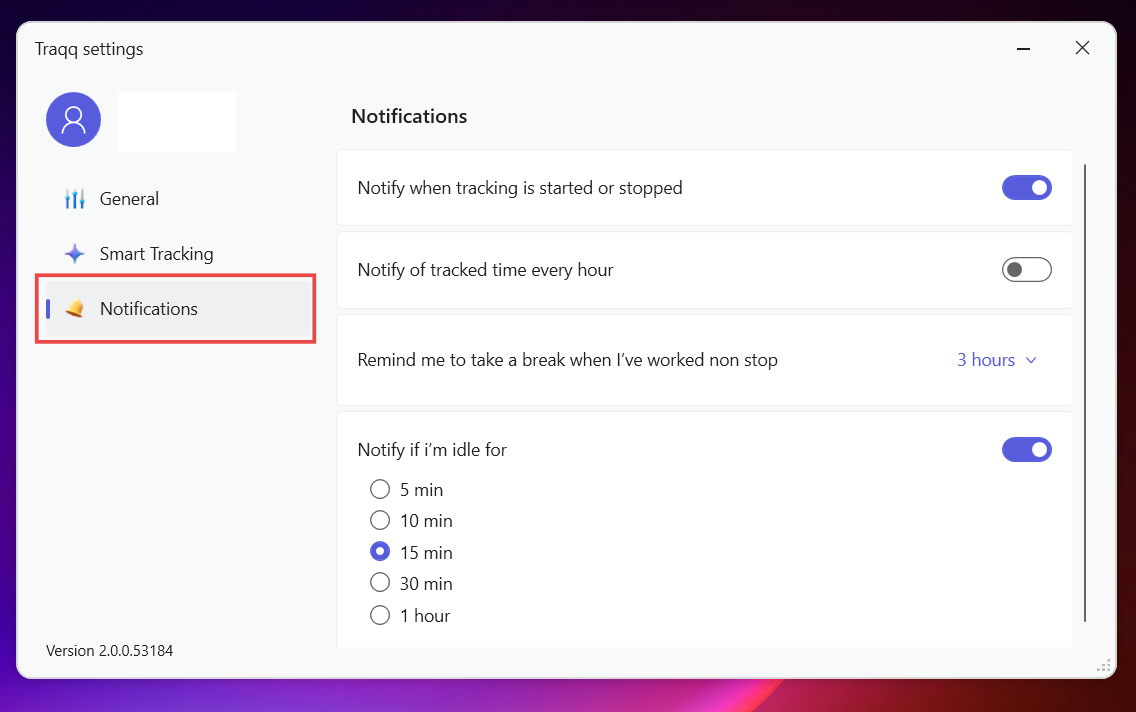
You can configure the following options:
- Notify when tracking is started or stopped — receive notifications when the timer starts or stops.
- Notify of tracked time every hour — receive hourly reminders about tracked time.
- Remind me to take a break when I've worked non stop — get a reminder after a selected period of continuous work. You can choose:
- - Don't remind
- 1 hour
- 2 hours
- 3 hours
- 4 hours
- 5 hours - Notify if I'm idle for — get a notification after a selected period of inactivity. Available options:
- - 5 minutes
- 10 minutes
- 15 minutes
- 30 minutes
- 1 hour