Tracking from the web interface
To track time from the Traqq web app, log in at https://beta.traqq.com/.
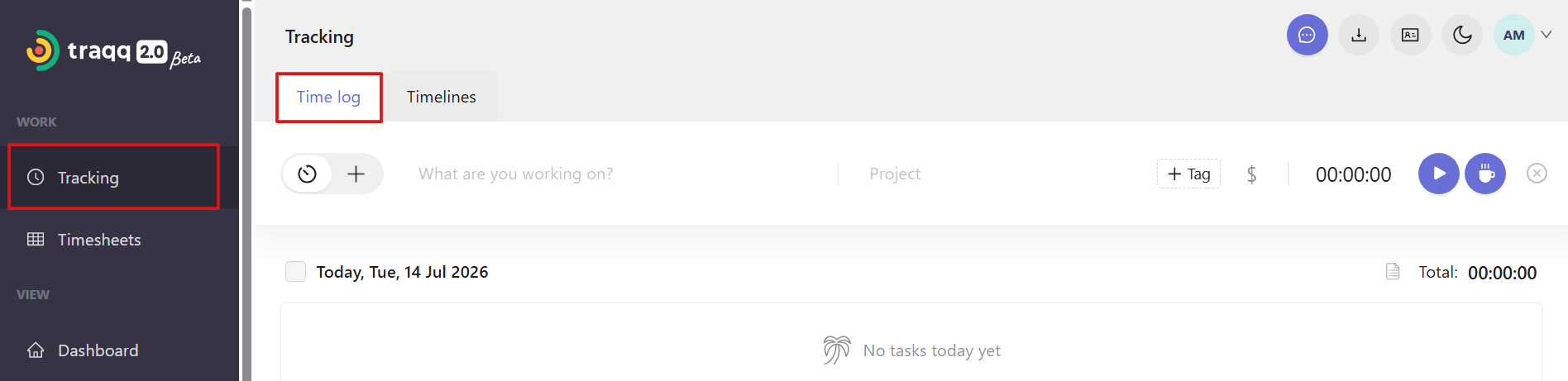
After signing in, open the Tracking section from the left sidebar. This is where you can start and stop the timer, add manual time entries, and manage tracked time.
Timer mode
The timer icon in the toggle indicates Timer mode. In this mode, you can track time automatically with a start/stop timer.

Click the Play button to start tracking, and Traqq will record your time until you stop the timer.

You can add these details before or after starting the timer:
- Task name
- Project
- Tags
- Billable or Non-billable status
Break mode
Use Break mode to track break time.
To switch to Break mode, click the cup icon. You can add a task name, select a project and tags, and set the billable status if needed.

Manual mode
To create a manual time entry, switch to Manual mode using the toggle in the top-left corner of the Time log. Enter the date, time, task details, project, tags, and billable status, then click Add.

To learn more about tracking modes and managing time entries, see Tracking time in Traqq.