Subscription plans & pricing
Traqq offers several subscription plans with different features, user limits, and pricing options. You can start with the Free plan and upgrade your workspace at any time.
Available plans
Traqq offers five subscription plans: Free, Plus, Business, Scale, and Enterprise.
Free
The Free plan supports up to 3 users and includes 1 project.
It includes:
- Time tracking (web, desktop, and browser)
- Timer and manual entries
- Task-based time tracking
- Timesheets and approvals
- Billable and non-billable time
- Creating teams
- Individual and project rates
- Individual capacity and working schedules
- Personalized tags
- Time, project, and user reports
- Time-off calendar
Plus
The Plus plan supports up to 10 users and costs $4 per user/month.
It includes everything in Free, plus:
- Unlimited projects
- Client management
- Break time tracking
- Work-related expenses and approvals
- Email support
Business
The Business plan supports up to 50 users and costs $9 per user/month.
It includes everything in Plus, and:
- Invoices, automatic client emails, and reminders
- Compliance reporting
- Roles and permissions
- Workload analysis
- Project progress tracking and project forecasting
- Uninvoiced time report
Scale
The Scale plan supports up to 300 users and costs $13 per user/month.
It includes everything in Business, plus:
- Additional user seats
- Focus & distractions
- Burnout radar
Enterprise
The Enterprise plan is designed for organizations with 300+ users and is available with a custom quote.
It includes everything in the paid plans, plus:
- Custom integrations on request
- Dedicated customer success manager
- Isolated virtual server
- Audit logs
For the latest pricing and full feature comparison, see the Traqq pricing page.
Billing discounts
Paid plans are available with monthly, quarterly, and annual billing options.
- Quarterly billing includes a 10% discount compared to monthly billing.
- Annual billing includes a 15% discount compared to monthly billing.
Accessing subscription settings
All subscription management actions are available from the Subscription section, where you can upgrade or downgrade your plan, manage seats, change your billing period, and review upcoming payments.
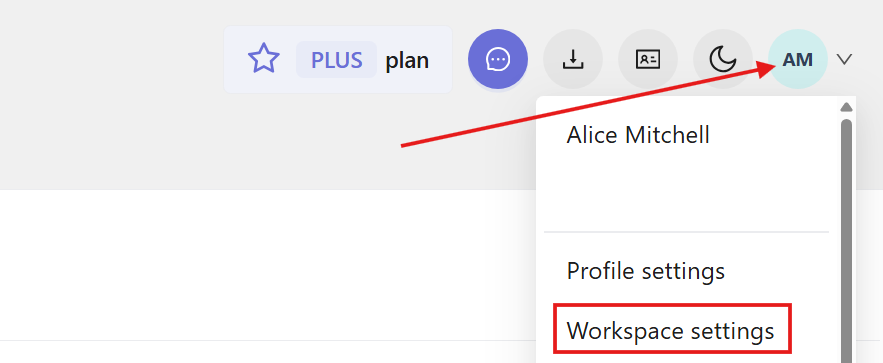
Click your profile picture in the top-right corner of the web app and select Workspace settings. Then, open the Subscription tab.
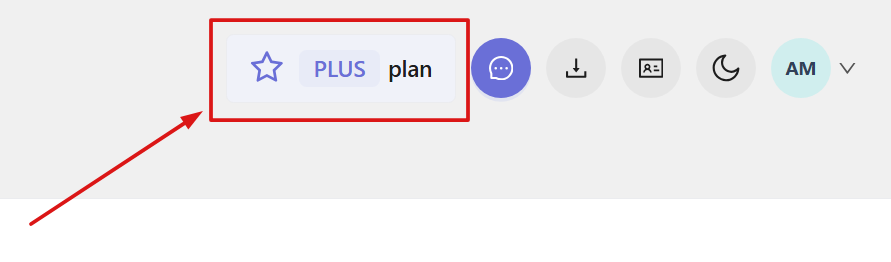
Alternatively, click the plan name in the top-right corner of the web app.
In the Subscription tab, you can view details about your current plan, including:
- Current plan
- Next payment date
- Number of purchased seats
- Available seats
- Number of active users
- Chosen billing period
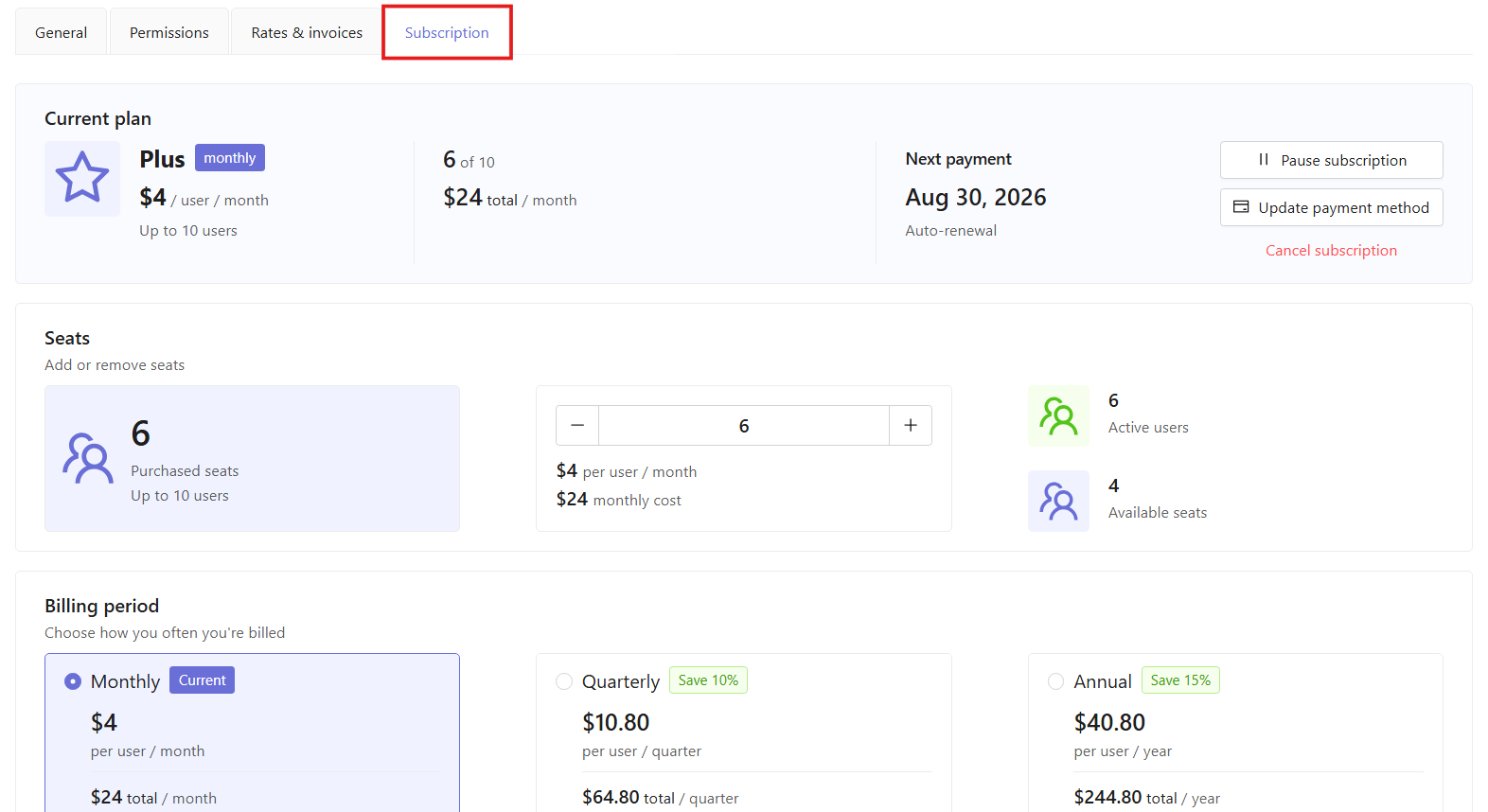
Note: Seats and billing period settings are only available for paid plans.
Starting a paid subscription
If your workspace is currently on the Free plan, you can upgrade to a paid plan at any time.
To start a subscription:
Open Workspace settings → Subscription. Under Switch plan, select the plan you want.
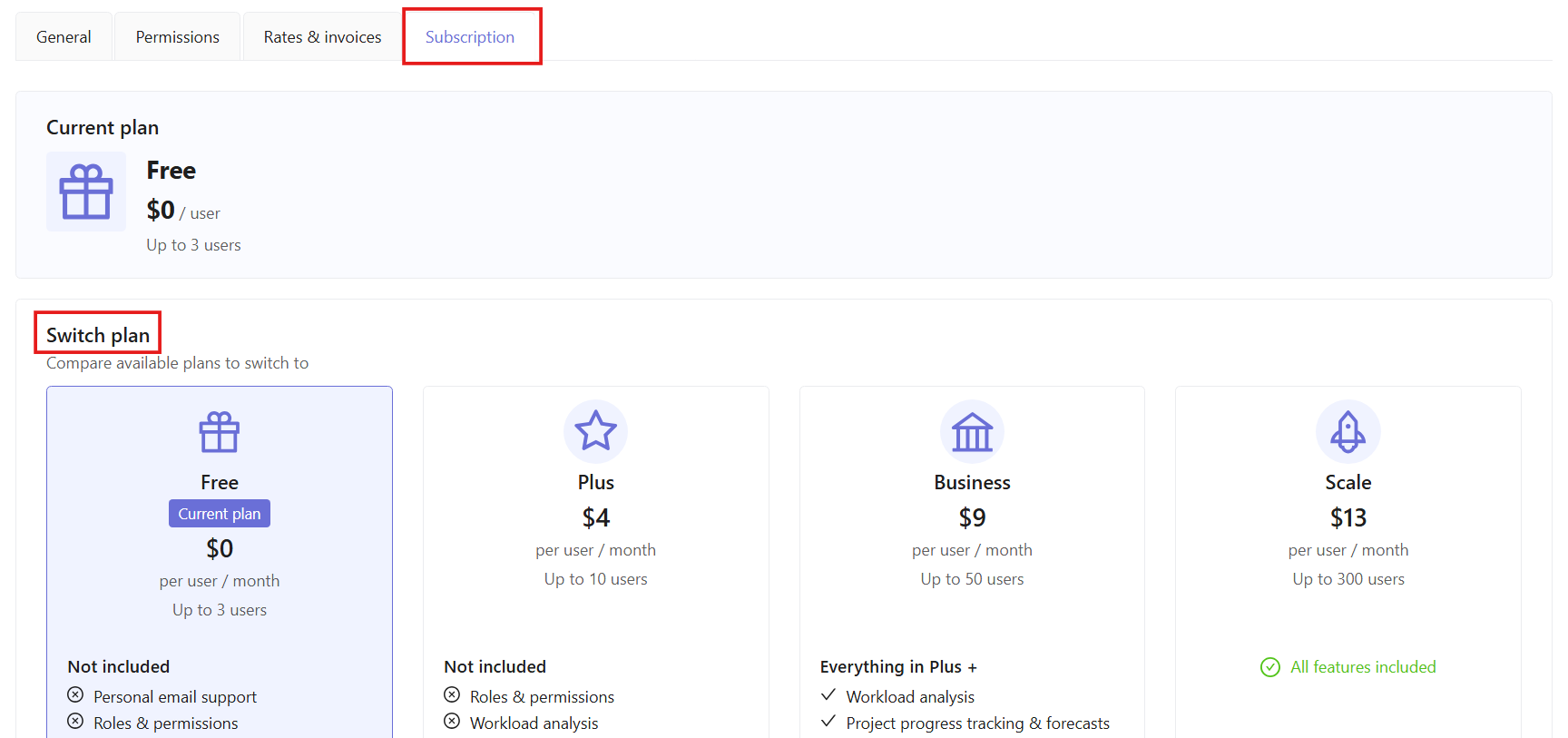
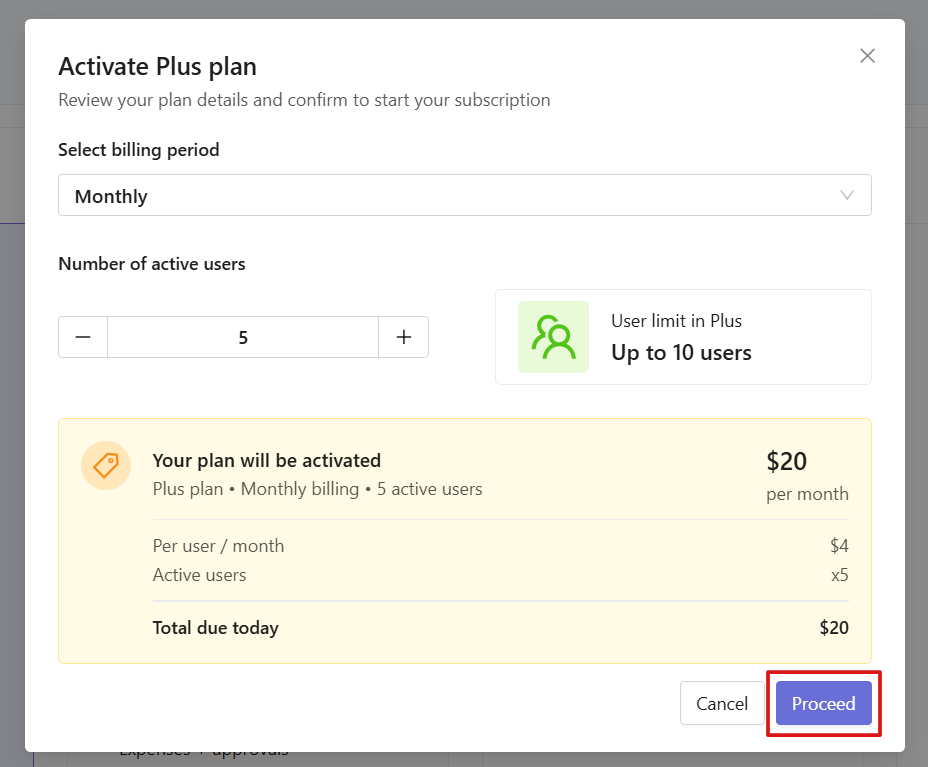
In the new window, review the plan details, select your billing period and number of active users, then click Proceed.
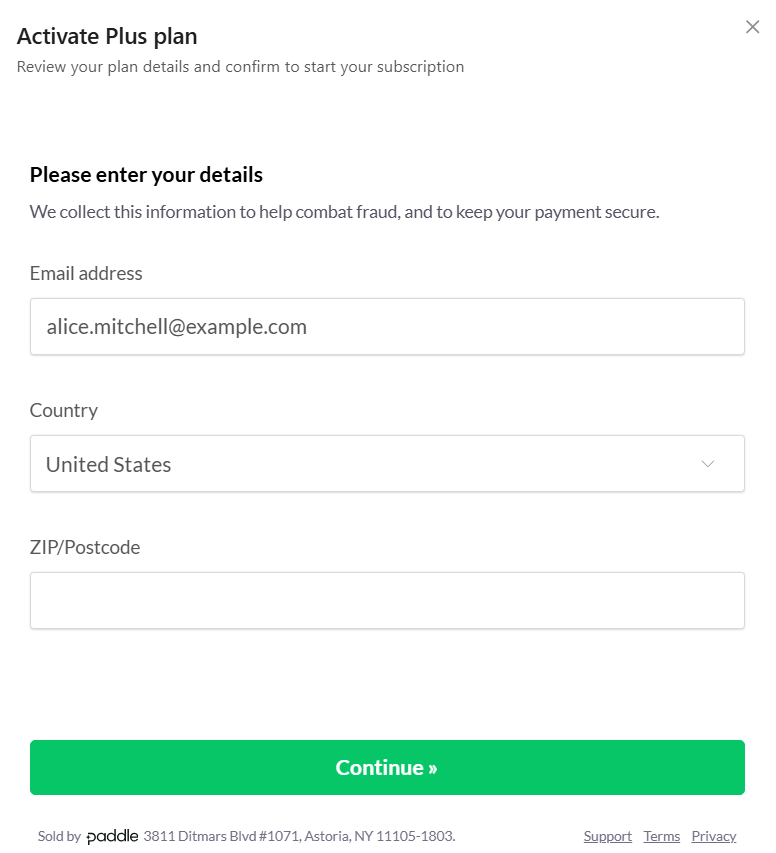
Enter your email address, country, and ZIP code if required, then click Continue.
Enter your payment details and click Subscribe now to finish.
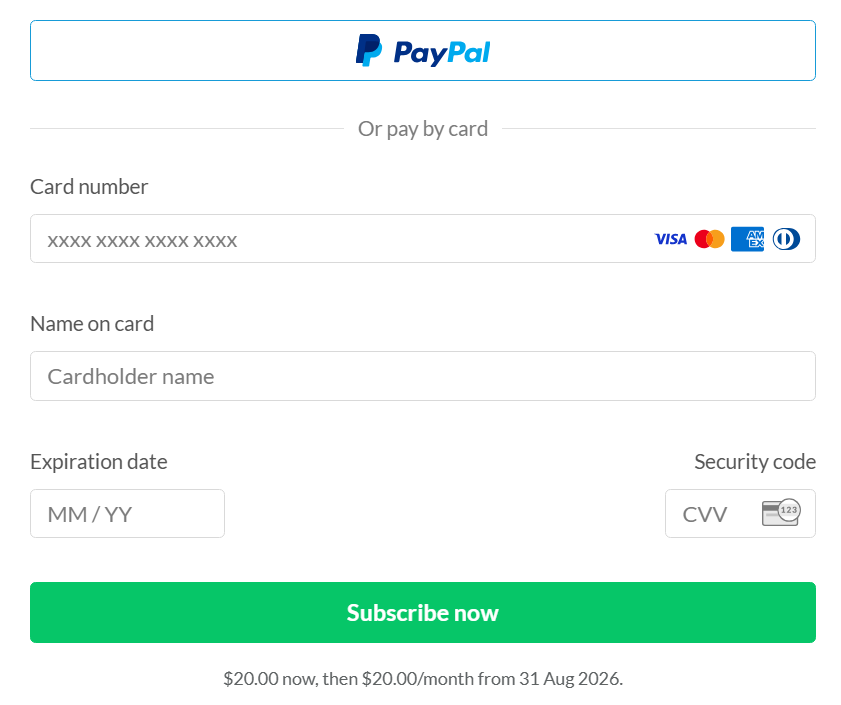
Payment details are collected and processed securely by Paddle. Traqq does not store your payment information.
Switching your subscription plan
If you already have a paid subscription, you can switch to another available plan at any time.
To change your plan:
Open Workspace settings → Subscription. Under Switch plan, select a different plan.
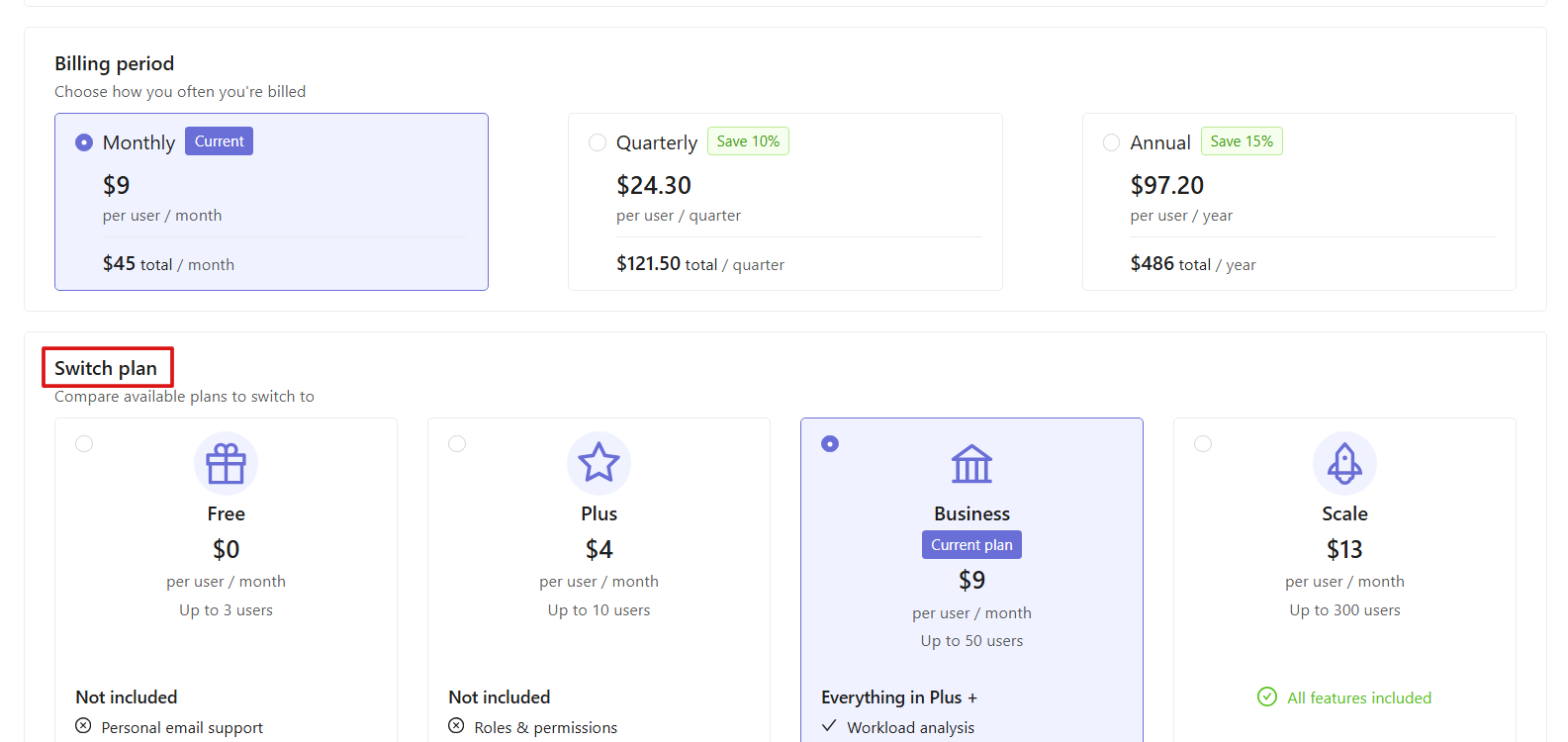
Reviewing payment changes
After selecting a new plan, Traqq shows a payment summary before you confirm the change.
The summary includes:
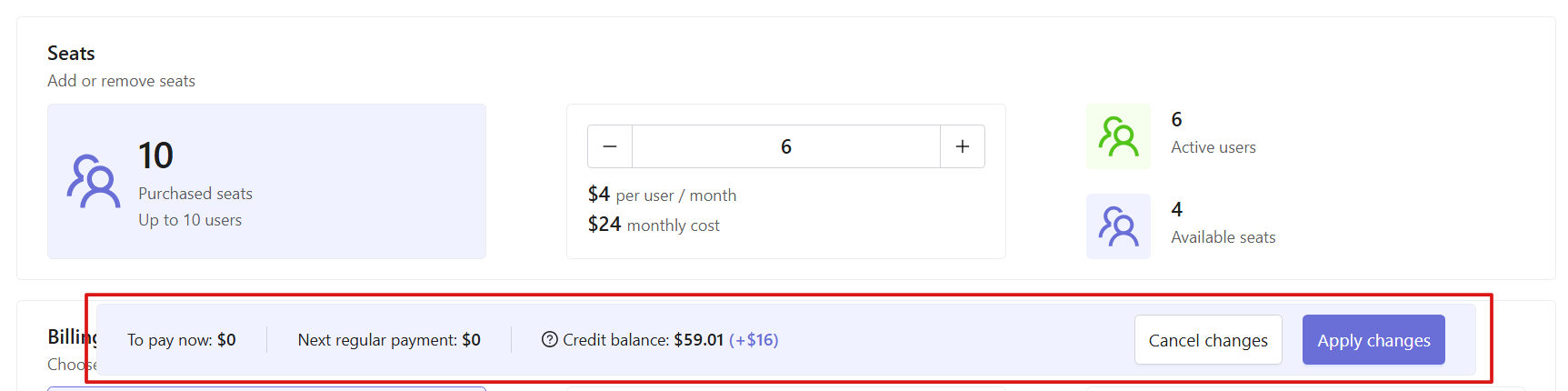
- To pay now — the amount charged immediately when you apply the change.
- Next regular payment — the amount that will be charged on your next billing date.
- Credit balance — any available credit from previous billing adjustments that will be automatically applied to future payments.
You can click Cancel changes to discard the update and return to your current plan settings.

Understanding Credit balance
The value in parentheses shows how the current change affects your credit balance.
Examples:
- Credit balance: $0 (+$25) — $25 will be added to your credit balance and applied to future payments.
- Credit balance: $4 (+$8) — you currently have $4 in credit balance. After applying this change, another $8 will be added.
- Credit balance: $75 (-$65) — $65 from your existing credit balance will be used to reduce the payment amount.
Switching to a higher-priced plan
When switching to a higher-priced plan, the additional payment is charged immediately. Click Apply changes to confirm the update.

Downgrading to a lower paid plan
When switching to a lower-priced plan, any unused time remaining from your current subscription is converted into credit balance and automatically applied to future payments. Click Apply changes.

If the new plan includes fewer features, Traqq will show which features will no longer be available before you confirm the change. Click Proceed to confirm.
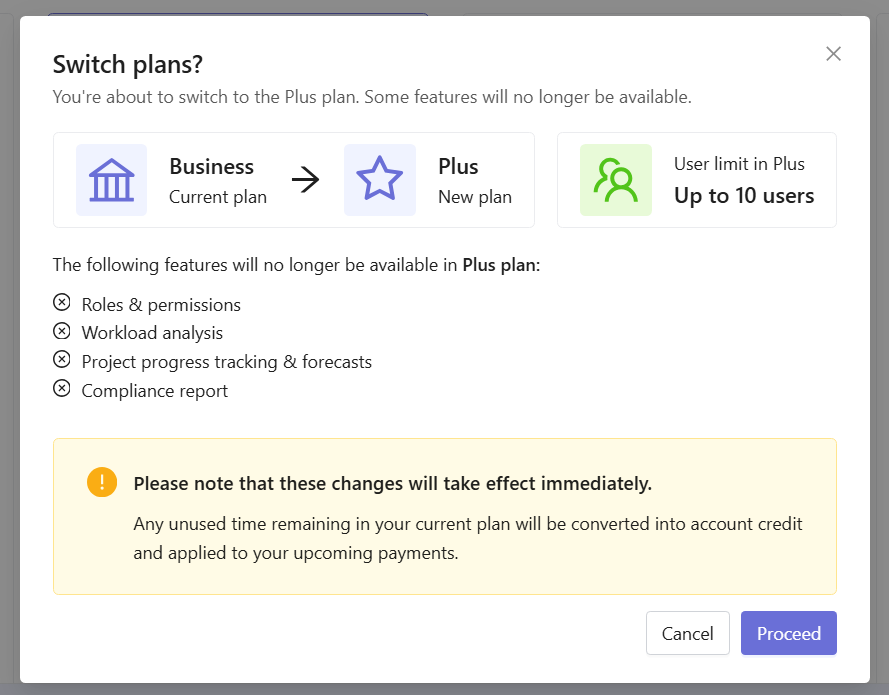
If your new plan supports fewer active users than your current workspace has, you will be asked to archive users before the change is completed.
In the new window, choose users you would like to archive and click Confirm changes.
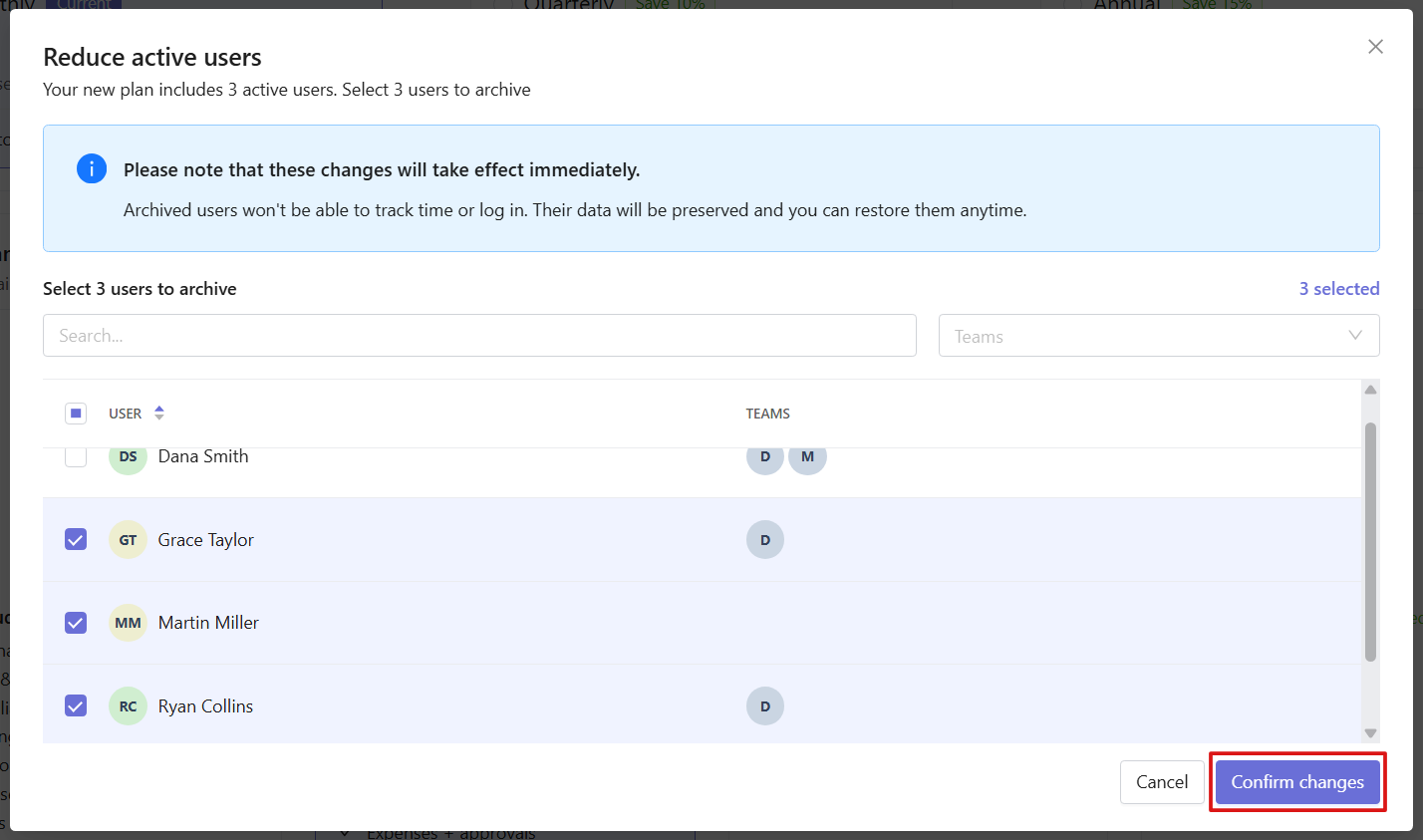
Archived users:
- cannot sign in or track time;
- do not count toward your seat limit;
- keep their historical records available;
- can be restored later if your plan has enough available seats.
Switching to the Free plan
When switching to the Free plan, your workspace is updated immediately. Any unused time remaining from your current plan is non-refundable unless you are eligible for the 14-day money-back guarantee on your first purchase. Contact Support to request a refund.
Select the Free plan, review the details in the new window, and click Proceed.
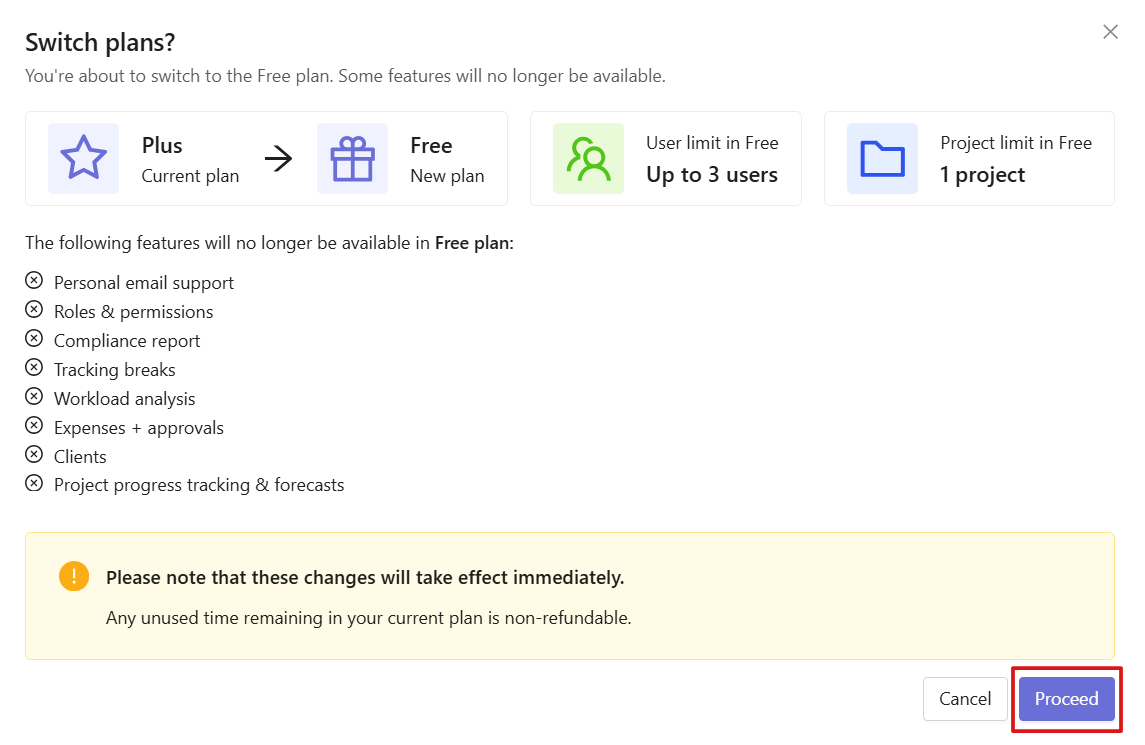
If your workspace has more than 3 active users, you will be asked to archive users to meet the Free plan limit.
If your workspace has more than one project, you will need to select which project should remain active.
Select the project you want to keep and click Confirm changes.
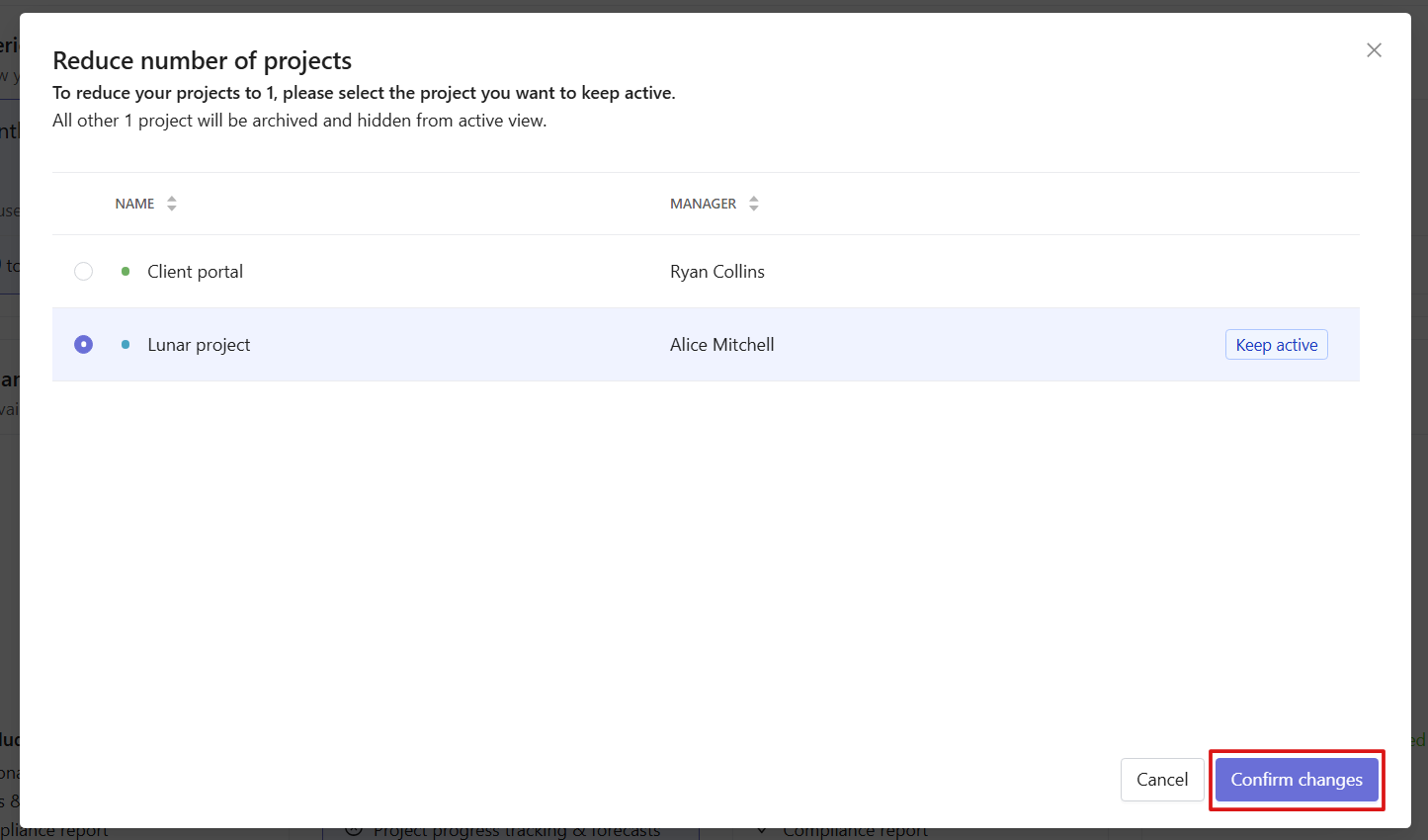
All other projects will be archived and hidden from the active view.
Archived projects and their data remain available, but they cannot be used while your workspace is on the Free plan.
Managing subscription seats
Paid plans are billed based on the number of purchased seats in your subscription.
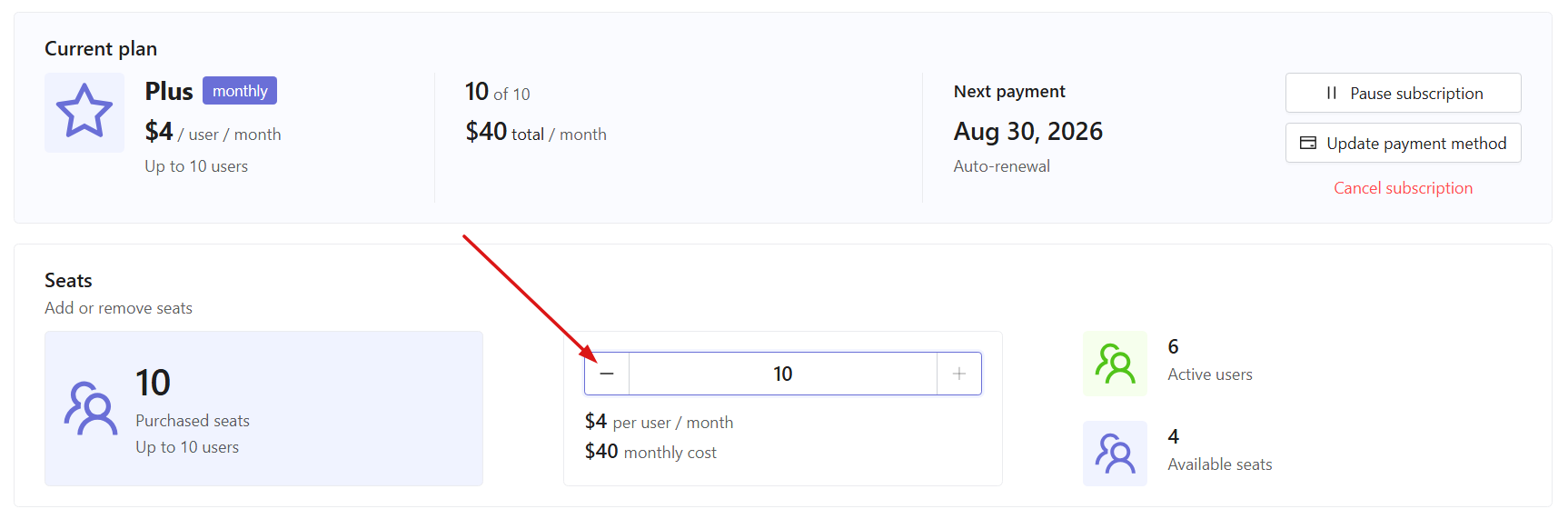
In the Current plan section, you can see:
Purchased seats — the number of seats included in your subscription.
Active users — users who currently count toward your subscription limit.
Available seats — the number of additional active users you can add before reaching your plan limit.

Note: Archived users do not count toward your active user limit.
Removing seats
To reduce the number of seats:
Click the − icon next to Seats or type the number manually.
Review the updated payment summary and click Apply changes.
If the number of active users exceeds your new seat limit, you will need to select users to archive before the changes take effect.
Adding seats
To increase the number of seats:
Click the + icon next to Seats or type the number manually. Review the updated payment summary and click Apply changes.
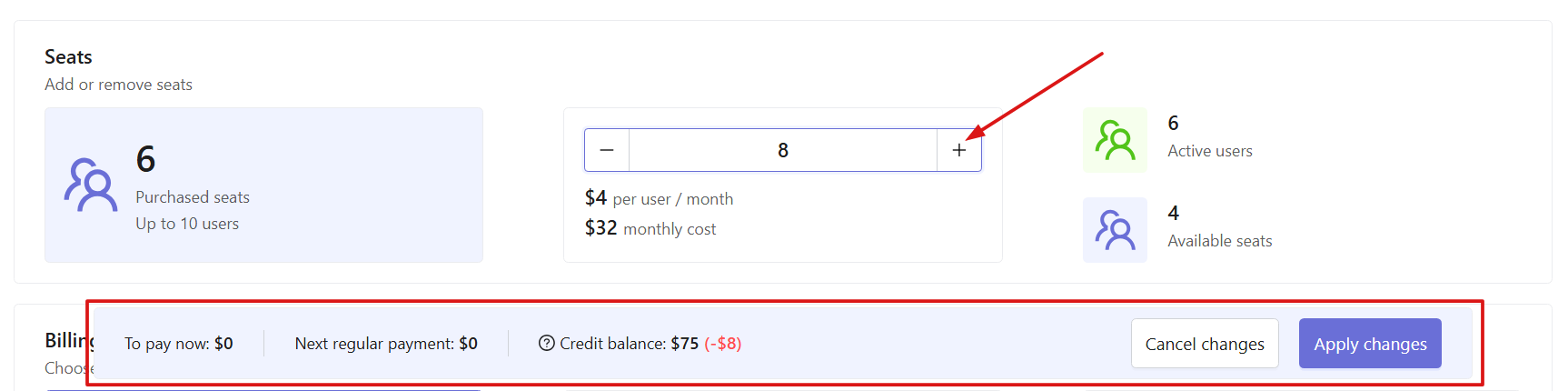
The additional payment is calculated automatically and charged immediately.
Changing your billing period
Paid subscriptions are available with different billing periods:
- Monthly
- Quarterly
- Annual
To change your billing period:
- Open Workspace settings → Subscription.
- Under Billing period, select the required option.
- Review the updated payment summary. Click Apply changes.
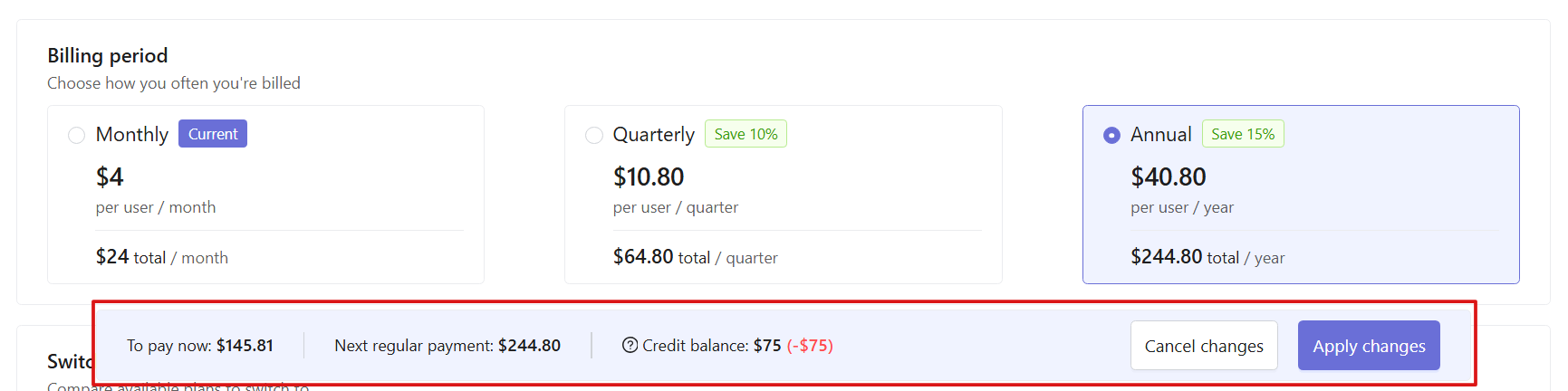
When switching to a longer billing period, the price difference is charged immediately.
When switching to a shorter billing period, any unused prepaid amount is converted into credit balance and applied to future payments.
FAQ
Can I change my subscription at any time?
Yes. You can upgrade or downgrade your subscription at any time from the Subscription section.
Do archived users count toward my plan limit?
No. Only active users count toward your plan limit. Archived users remain in your workspace but do not count toward your active user limit. Note that your subscription cost is based on the number of purchased seats, not the number of active users.
What happens to unused time when I downgrade?
When you switch to a lower paid plan, any unused time remaining from your current subscription is converted into credit balance and applied to future payments. If you switch to the Free plan, any unused time remaining is non-refundable unless you are eligible for the 14-day money-back guarantee on your first purchase.
Are taxes included in the subscription price?
Taxes are calculated automatically by Paddle based on your billing country and applicable tax regulations. The final amount is shown during checkout before you complete your purchase.
How is my payment information stored?
Payment details are processed securely by Paddle. Traqq does not store your payment information.