Pausing, canceling and resuming your subscription
You can pause, cancel, or resume your Traqq subscription at any time from the Subscription tab.
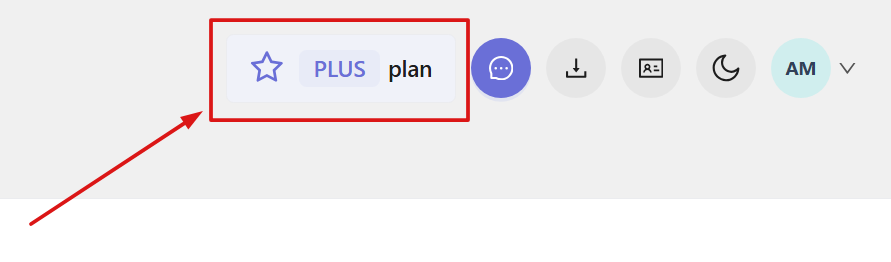
To access the Subscription section, click the plan name in the top-right corner of the web app.
Pausing your subscription
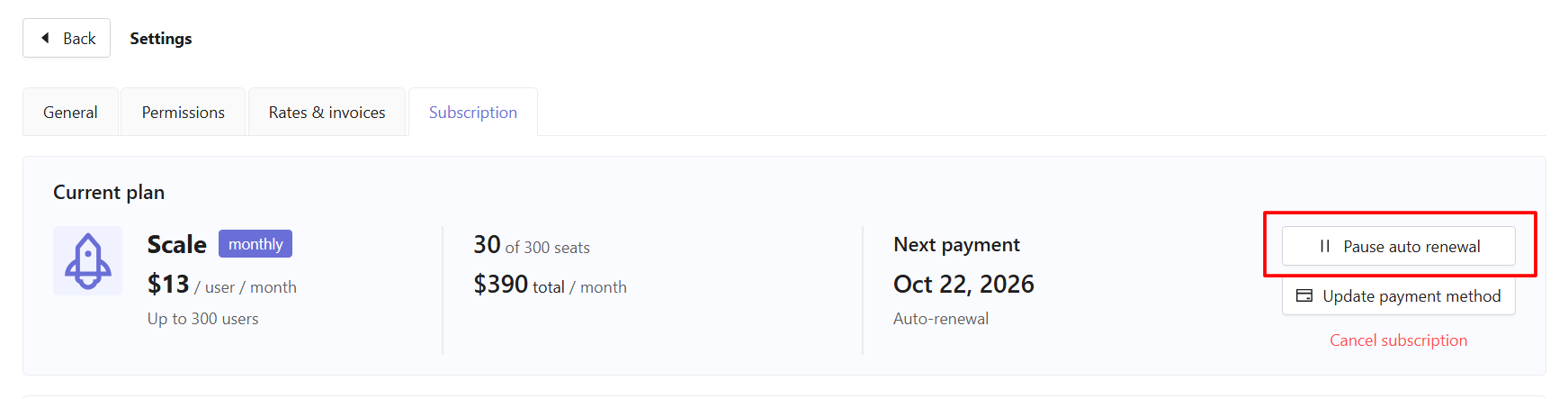
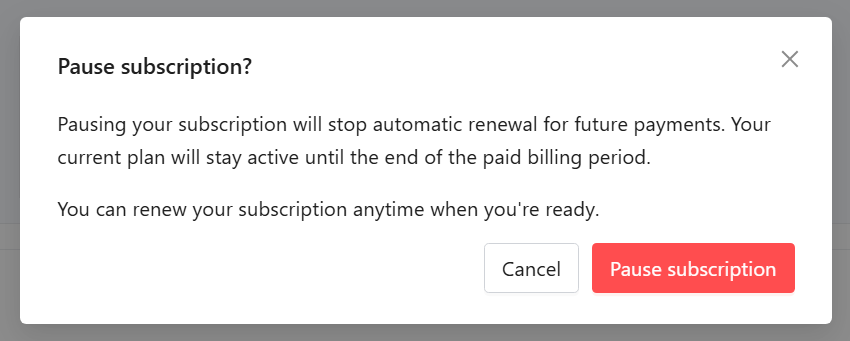
Pausing your subscription stops automatic renewal for future payments. Your current plan remains active until the end of your paid billing period.
Click Pause auto renewal in the top-right corner.
In the confirmation window, click Pause subscription.
After your subscription is paused:
- - Your current plan remains active until the end of the paid billing period.
- Automatic renewal is disabled.
- You can resume your subscription at any time.
- Editing the number of seats, changing the billing period, and switching plans become unavailable. - The Subscription page will show the date until which your current plan remains active.

-
Resuming your subscription
- You can resume your subscription at any time. Click Resume auto renewal in the top-right corner.
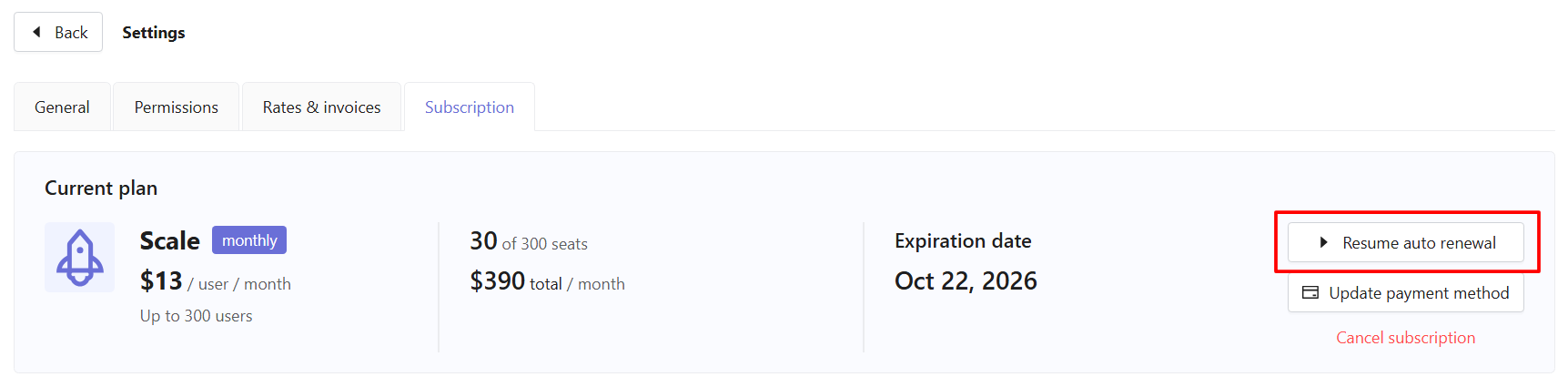
- Your subscription will resume with your selected plan and billing period.
-
Canceling your subscription
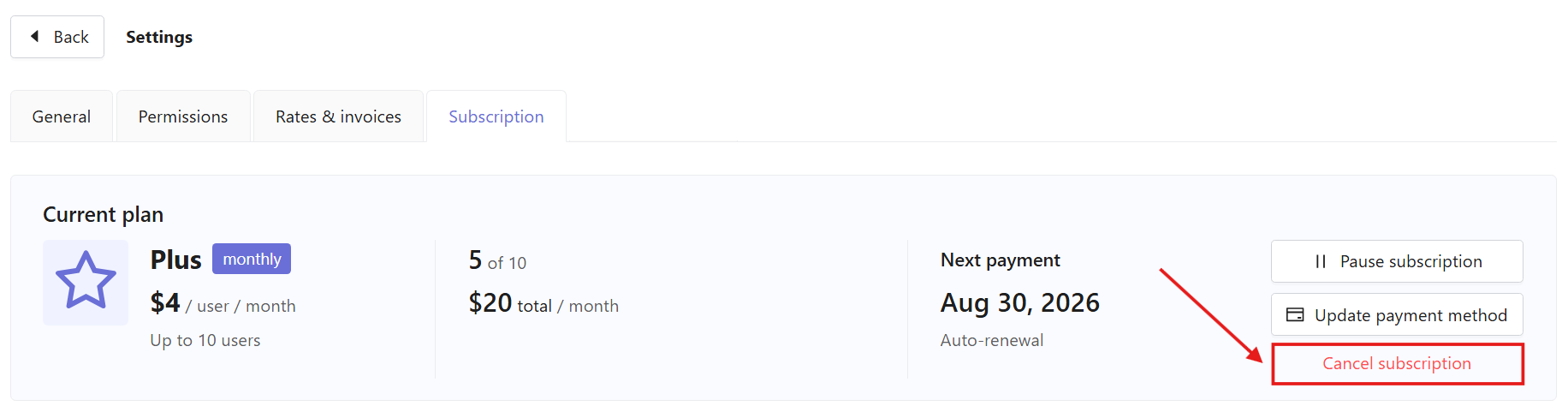
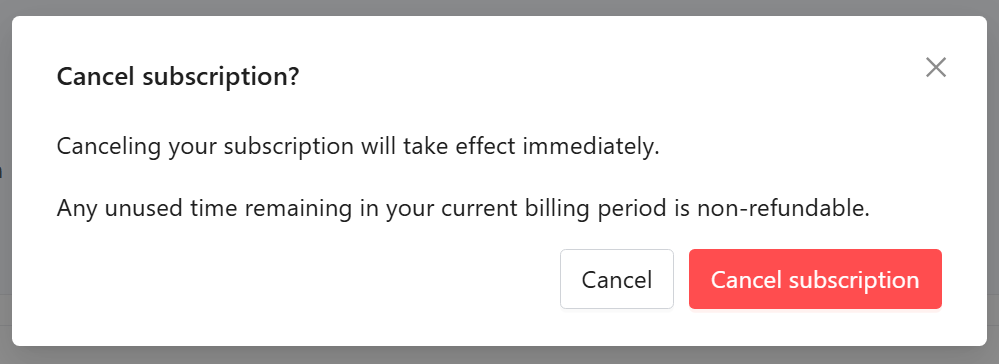
- Canceling your subscription will take effect immediately. Note that any unused time remaining in your current plan is non-refundable unless you are eligible for the 14-day money-back guarantee on your first purchase. Contact Support to request a refund.
- Click Cancel subscription in the top-right corner.
- In the confirmation window, click Cancel subscription.
- After cancellation:
- - Your current paid plan becomes inactive.
- You can still track time, but all other Traqq features become unavailable.
- To regain access, you can reactivate your current plan, choose another paid plan, or switch to the Free plan.