Approving and declining timesheets
Owners and Admins can review and manage submitted timesheets in the Approvals section. Managers can also manage timesheet approvals for their assigned projects and teams if this option is enabled in Workspace settings.
Review timesheets
Open Approvals from the left sidebar and switch to the Timesheets tab.
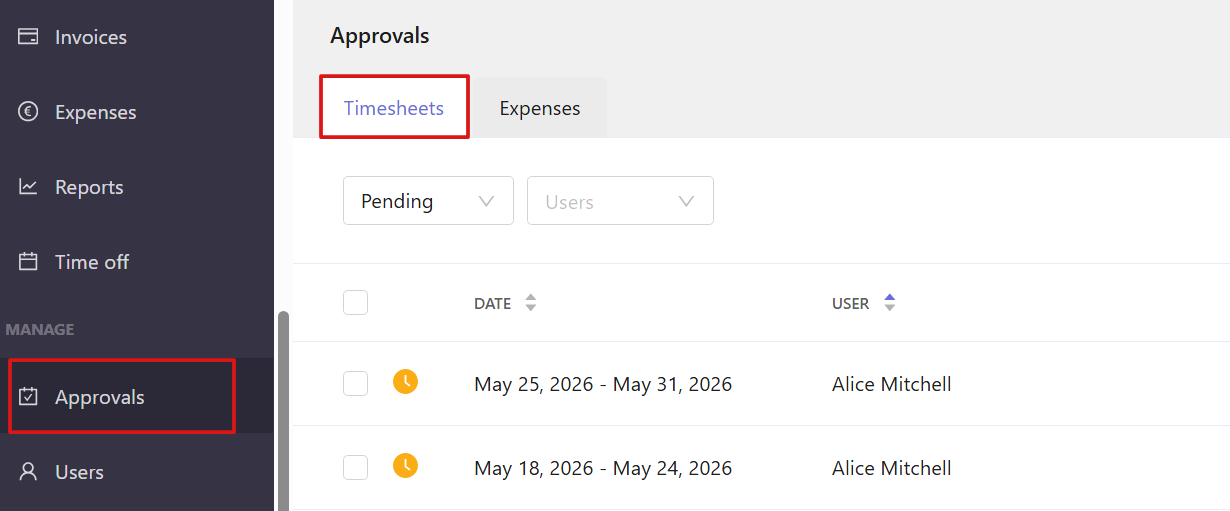
Use filters to narrow down the list:
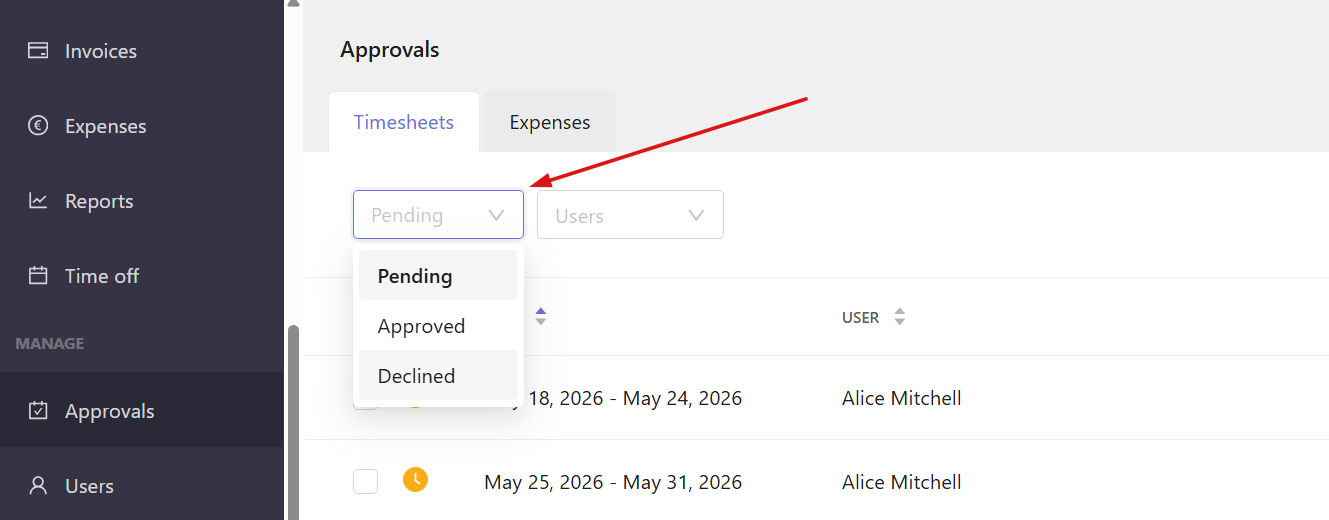
- Timesheet status: Pending, Approved, or Declined
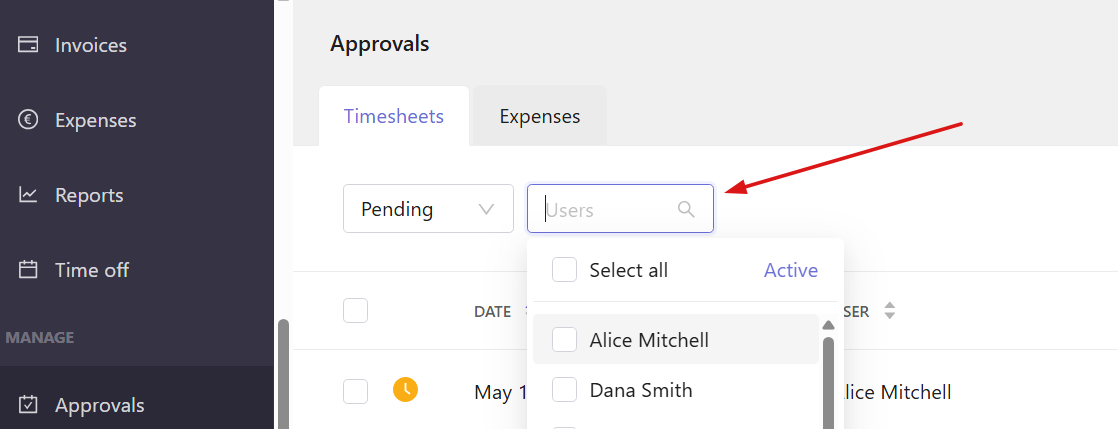
- Users: select specific team members
- Click a timesheet to open the Timesheet approval page with detailed information.
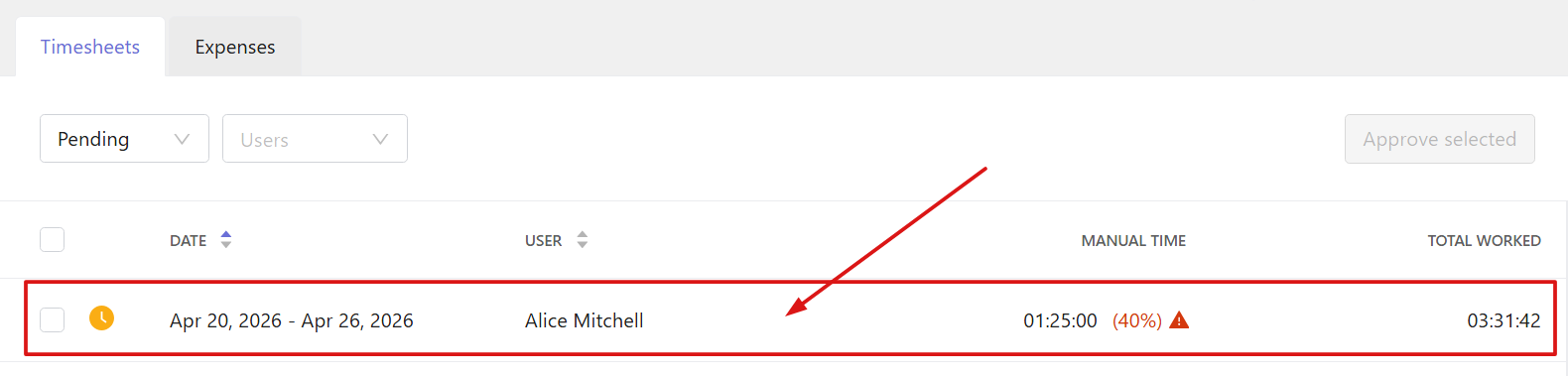
- Here you can see user data, total time, billable time, breaks, and manual time. If the manually added time is above the threshold, you will see a warning sign next to the total manual time.
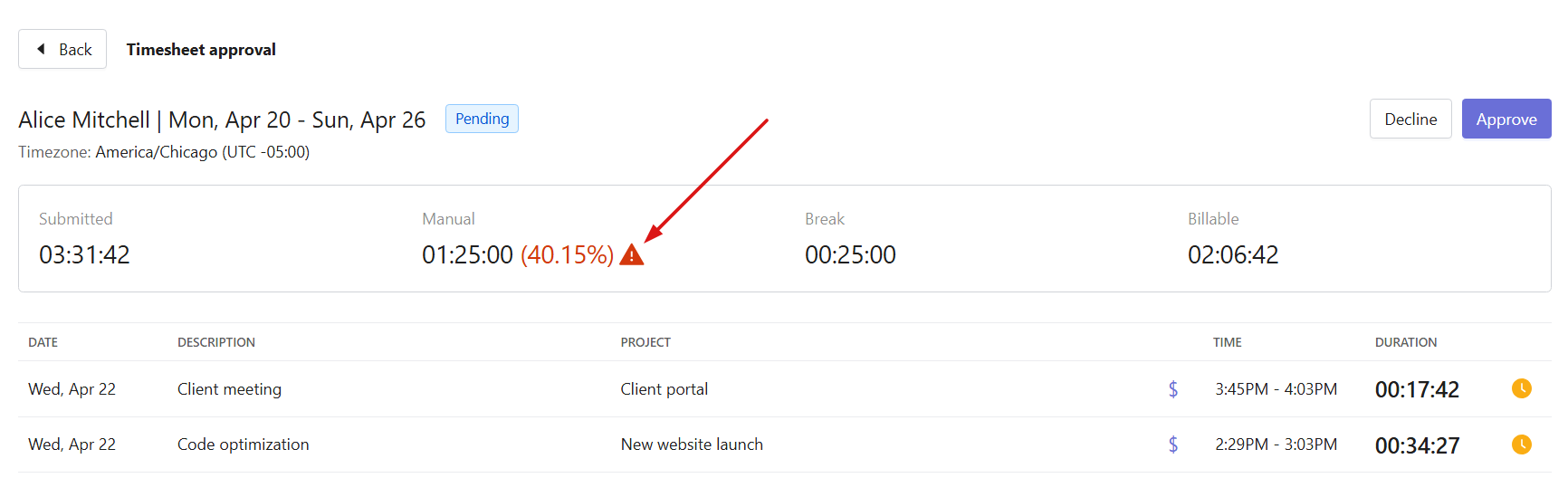
- Below the totals, there are more detailed time entries by date and project.
-
Different types of time entries are marked with icons:
Pencil icon — manually added or edited time
Cup icon — breaks 
- Blue dollar icon — billable time entries
Gray dollar icon — non-billable time entries 
-
Approve timesheets
Click Approve in the top-right corner on the Timesheet approval page.

You can also approve multiple timesheets by selecting them in the list and clicking Approve selected.
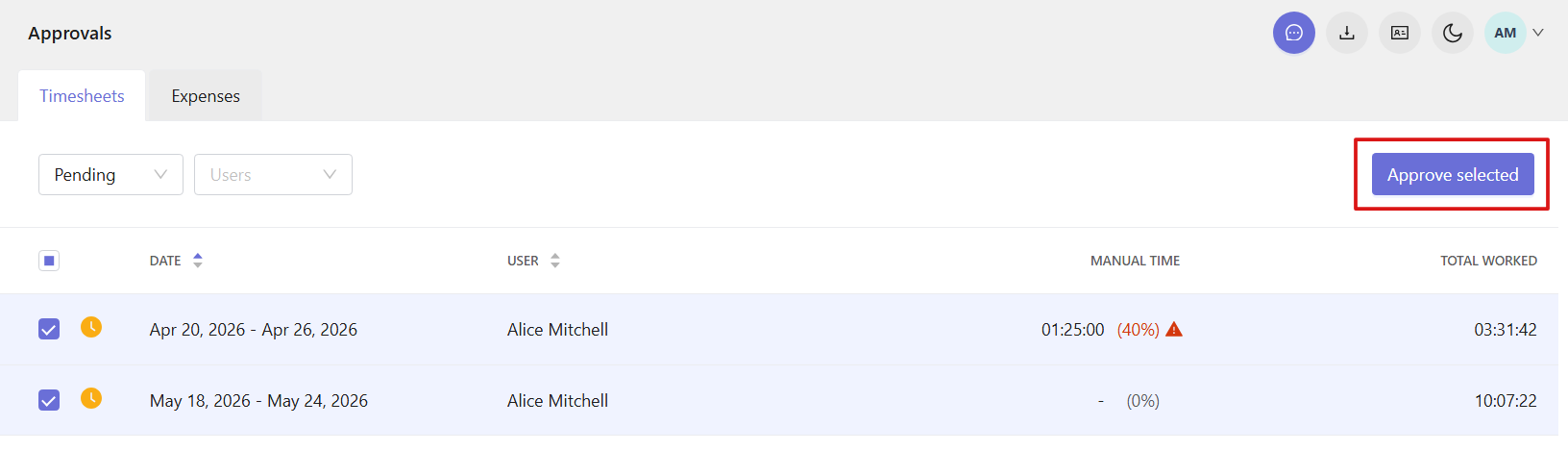
Once a timesheet is approved, its status changes to Approved and no further edits are possible.
Decline timesheets
To decline a timesheet, click Decline on the Timesheet approval page.

In the window that opens, enter a reason for declining. When you enter the reason, click Decline again.
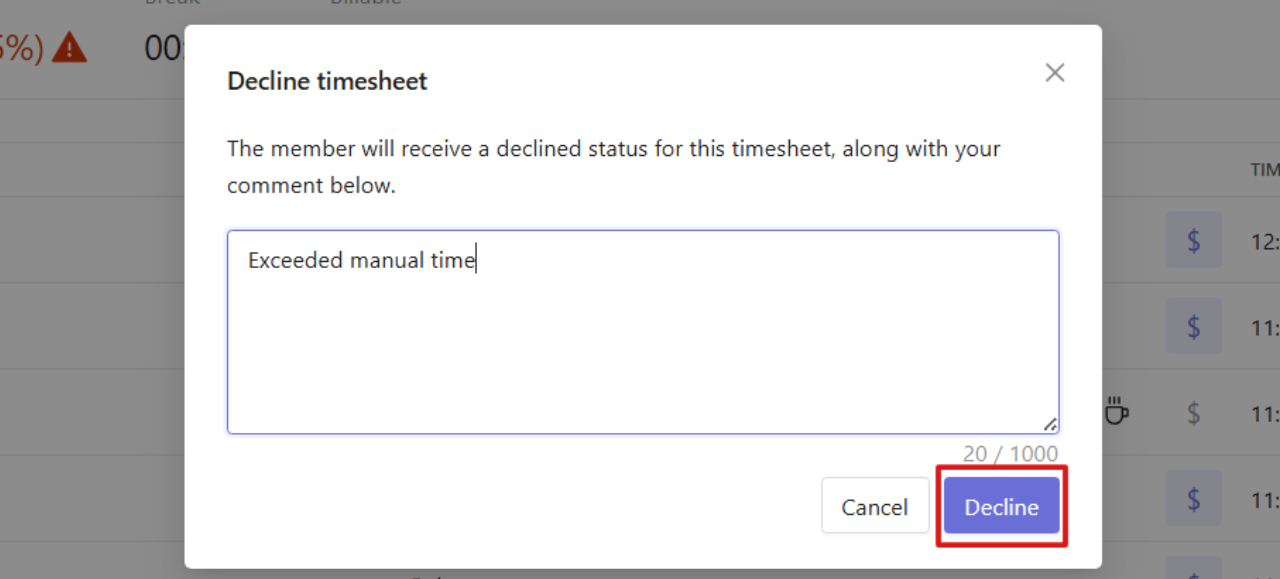
The declined timesheet will return to the user and become editable again. The user will also receive an email with the decline reason.
Already approved timesheets can also be declined if adjustments are needed.
You can find approved timesheets in the Approvals section, on the Timesheets tab, filtered by status Approved.
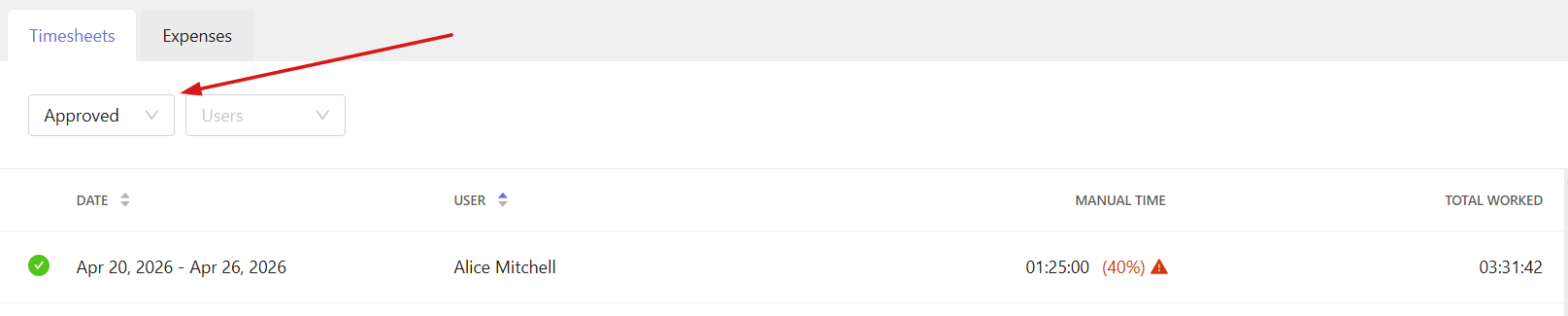
Click the approved timesheet and select Decline on the Timesheet approval page.
