Time off & calendar: adding and deleting time off records
The Time off page provides a shared calendar where team members can indicate when they are unavailable.
Time off in Traqq is informational. It does not require approval and is visible to all workspace members. Users can add and delete only their own time off records.
View time off in the calendar
Go to the Time off section from the left sidebar.
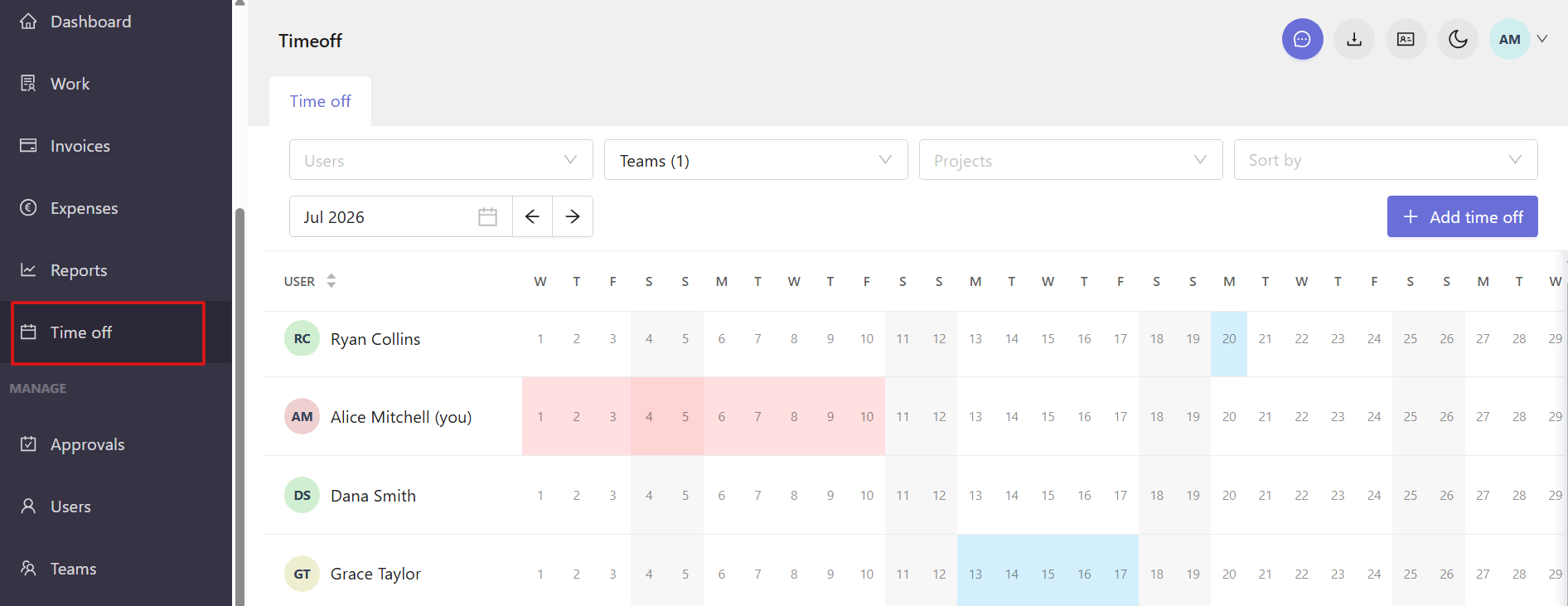
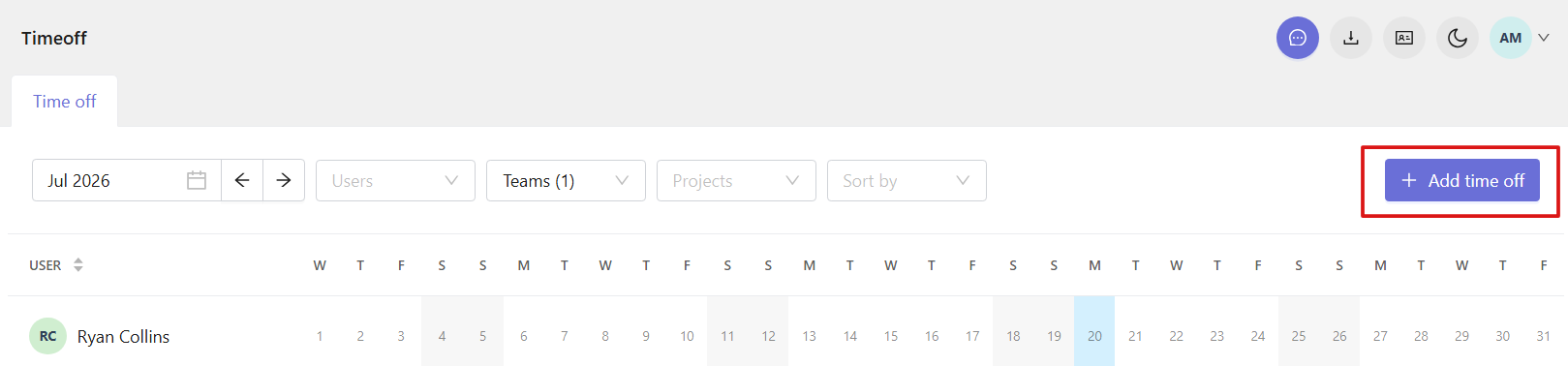
You can select a month using the date picker at the top of the page and use filters (Users, Teams, Projects) or sorting options to adjust the view if needed.
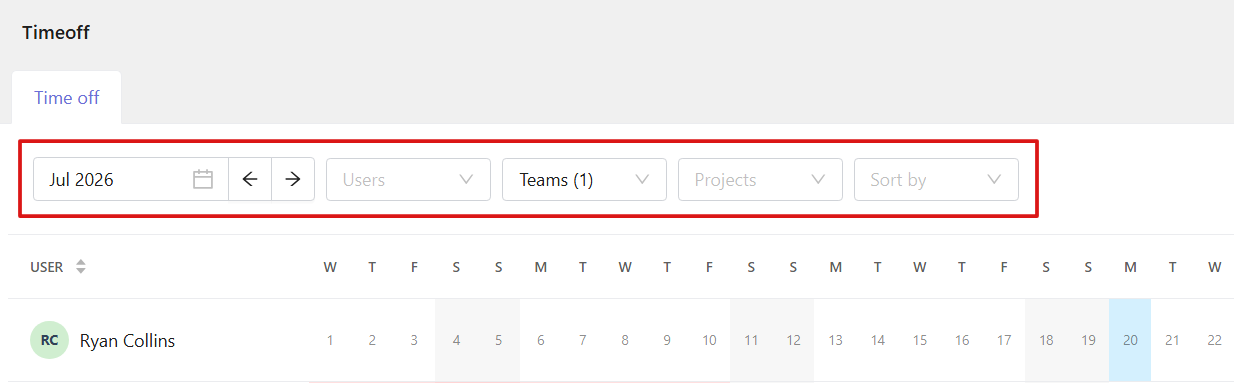
You can use the Sort by filter to show:
- All records
- Only users with time off
- Only users without time off
The calendar displays each user in a separate row and shows their time off across the selected dates, with days off colored for easy visibility.
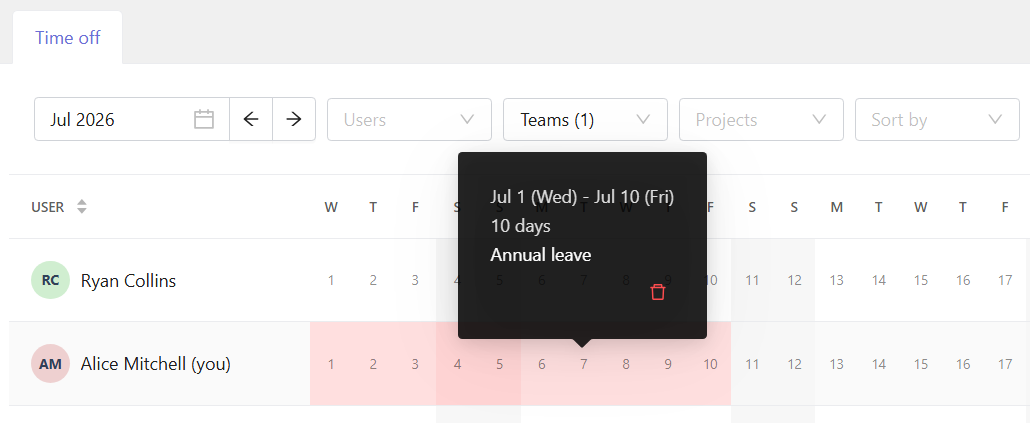
Hover over a time off entry to see its duration and notes added by the user.
Add time off
Step 1
Open the Time off page.
Step 2
Click Add time off in the top-right corner.
Step 3
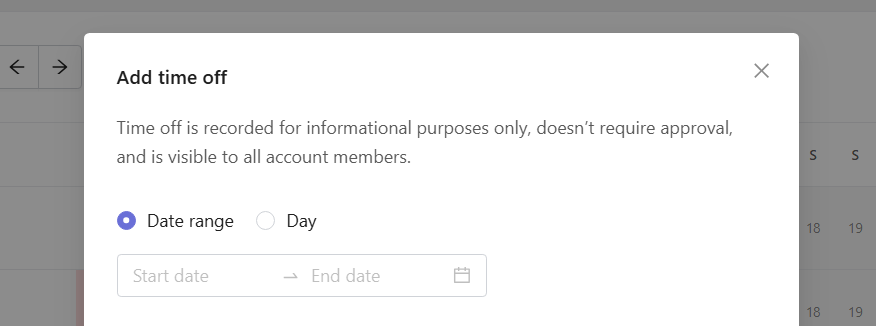
In the window that opens, choose how to add the record:
Date range — select a start and end date.
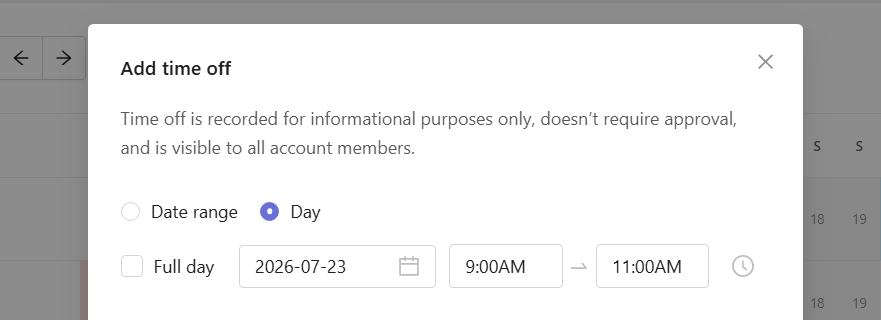
Day — select a single date. You can clear the Full day checkbox to add a partial-day time off entry.
Step 4
(Optional) Add a public note. This note is visible to all workspace members.
Step 5
Click Add to save the record.
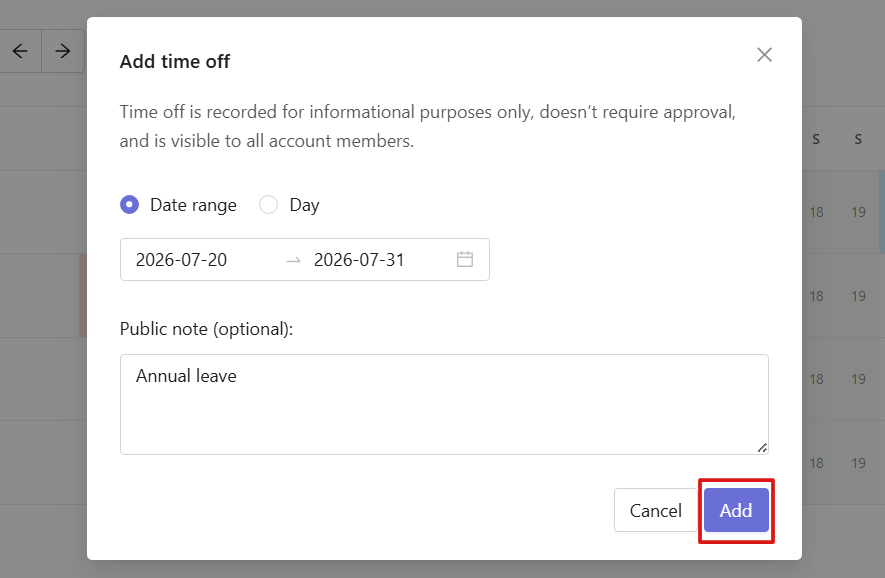
The selected dates will appear in the calendar under your name.
Note: You can add time off only for yourself. Workspace roles do not affect this permission — even Owners and Admins cannot add time off on behalf of other users.
Delete time off
Step 1
Open the Time off page.
Step 2
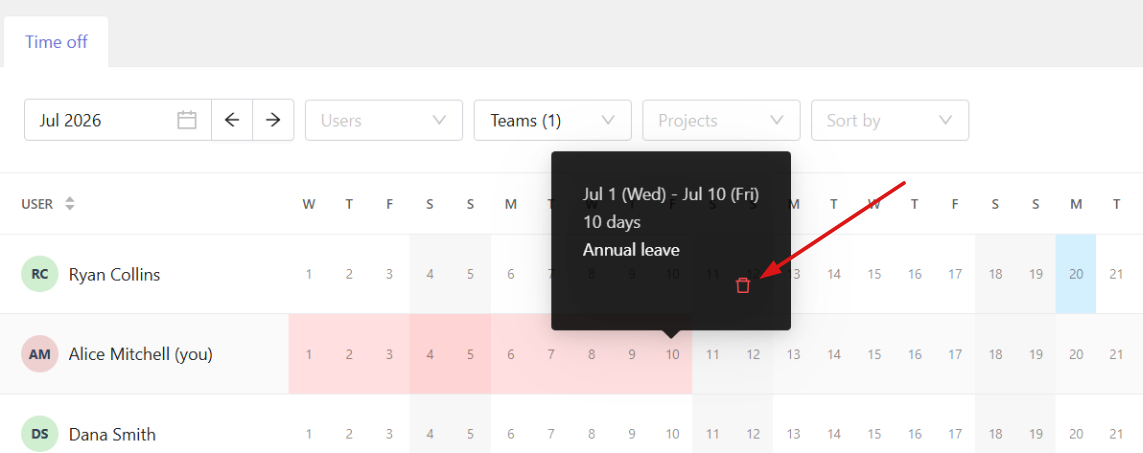
Locate your time off entry in the calendar (you can delete only your own records).
Step 3
Hover over the entry and click the trash icon to delete it.
Step 4
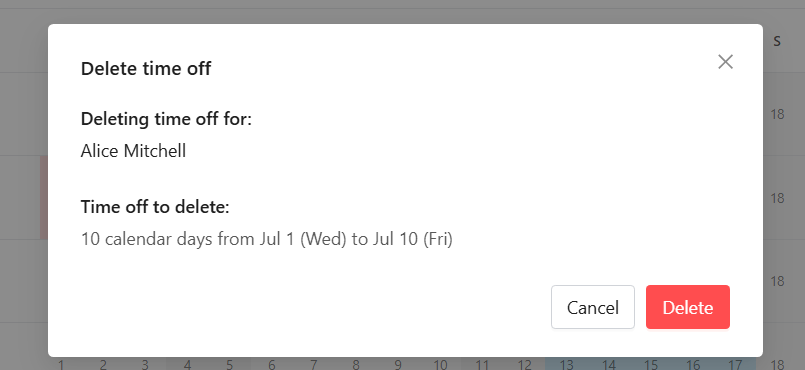
In the new window, review the time off details and press Delete. The time off will be removed from the calendar immediately.