Compliance report
The Compliance report helps you review work patterns across your organization and understand how tracked time aligns with work schedules and capacity settings.
You can:
- Analyze workload across teams based on tracked time
- Compare planned capacity with actual worked time
- Identify overtime and under-capacity patterns
- Understand attendance patterns
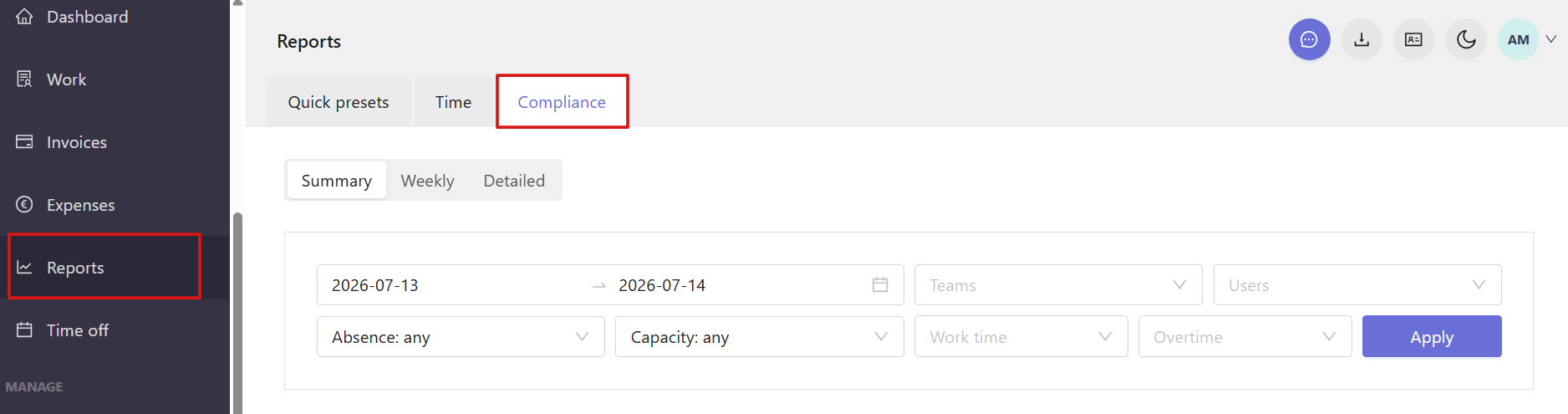
To access the data, open the Reports section from the left sidebar and select the Compliance tab.
At the top of the page, you can switch between the available views:
- - Summary
- Weekly
- Detailed 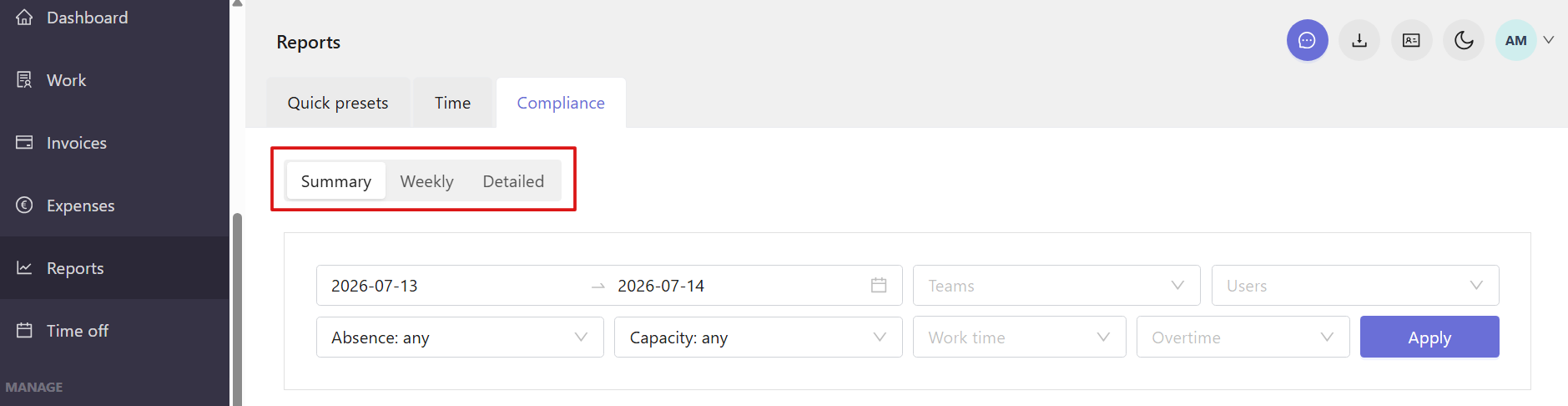
- Each view provides a different level of detail, from high-level insights to day-by-day breakdowns.
-
Summary view
The Summary tab provides an overview of key metrics for the selected period. This view helps you quickly understand overall workload based on tracked time across the team and how it aligns with planned capacity.
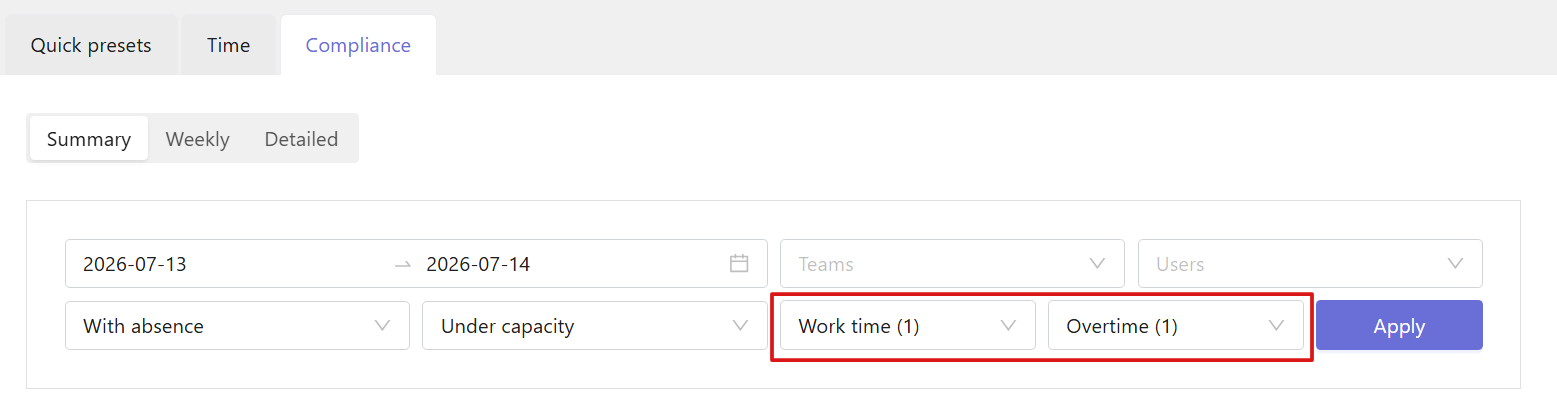
You can filter the report by date range, teams, and individual users.
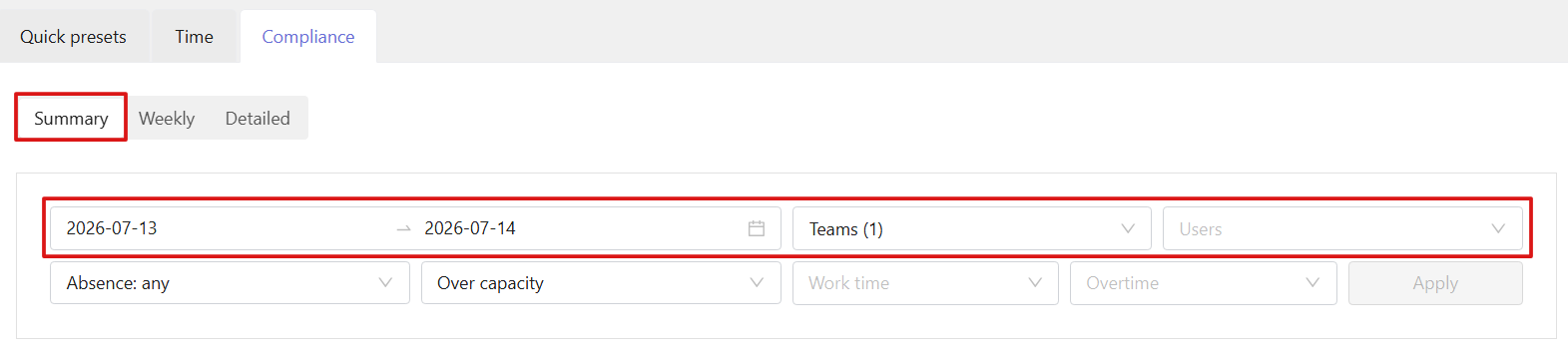
Additional filters allow you to focus on specific conditions, including absence status and capacity levels.
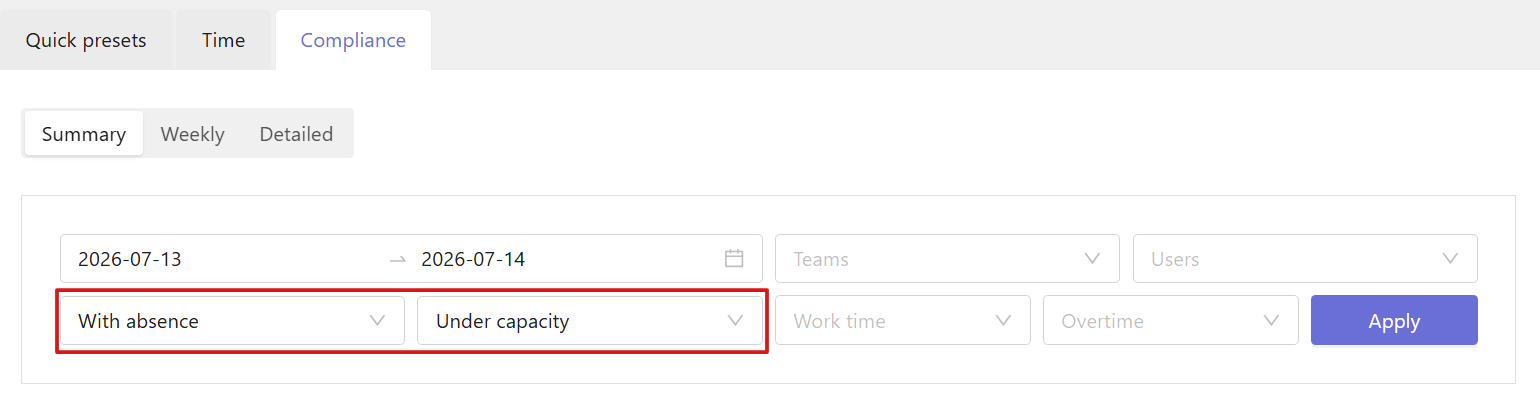
You can also refine the report by work time and overtime.
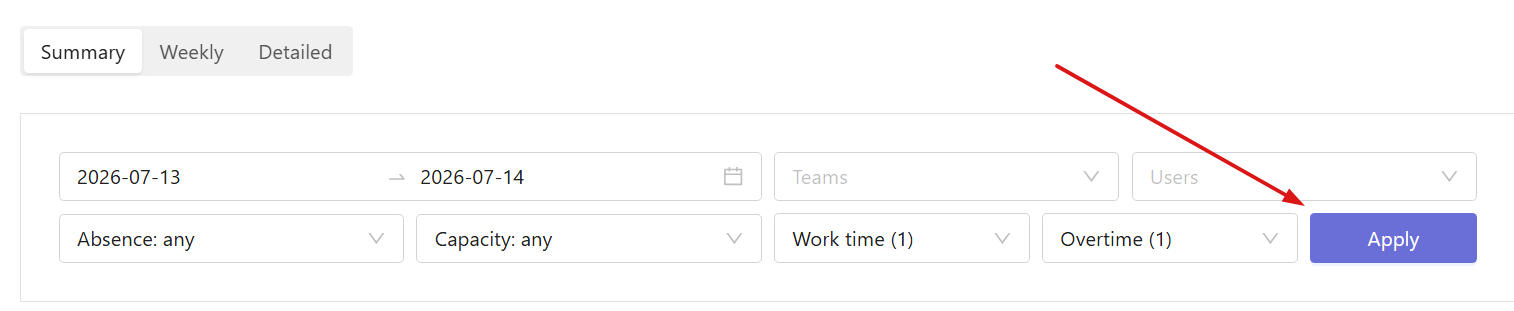
After setting filters, click Apply to update the report.
You can see workspace data based on the selected filters:
- - Total team capacity
- Total worked time
- Total overtime
- Total break time - Below the summary, a table shows each user’s performance, including:
- - Total user capacity for the selected period
- Total work time
- Break time
- Daily capacity
- Average daily work time
- Average daily break time
- Overtime
- Time off
- Work days 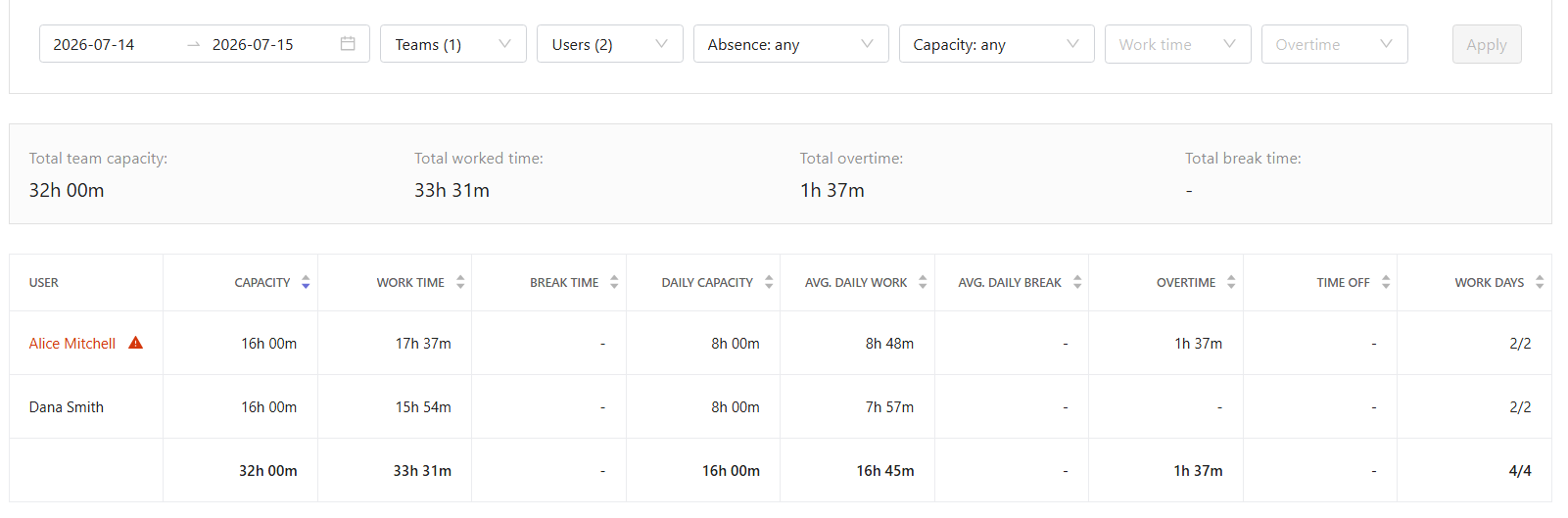
- Users who are over capacity will be highlighted in red, while users who are under capacity will be highlighted in blue. Both are marked with a warning icon.

Weekly view
The Weekly tab helps you analyze time tracking data and attendance-based records in the selected week.
In the Work time / break time view, you can:
- - Review daily work and break time for each user
- - See weekly totals per user, including:
Weekly capacity
Total work time
Total break time 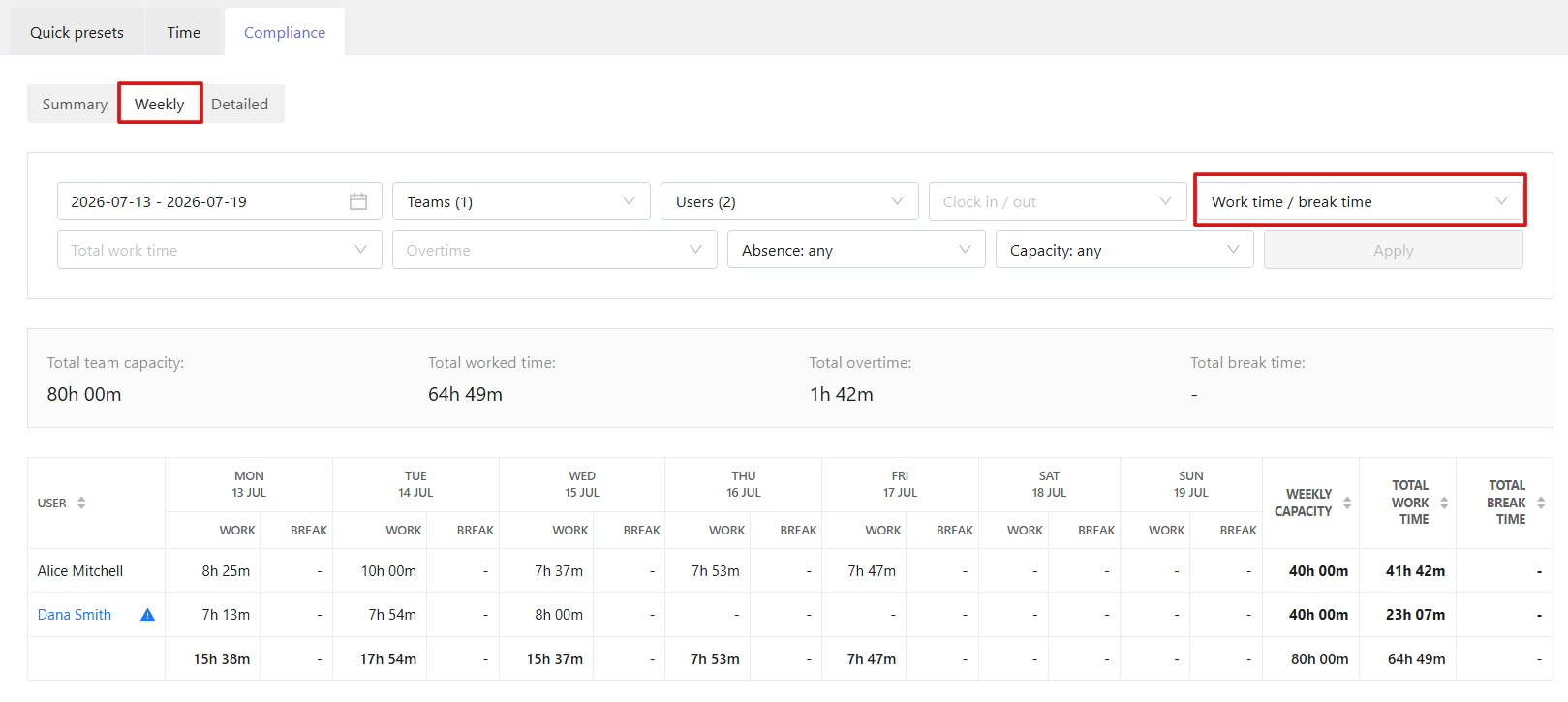
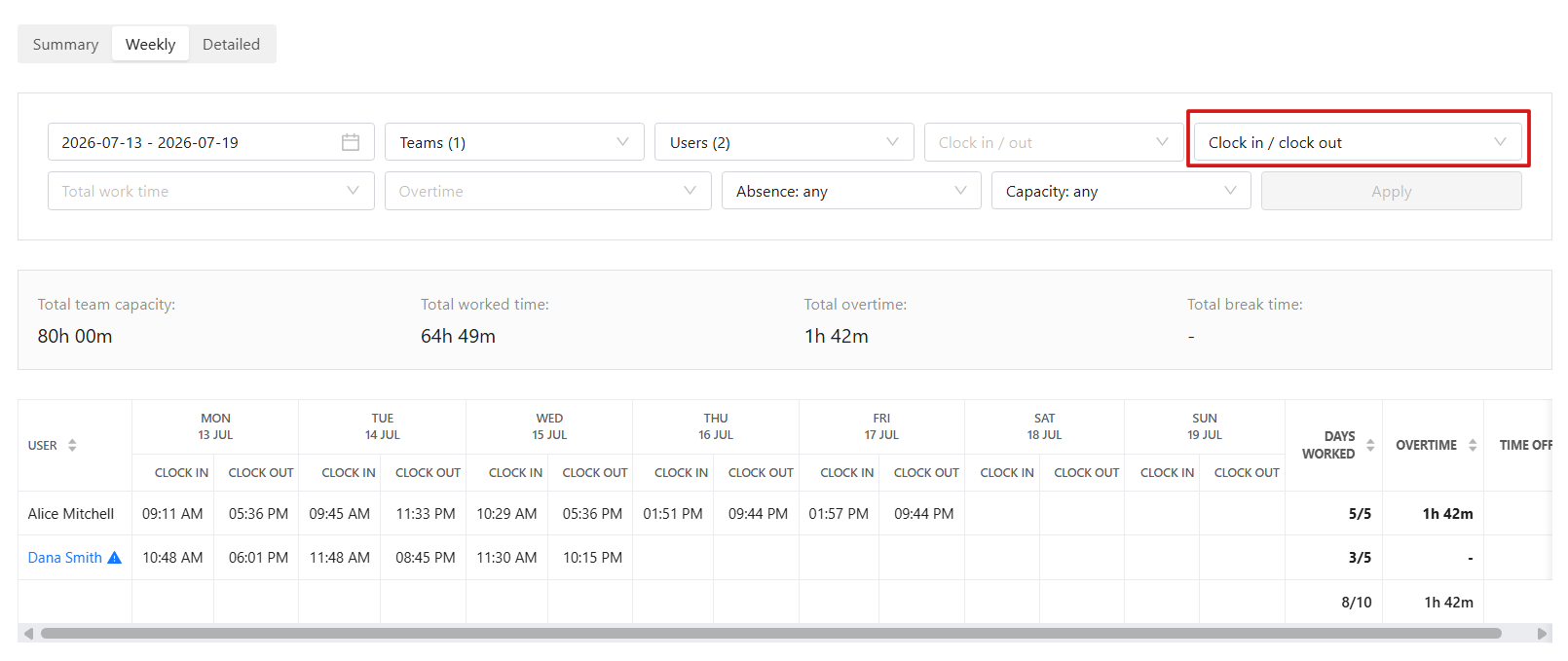
- You can also switch to the Clock in / Clock out view to see attendance data for each user on a daily basis within the selected week, including work days, overtime, and time off.
-
Detailed view
- The Detailed tab provides a granular breakdown of daily work data.
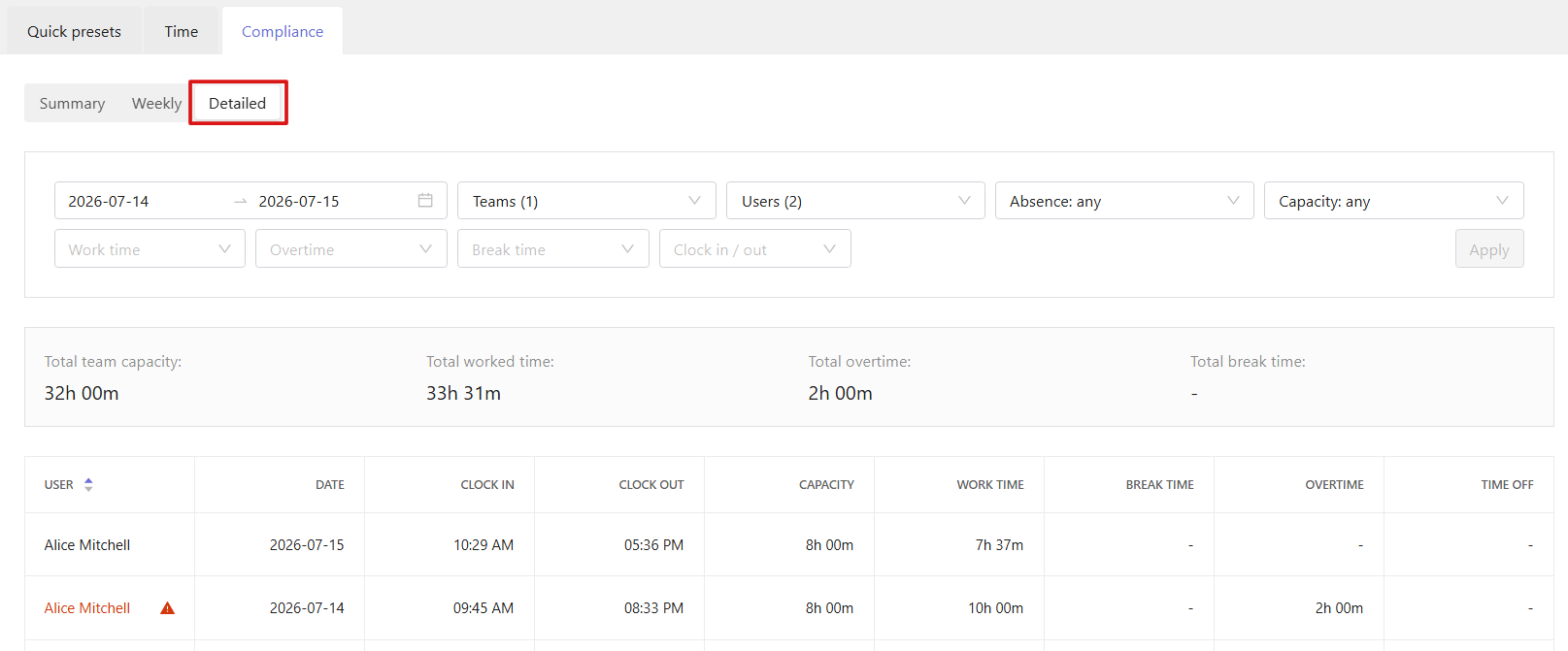
Here you can see:
- - Clock in and clock out times
- Capacity for each day
- Work time per day
- Break time
- Overtime
- Time off - Each row represents a specific user and date, making it easy to review daily work records in detail.
- You can filter the report by date range, teams, and users. Additional filters let you refine results by absence status and capacity levels.
- You can also refine the report by work time, overtime, break time, and clock in/clock out data.