Uninvoiced time
The Uninvoiced time report shows tracked time that has not been included in any invoice.
Go to Invoices in the left sidebar and open the Uninvoiced time tab.
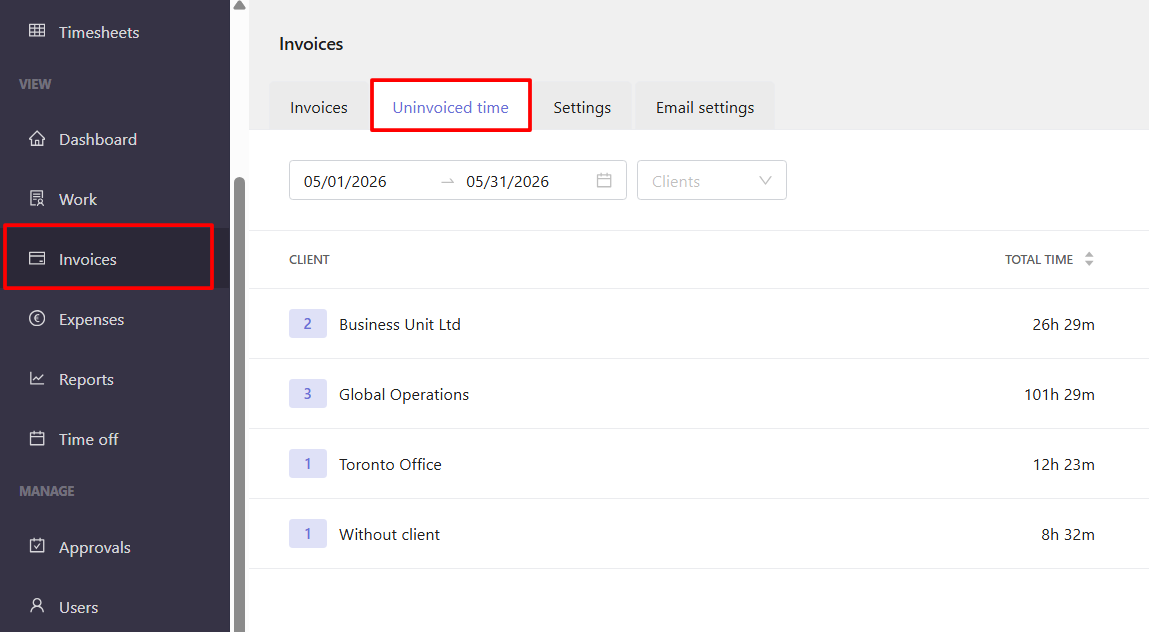
The report shows the following information for each client:
- Total time
- Uninvoiced time
- Uninvoiced amount
The number next to a client's name shows the number of projects with uninvoiced time associated with that client.
Click a client to expand the list of projects and see the total time, uninvoiced time, and uninvoiced amount for each project.
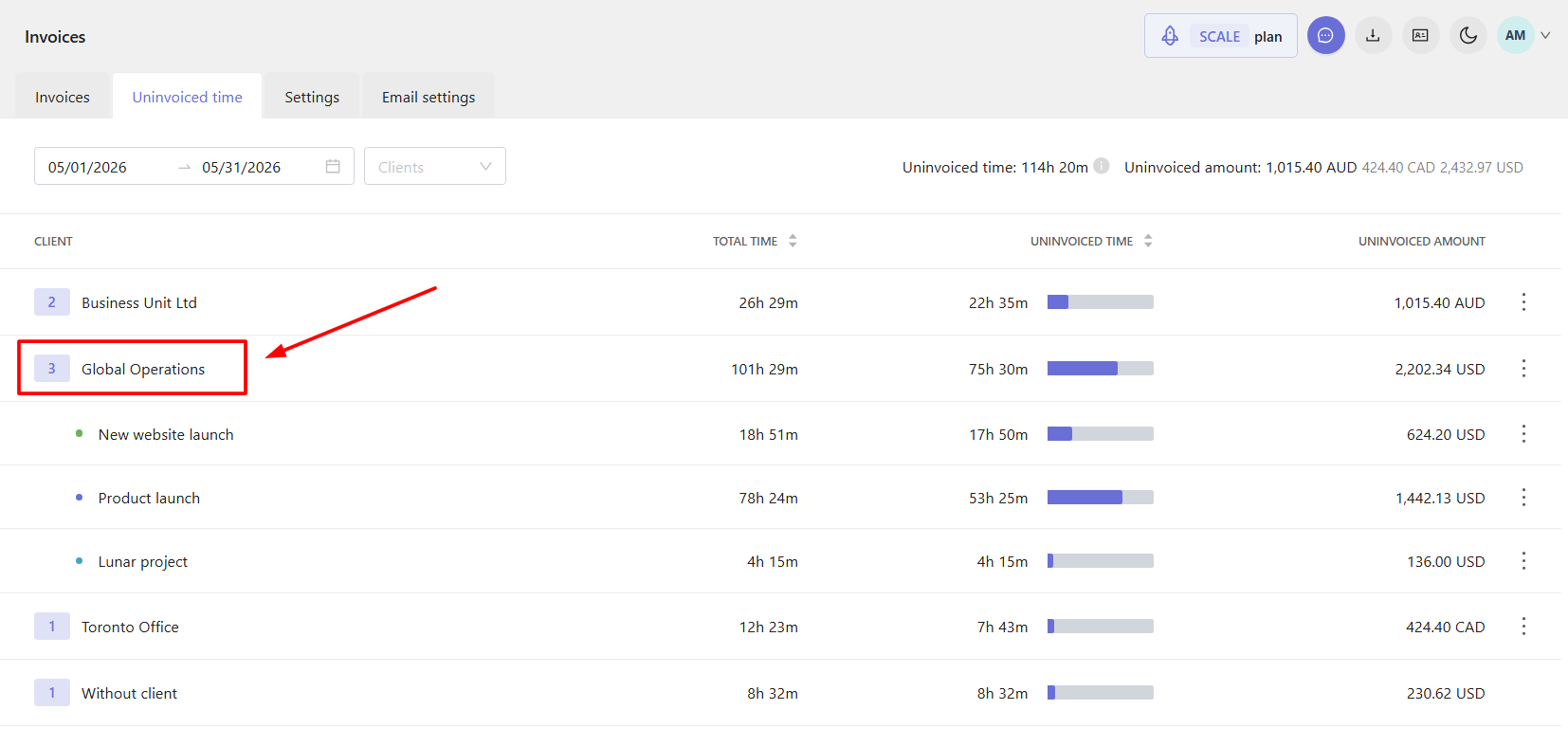
If a project with uninvoiced time is not associated with a client, it appears under Without client.

Note: You cannot create an invoice for projects under Without client. To invoice this time, first assign the projects to a client.
Filter uninvoiced time
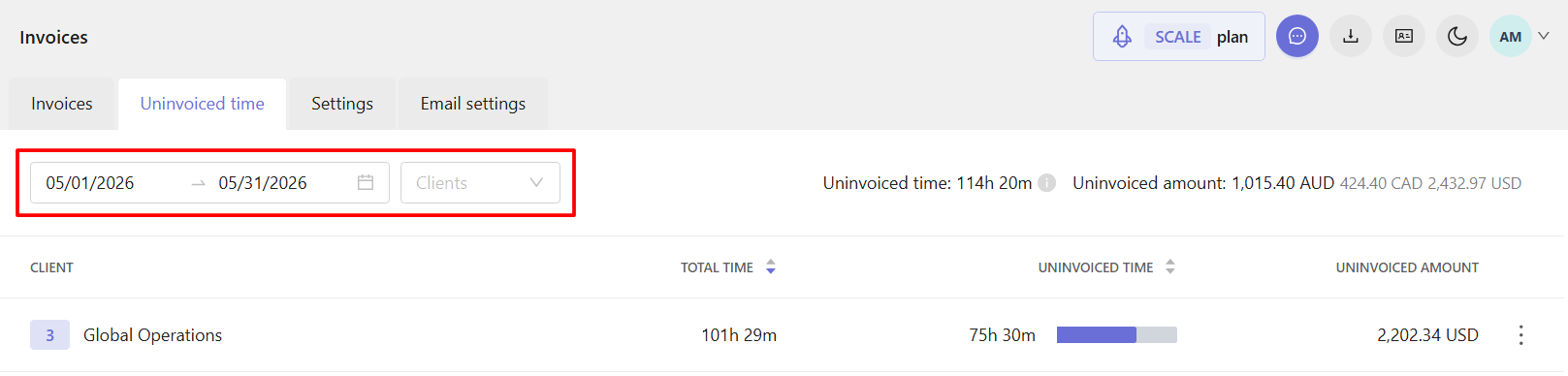
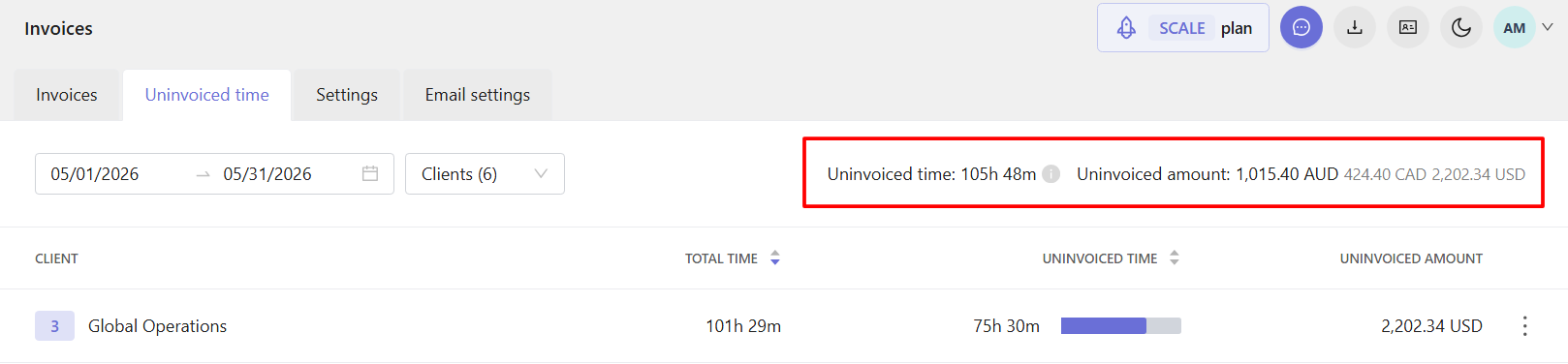
Use the filters in the top-left corner to select a date range and clients.
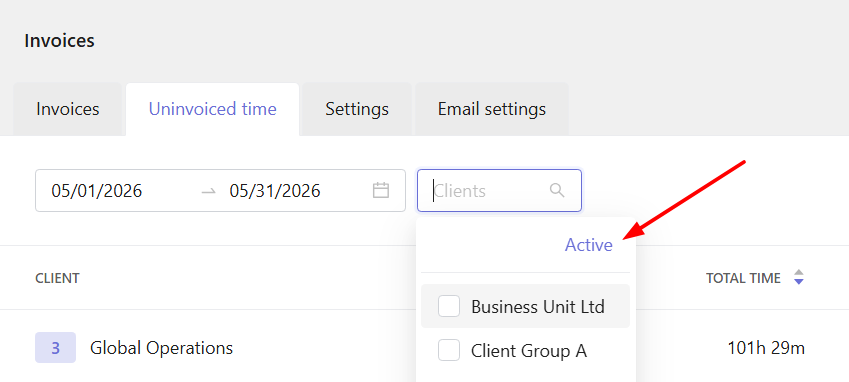
For clients, click Clients in the filters to open the client list. You can switch between Active, Archived, and All clients by clicking the current option above the list. The client list updates automatically based on your selection.
The top-right corner shows the total uninvoiced time and uninvoiced amount for the selected date range and clients.
Create an invoice
You can create an invoice directly from the Uninvoiced time report. Click the three-dot menu in the client's or project's row and select Create invoice.

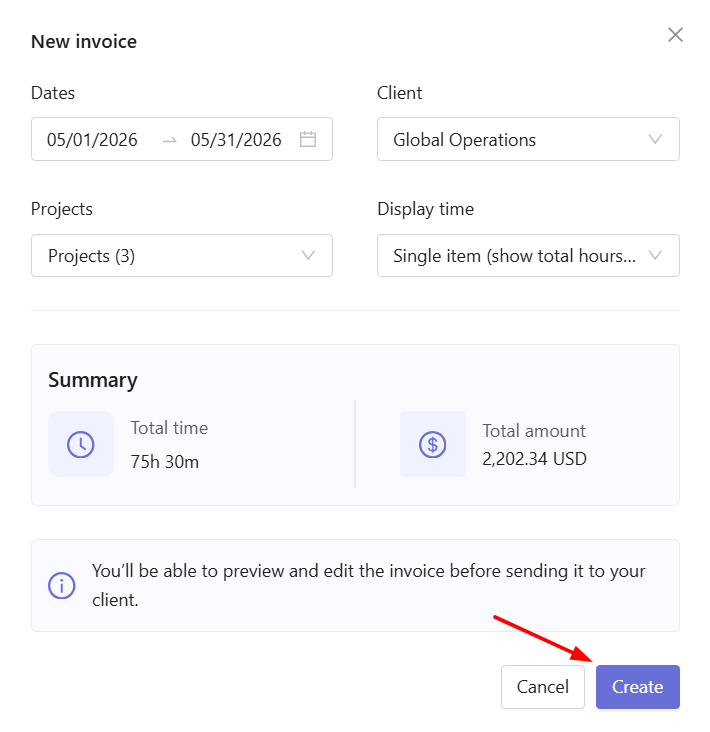
In the window that opens, select a client, projects, and a date range. You can also choose how time entries should be displayed on the invoice and view a summary of the total time and amount.
Click Create.
You will be taken to the invoice page, where you can configure the invoice details and add invoice items.
For more information about creating and managing invoices, see this article.