Work section
The Work section provides an overview of how tracked time is distributed across team members and projects. You can view current work, review time distribution by day or week, and understand how time is allocated across projects.
To open the Work section, select Work from the left sidebar.
Live tab
The Live tab shows what team members are currently working on.
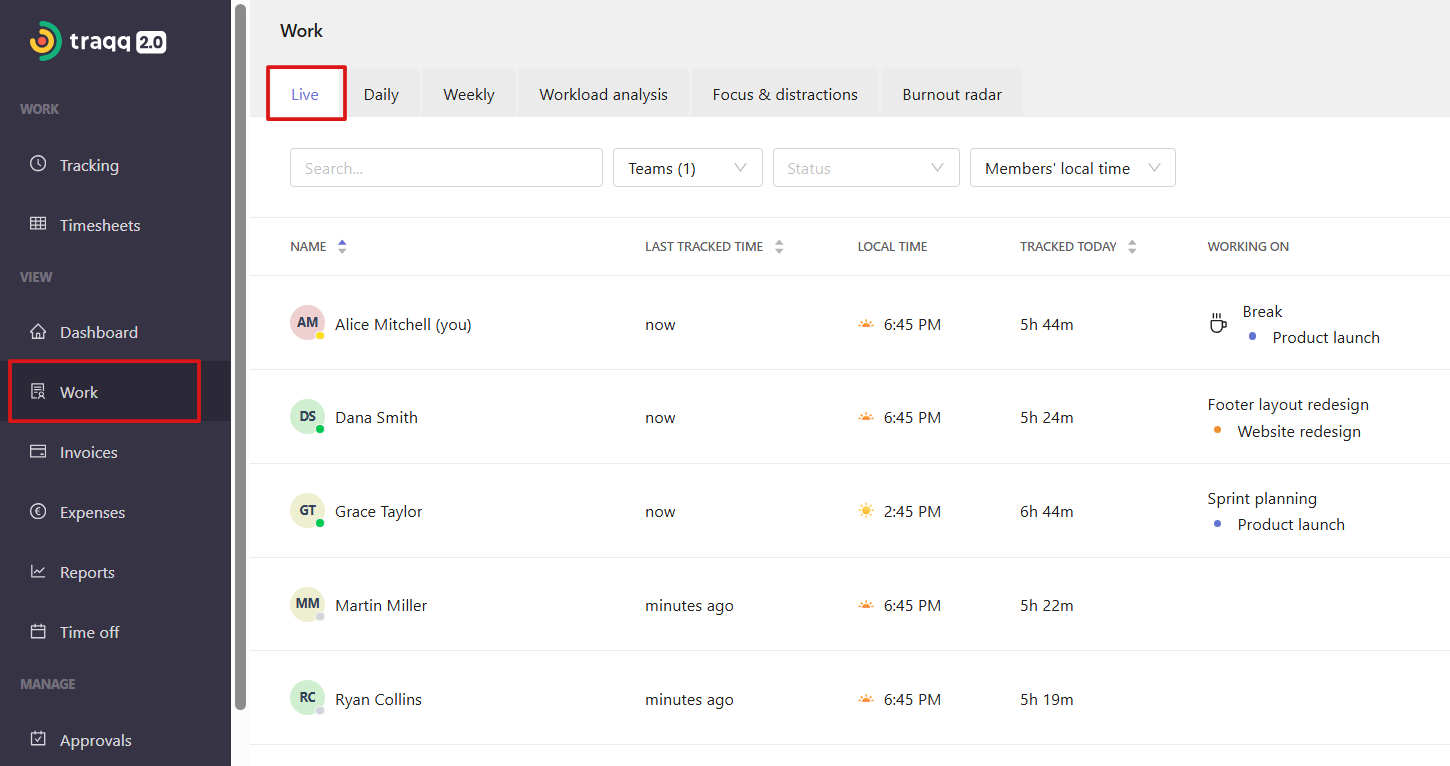
For each user, you can see:
Last tracked time — when the user last tracked time.
Local time — the user's local time.
Tracked today — the total time tracked for the current day.
Working on — the current task name and project.
A colored dot next to the user's profile picture shows their current status:
Green — the user is online.
Orange — the user is tracking time in break mode.
Gray — the user is offline.

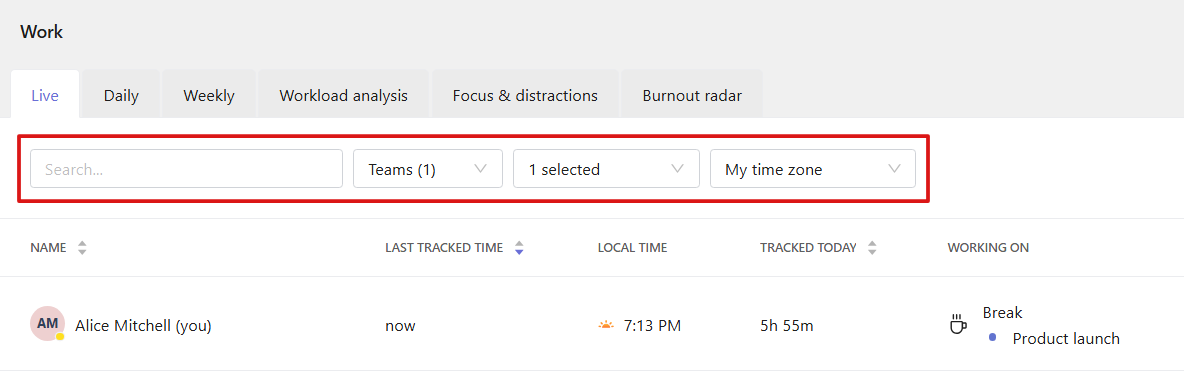
Use the search bar to find specific users, or filter the list by team and status (Online, Offline, Attended, Absent).
You can also switch between My time zone and Members' local time. The Tracked today value is recalculated based on the selected time zone, while other data remains unchanged.
Daily tab
The Daily tab shows how tracked time is distributed throughout the day for each user. You can search for specific users and filter results by team.
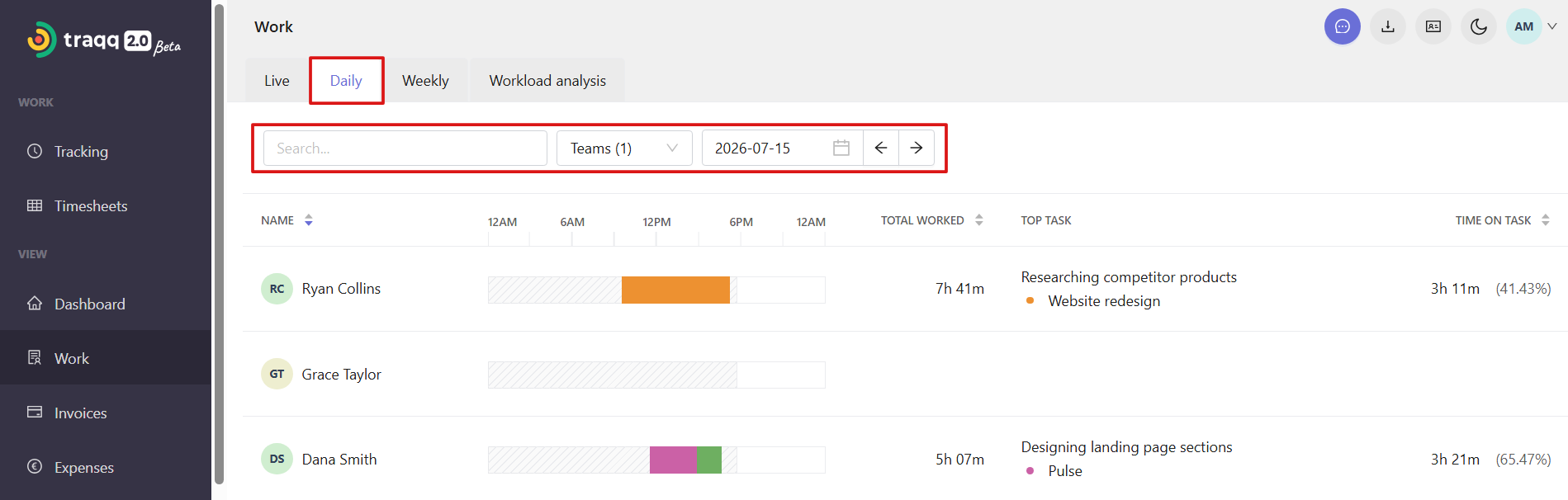
Each user has a timeline that displays time spent across different projects. Each project is displayed with the color selected in the project settings.
The timeline shows tracked time by project and does not measure activity levels or productivity.
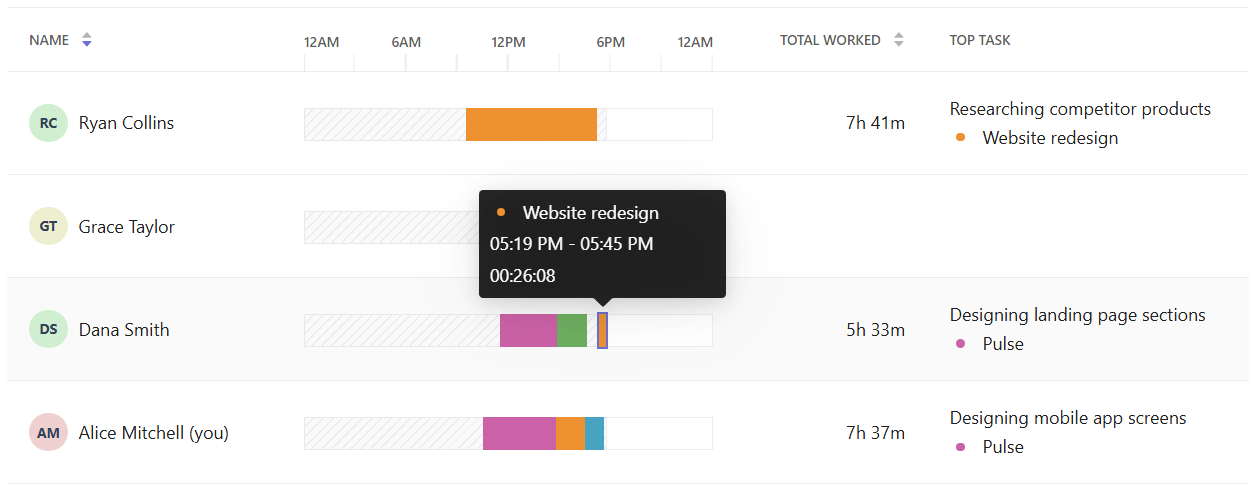
For each user, you can view:
- Total tracked time
- Top task
- Time spent on the top task (shown as time and percentage)
Weekly tab
The Weekly tab shows tracked time for each user across the selected week. You can search for specific users and filter results by team.
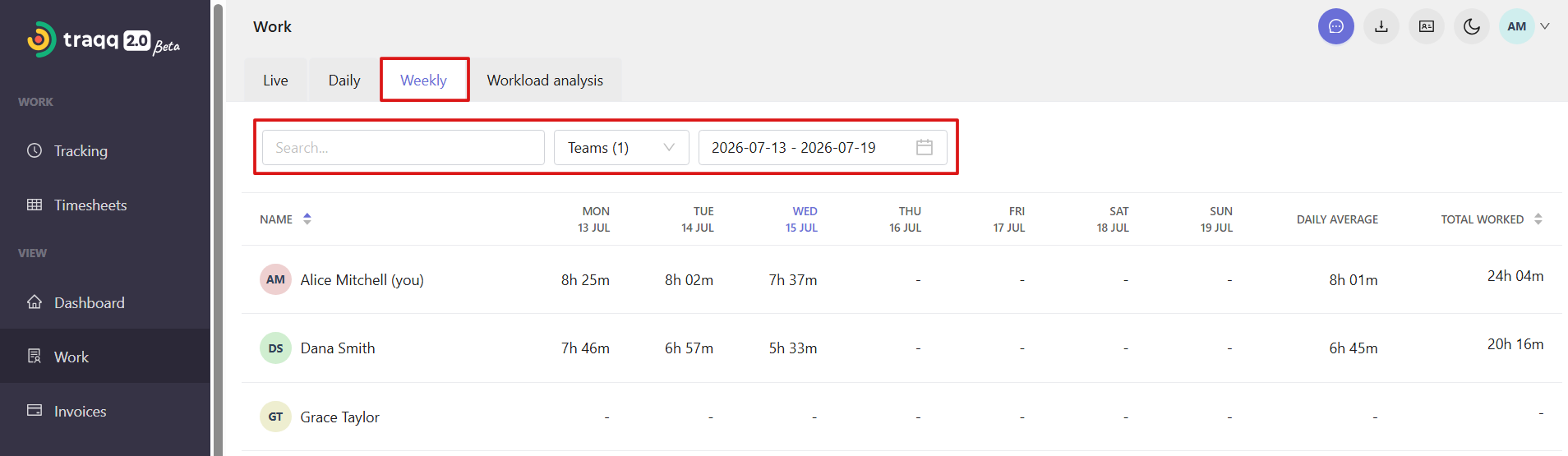
For each user, you can view:
- Tracked time for each day
- Daily average
- Total tracked time